
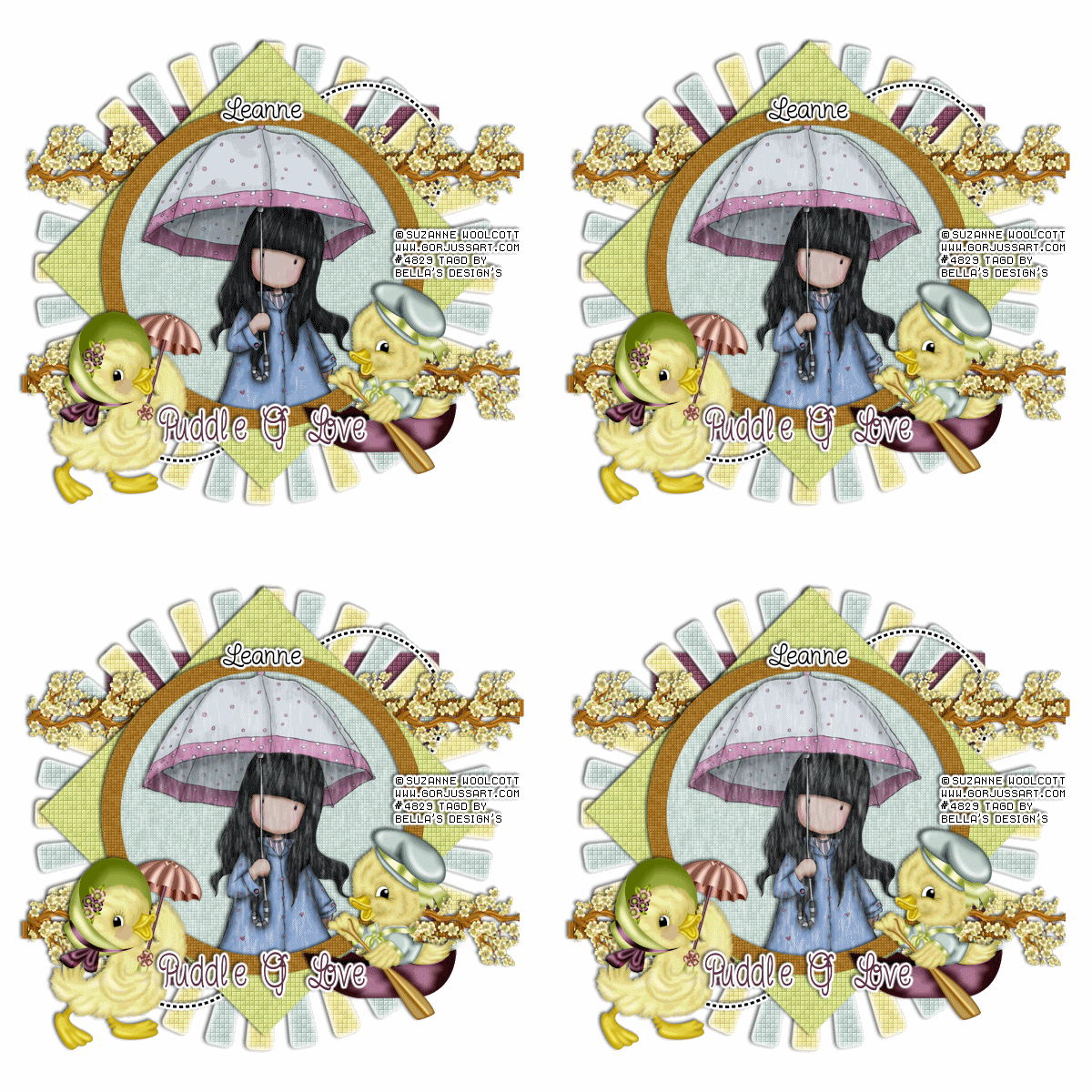
Scrapkit of choice. I used a PTU kit by Butterfly Kisses Scraps Called A Sunny Ducky Day, buy it at Whimsical Divas
I used the artwork of Suzanne Woolcott You have to be licensed to use this artwork and it can be purchased here
Plug-ins used:
Lokas Software - 3D Shadow
EyeCandy4000- gradient glow
xero: Fritillary
Mura - Meister Copie
VDL Adrenaline-Snowflakes
Template by Denz Designs template60 you can get here
Open up your template in psp
Duplicates (Shift+D) And Close out the original.
Delete Following:Stars Super Star and Denz Designz
1.Click on your Square back select all float and defloat add new layer flood #824b60 with apply Xero-Fritillary with these setting 5,30,25,9,Apply Lokas 3D Shadow with settings at B35, T60, Angles X,Y, and Z at 0, zoom 100, Offset X-Y by 5, Perspective at 35 color black
2.Open up your Sun copy and paste as new layer apply Xero: Fritillary with these settings: 5,30,25,9, Apply gradient Glow with these settings Fat White Line.Apply Lokas 3D Shadow with settings at B35, T60, Angles X,Y, and Z at 0, zoom 100, Offset X-Y by 5, Perspective at 35 color black
3.Click on your Dotted Circles Apply gradient Glow with these settings Fat White Line.Apply Lokas 3D Shadow with settings at B35, T60, Angles X,Y, and Z at 0, zoom 100, Offset X-Y by 5, Perspective at 35 color black
4.Click on your Strips Select all float defloat add new layer flood with #b06e18 Apply photoeffex-scanlines with these settings:1,2,20,10,0,0, vertical togger checked, Apply Lokas 3D Shadow with settings at B35, T60, Angles X,Y, and Z at 0, zoom 100, Offset X-Y by 5, Perspective at 35 color black.
5.Open up your Branch01 copy and paste as new layer resize 20% , Mura - Meister Copie with these settings Line,Wraparound Behind, Duplicates Image Flip , Merge Down Resize 90%,Apply Lokas 3D Shadow with settings at B35, T60, Angles X,Y, and Z at 0, zoom 100, Offset X-Y by 5, Perspective at 35 color black
6.Click on your Diamond Shape select all float and defloat add new layer flood with #d0dd85,apply Xero: Fritillary with these settings: 5,30,25,9, .Apply Lokas 3D Shadow with settings at B35, T60, Angles X,Y, and Z at 0, zoom 100, Offset X-Y by 5, Perspective at 35 color black
7.Click on your Circle Back select all float defloat add new layer flood with apply Xero: Fritillary with these settings: 5,30,15,9,
8.Open up your tube copy and paste as new layer selections invert delete
9.Click on your circle frame select all float and defloat add new layer flood with #a57529 apply Xero: Fritillary with these settings: 3,30,15,9, .Apply Lokas 3D Shadow with settings at B35, T60, Angles X,Y, and Z at 0, zoom 100, Offset X-Y by 5, Perspective at 35 color black
10.Open up your Duckie01 & Duckie02 copy and paste as new layer resize 40% Apply Lokas 3D Shadow with settings at B35, T60, Angles X,Y, and Z at 0, zoom 100, Offset X-Y by 5, Perspective at 35 color black
11.Take your Text And Write out Puddle Of Love
Go Back To your Circle Back Select all float defloat Click on your laste raster and Apply Snowflake with these settings 98,0,15,48,0,Color White Below and add 3 raster and On first blank layer, click Effects-Plugins-VDL Adrenaline-Snowflakes and use these settings: Next blank up, Snowflakes again and only change the random to 8, next blank up Snowflakes again and only change random to 12,
next blank up Snowflakes again and change random to 16. Keep selected. On first snow layer, click Adjust-Blur-Motion Blur with these settings: Angle 0, Strength 24.Next layer up blur again and change strength to 28, Next layer up blur again and change strength to 32, Next layer up blur again and change strength to 36.
Deselect. Close off visibility of top 3 snowflake layers.
Add your copyright info and your watermark/logo
Your layer palette should have all of the tag visible with only one animated layer showing,
the other ones should have red Xs showing they are not visible.
Click Edit-Copy Merged, go into Animation Shop and click Edit-Paste-As New Animation.
Then back in PSP, close visibility on the first animated layer and open visibility on the next animated layer,
again Click Edit-Copy Merged, then go into Animation Shop and right click on the image you just pasted there and
choose Paste-After Current Frame. Repeat this for each animated layer and making sure each time in Animation Shop that you paste the new copy after the last frame
of the image there
Save as a .gif image
I hope you enjoyed my tutorial and come visit again real soon!
No comments:
Post a Comment