Showing posts with label Designs By Stina. Show all posts

Sunday, 19 August 2012

♥Spring Teeter♥


This tutorial was written by me on August 19, 2012. Any resemblance to any other tutorial is pure coincidence.
Please DO NOT claim this tutorial as your own or post it to any other blog or website without permission from me.
It was written for PSP X, but should be compatible with any version of PSP.
I wrote it assuming that you have a working knowledge of PSP and it's components.

Scrapkit of choice: I used a PTU kit by DesignedByStina Called Spring Delight (Full Size) buy it here 
and her blog here
         I'm using the amazing artwork of Pinuptoons You can purchase a license for this tube here

Mask of choice: I use mask from Monti Circle Mask here

Template of Choice i use template from Stef and Crys they did together you can get here

Plug-ins used:
Lokas Software - 3D Shadow
EyeCandy4000- gradient glow
xero: Fritillary
Photoeffex scanlines


Let Start

Open up the template.
Shift + D.
Close out the original.
Delete following: © layer and wordart and Text
Sent your small rectangle 2 and 3 to bottom
Image/Canvas Size:700x700

1.Click on your small rectangle2 and small rectangle3 and small rectangle select all float defloat modify expand by 2 smooth 5,5 add new layer flood with
#81a0ce Photoeffex scranlines with these setting 2,2,20,10,2,2, Vertical toggle checked Give it a drop shadow of H 0, V 0, Opacity 65, Blur 8.00.

2.Click on your Glitter Circle select all float defloat modify expand by 2 smooth 5,5 add new layer flood with #d8d88e,Apply Xero-Fritillary with these setting 5,30,25,9,
Gradient Glow fat white line Give it a drop shadow of H 0, V 0, Opacity 65, Blur 8.00.

3.Click on your Circle select all float defloat modify expand by 2 smooth 5,5 add new layer flood with #adcbe7,Apply Xero-Fritillary with these setting 5,30,25,9,
Give it a drop shadow of H 0, V 0, Opacity 65, Blur 8.00.

4.Open up your DBS_Foilage02 copy and paste as new layer resize 30%x2, Give it a drop shadow of H 0, V 0, Opacity 65, Blur 8.00. Duplcates merge down together
Duplicates again Image Mirror

5.Open up your DBS_net copy and paste as new layer resize 30%x2,Duplicates again Image Mirror Give it a drop shadow of H 0, V 0, Opacity 65, Blur 8.00.

6.Click on your left rectangle And right rectangle select all float defloat modify expand by 2 smooth 5,5 add new layer flood with #adcbe7,Apply Xero-Fritillary with these setting 5,30,25,9,
Give it a drop shadow of H 0, V 0, Opacity 65, Blur 8.00.

7.Click on your Left Frame and Right Frame select all float defloat modify expand by 2 smooth 5,5 add new layer flood with #81a0ce,Apply Xero-Fritillary with these setting 5,30,25,9,
Gradient Glow fat white line Give it a drop shadow of H 0, V 0, Opacity 65, Blur 8.00.

8.Open up your DBS_SpringFlowers02 copy and paste as new layer resize 30%x2, Give it a drop shadow of H 0, V 0, Opacity 65, Blur 8.00. Duplcates merge down together
Duplicates again Image Mirror

9.Open up your DBS_RusticTwigBow05 copy and paste as new layer resize 30%x2,Give it a drop shadow of H 0, V 0, Opacity 65, Blur 8.00.

10.Open up your DBS_Bike copy and paste as new layer resize 30%x2,Give it a drop shadow of H 0, V 0, Opacity 65, Blur 8.00.

11.Open up your DBS_BIrd copy and paste as new layer resize 30%x2,Give it a drop shadow of H 0, V 0, Opacity 65, Blur 8.00.

12.Open up your Tube , Go inside your Frames select all float defloat selections invert,Give it a drop shadow of H 0, V 0, Opacity 65, Blur 8.00 Change blend mode too Luminance(L)

13.Open up your Tube again copy and paste as new layer Give it a drop shadow of H 0, V 0, Opacity 65, Blur 8.00

Take your Text tool and Write Spring Teeter, Gradient Glow fat white line,Give it a drop shadow of H 0, V 0, Opacity 65, Blur 8.00


Photobucket

Saturday, 14 July 2012

♥Beachside♥


This tutorial was written by me on July 14, 2012. Any resemblance to any other tutorial is pure coincidence.
Please DO NOT claim this tutorial as your own or post it to any other blog or website without permission from me. It was written for PSP X, but should be compatible with any version of PSP.
I wrote it assuming that you have a working knowledge of PSP and it's components.


Scrapkit of choice. I used a PTU kit by DesignedByStina Called BeachsideRetreat (Full Size) buy it at here


I'm using the artwork of ELLIE_MILK over at PFD HERE


Plugins:

Xero Filters - Illustrator

Penta Filters - VTR2 & Dot and Cross

Image of choice. I got mine from www.scx.hu.
My Template 9 you can get here


1.Click on your Middle Rectangle . select all float defloat selections modify expand by 1, selections modify feather by 2 add new layer Flood with
#5f93c5 Add new layer Flood with your Image Duplicates Top layer Apply Xero Filters - Illustrator with the following settings: 137,88,203,Change the blend mode of the layer to Multiply.
Highlight the bottom photo layer and apply Penta Filters - VTR2 with the following settings: 4,11,233,0 Give the layer a drop shadow of H and V 0, Opacity 65, Blur 8.00


2.Click on your Right Rectangle . select all float defloat selections modify expand by 1, selections modify feather by 2 add new layer Flood with
#5f93c5 Add new layer Flood with your Image Duplicates Top layer Apply Xero Filters - Illustrator with the following settings: 137,88,203,Change the blend mode of the layer to Multiply.
Highlight the bottom photo layer and apply Penta Filters - VTR2 with the following settings: 4,11,233,0 Give the layer a drop shadow of H and V 0, Opacity 65, Blur 8.00


3.Click on your left Rectangle . select all float defloat selections modify expand by 1, selections modify feather by 2 add new layer Flood with
#5f93c5 Add new layer Flood with your Image Duplicates Top layer Apply Xero Filters - Illustrator with the following settings: 137,88,203,Change the blend mode of the layer to Multiply.
Highlight the bottom photo layer and apply Penta Filters - VTR2 with the following settings: 4,11,233,0 Give the layer a drop shadow of H and V 0, Opacity 65, Blur 8.00


4.Click on your Middle Frame,left frame and Right frame . select all float defloat selections modify expand by 1, selections modify feather by 2 add new layer Flood with #5f93c5 Apply Penta - Dot and Cross
72,10,2 Give the layer a drop shadow of H and V 0, Opacity 65, Blur 8.00


5.OPen up your DBS_Net02 copy and paste as new layer resize 80%,Give the layer a drop shadow of H and V 0, Opacity 65, Blur 8.00


6.Open up your Tube copy and paste as new layer resize 60%x3 Give the layer a drop shadow of H and V 0, Opacity 65, Blur 8.00


7.Open up your DBS_Floral07 copy and paste as new layer resize 50% Duplicates Image Mirror,Give the layer a drop shadow of H and V 0, Opacity 65, Blur 8.00


8.Open up your DBS_Lavendar copy and paste as new layer resize 50% Give the layer a drop shadow of H and V 0, Opacity 65, Blur 8.00



Photobucket

Saturday, 9 June 2012

♥Razzle Dazzle♥


This tutorial was written by me on June 9, 2012. Any resemblance to any other tutorial is pure coincidence.Please DO NOT claim this tutorial as your own or post it to any other blog or website without permission from me.It was written for PSP X, but should be compatible with any version of PSP.I wrote it assuming that you have a working knowledge of PSP and it's components.


Scrapkit of choice. I used a PTU kit by DesignedByStina called

Razzle Dazzle (Full Size)you can get here


I used the artwork of Keith Garvey You have to be
licensed to use this artwork and it can be purchased here


Open New Canvas by 700x700


1.Open up your DBS_Music03 copy and paste as new layer resize 60%


2.Open up your DBS_Frame03 copy and paste as new layer,Take your magic wand
click inside expand by 5, add new layer layer flood with your DBS_Paper01,
Open up your Tube Copy and paste as new layer resize 60%,
Apply Xero porcelain set at 50/128/128/0/0/255,On the duplicated tube layer, adjust, blur, Gaussian Blur set to 5
Layers, properties, change blend mode to screen and lower the opacity to about 70
DropShadow..Vertical & Horizontal 0, Opacity 60, Blur 10, Shadow on new layer - unchecked


3.Open up your DBS_Mirror02 copy and paste as new layer resize 70%, Take your magic wand
click inside add new layer flood with DBS_Paper03 and copy and paste your tube into selections,
Merge layer down Duplicates Image Mirror,


4.Go Back to your frame layer Duplicates
on the original gaussian blur 15 texture effects Mosiac antique default settings give top layer drop shadow


5.Open up your DBS_MetallicFlute01 copy and paste as new layer resize 60%,
DropShadow..Vertical & Horizontal 0, Opacity 60, Blur 10, Shadow on new layer - unchecked


5.Open up your DBS_Heart01 copy and paste as new layer resize 60%,
DropShadow..Vertical & Horizontal 0, Opacity 60, Blur 10, Shadow on new layer - unchecked


5.Open up your DBS_Flowers01 copy and paste as new layer resize 50%,
DropShadow..Vertical & Horizontal 0, Opacity 60, Blur 10, Shadow on new layer - unchecked


Photobucket

Friday, 18 May 2012

♥Fairy Tales Friends♥

Photobucket


This tutorial was written by me on May 18, 2012. Any resemblance to any other tutorial is pure coincidence.

Please DO NOT claim this tutorial as your own or post it to any other blog or website without permission from me. It was written for PSP X, but should be compatible with any version of PSP.

I wrote it assuming that you have a working knowledge of PSP and it's components.


crapkit of choice. I used a PTU kit by DesignedByStina Called Finding Neverland (Full Size) buy it at here


I used the artwork of Suzanne Woocott You have to be licensed to use this artwork and it can be purchased here


TracyF.Designz-Template31.pspimage This template i use you can get here


Plug-ins used:
EyeCandy4000- gradient glow
xero: Fritillary
Penta.com - Dot and Cross


1.Click on your Rectangle select all float defloat

Add new Layer flood with #c5a1dd Apply xero: Fritillary with

these settings: 5,55,11,17,

Apply penta.com Dot and Cross. Settings:

Amount = 255. Cross Distance = 10. Cross width = 5,

Apply Gradient Glow Fat What Line,and


2.Open up your DBS_FairyLights copy and paste as new layer resize 60%

selections Invert edit cut,Duplicates 2 times total

Go to your middle one and apply Adjust Brightness Contrast Brightness/Contrast with the following settings:
Brightness:40 Contrast:0 come back to this when it time to ANIMATE


3.Open up your DBS_tree01 copy and paste as new layer resize 60%

Duplicates Image Mirror


4.Click on your Strip1 select all float defloat

Add new Layer flood with #c5a1dd Apply xero: Fritillary with

these settings: 5,55,11,17,

Apply penta.com Dot and Cross. Settings:

Amount = 255. Cross Distance = 10. Cross width = 5,

Apply Gradient Glow Fat What Line,and


5.Click on your Strip2 select all float defloat

Add new Layer flood with #c5a1dd Apply xero: Fritillary with

these settings: 5,55,11,17,

Apply penta.com Dot and Cross. Settings:

Amount = 255. Cross Distance = 10. Cross width = 5,

Apply Gradient Glow Fat What Line,


6.Click on your Square select all float defloat

Open up your Tube copy and paste as new layer
selections invert edit cut,Duplicate, on the bottom tube layer

I changed the blend Mode to Screen and on the top tube layer I used Hard Light

and changed the Opacity to 50. Do the same thing for the other


7.Click on your Square select all float defloat

Add new Layer flood with #735280


8.Click on your Frames select all float defloat

Add new Layer flood with #c5a1dd Apply xero: Fritillary with

these settings: 5,55,11,17,

Apply penta.com Dot and Cross. Settings:

Amount = 255. Cross Distance = 10. Cross width = 5,

Apply Gradient Glow Fat What Line,and

Effect 3D Effects dropshadow with these settings: V-H:0 Opacity:50 Blur:8.00 color:Black


9.Open up your DBS_Flower04 & DBS_Flower02 copy and paste

as new layer resize 40%x2 Duplicates Image Mirror


10.Open up your DBS_FlutterbyGlow Take your Freehand

Circle on of flutterbyglow and cut copy and paste as new layer

Effect 3D Effects dropshadow with these settings: V-H:0 Opacity:50 Blur:8.00 color:Black


Take your Text any font will work i use was AKApprique Black i wrote out Fairy Tales Friends


Add your copyright info and your watermark/logo


~*~Ready for Anmations Shop~*~


our layer palette should have all of the tag visible with only one animated layer showing,

the other ones should have red Xs showing they are not visible.

Click Edit-Copy Merged, go into Animation Shop and click Edit-Paste-As New Animation.

Then back in PSP, close visibility on the first animated layer and open visibility on the next animated layer,

again Click Edit-Copy Merged, then go into Animation Shop and right click on the image you just pasted there and

choose Paste-After Current Frame. Repeat this for each animated layer and making sure each time in Animation Shop that you paste the new copy after the last frame

of the image there

Save as a .gif image


Photobucket

Tuesday, 24 April 2012

♥SpringLove♥

This tutorial was written by me on April 24, 2012. Any resemblance to any other tutorial is pure coincidence. Please DO NOT claim this tutorial as your own or post it to any other blog or website without permission from me. It was written for PSP X, but should be compatible with any version of PSP. I wrote it assuming that you have a working knowledge of PSP and it's components.


Scrapkit of choice. I used a PTU kit by DesignedByStina Called HopeSpringsEternal buy it at here


I used the artwork of Suzanne Woocott You have to be licensed to use this artwork and it can be purchased here

Yvette_EOC_Template32.pspimage this template i use you can get here
Plug-ins needed:
Lokas Software - 3D Shadow
DSB-Flux:Bright Noise


1.Click on your Raster1 select all float defloat add new layer flood with #abb533,Apply xero: Fritillary with these settings: 3,30,10,20,Apply Gradient Fat White line,Apply Lokas 3D Shadow with settings at B35, T60, Angles X,Y, and Z at 0, zoom 100, Offset X-Y by 5, Perspective at 35 color black.


2.Click on your Raster2 select all float defloat add new layer flood with #abb533,Apply xero: Fritillary with these settings: 3,30,10,20,Apply Gradient Fat White line,Apply Lokas 3D Shadow with settings at B35, T60, Angles X,Y, and Z at 0, zoom 100, Offset X-Y by 5, Perspective at 35 color black.


3.Click on your Raster3 select all float defloat add new layer flood with #abb533,Apply xero: Fritillary with these settings: 3,30,10,20,Apply Gradient Fat White line,Apply Lokas 3D Shadow with settings at B35, T60, Angles X,Y, and Z at 0, zoom 100, Offset X-Y by 5, Perspective at 35 color black.


4.Click on your Raster4 select all float defloat add new layer flood with #7fc6bd,Apply xero: Fritillary with these settings: 3,30,10,20,Apply Gradient Fat White line,Apply Lokas 3D Shadow with settings at B35, T60, Angles X,Y, and Z at 0, zoom 100, Offset X-Y by 5, Perspective at 35 color black.


5.Click on your Raster5 select all float defloat add new layer flood with #7fc6bd,Apply xero: Fritillary with these settings: 3,30,10,20,Apply Gradient Fat White line,Apply Lokas 3D Shadow with settings at B35, T60, Angles X,Y, and Z at 0, zoom 100, Offset X-Y by 5, Perspective at 35 color black.


6.Open up your DBS_Frame02 copy and paste as new layer resize 50%x2,Take your magic wand click inside add new layer flood with DBS_Paper04,Apply xero: Fritillary with these settings: 6,30,23,15,Apply Lokas 3D Shadow with settings at B35, T60, Angles X,Y, and Z at 0, zoom 100, Offset X-Y by 5, Perspective at 35 color black. Sent to bottom


7.Open up your Tube copy and paste as new layer ,Apply Lokas 3D Shadow with settings at B35, T60, Angles X,Y, and Z at 0, zoom 100, Offset X-Y by 5, Perspective at 35 color black.


8.Open up your DBS_flowers05 copy and paste as new layer resize 50%x2 take your selections tool and draw rectangle bottom of your flowers and cut what hanging from your flowers,Duplicates Image Mirror,Apply Lokas 3D Shadow with settings at B35, T60, Angles X,Y, and Z at 0, zoom 100, Offset X-Y by 5, Perspective at 35 color black.


9.Open up your DBS_flowers05 Image Rotate to left copy and paste as new layer resize 50%x2,selections tool and draw rectangle bottom of your flowers and cut what hanging from your flowers,Duplicates Image Mirror,Apply Lokas 3D Shadow with settings at B35, T60, Angles X,Y, and Z at 0, zoom 100, Offset X-Y by 5, Perspective at 35 color black.


Add any copyrights and your name.


I hope you enjoyed my tutorial and come visit again real soon!


~*~*~Open animation~*~*~


Copy merged. Open up Animation Shop. Paste as a new animation in AS. Back in PSP. go to Edit


Go to Your DBS_Frame02 apply BrightNoise with these setting Intensity:33,Directions:Mix,Merge Layer Copy and paste in Animation Shop,paste after current layer


Undo BrightNoise Apply BrightNoise again but hit the random seed button. Copy merged and paste after the first frame in AS.


Repeat the above stop one more time so you have a total of 3 frames. Select all frames (CTRL+A) Change the frame properties to 13.


Optimize and save as GIF.


Friday, 30 March 2012

♥SeaTurtle♥


This tutorial was written by me on March 30, 2012. Any resemblance to any other tutorial is pure coincidence. Please DO NOT claim this tutorial as your own or post it to any other blog or website without permission from me. It was written for PSP X, but should be compatible with any version of PSP. I wrote it assuming that you have a working knowledge of PSP and it's components


Scrapkit of choice: I used a PTU kit by DesignedByStina Called DolphinDreams buy it here

I used the artwork of PinupToon You have to be licensed to use this artwork and it can be purchased here

Plug-ins used:
Lokas Software - 3D Shadow
EyeCandy4000- gradient glow
xero: Fritillary
Anmations Shop
Tag Template by me #8 you can get here

1.Click on your Circle1 select all float defloat add new layer flood with #a1dadd,apply Xero-Fritillary with these setting 5,30,29,8 gradient glow fat white line,Apply Lokas 3D Shadow with settings at B35, T60, Angles X,Y, and Z at 0, zoom 100, Offset X-Y by 5, Perspective at 35 color black.


2.Click on your big circle select all float defloat add new layer flood with #a1dadd,apply Xero-Fritillary with these setting 5,30,29,8 gradient glow fat white line,Apply Lokas 3D Shadow with settings at B35, T60, Angles X,Y, and Z at 0, zoom 100, Offset X-Y by 5, Perspective at 35 color black.


3.Click on your Thin rectangle select all float defloat add new layer flood with #216592,apply Xero-Fritillary with these setting 5,30,29,8 gradient glow fat white line,Apply Lokas 3D Shadow with settings at B35, T60, Angles X,Y, and Z at 0, zoom 100, Offset X-Y by 5, Perspective at 35 color black.


4.Click on your Thin long rectangle select all float defloat add new layer flood with #216592,apply Xero-Fritillary with these setting 5,30,29,8 gradient glow fat white line,Apply Lokas 3D Shadow with settings at B35, T60, Angles X,Y, and Z at 0, zoom 100, Offset X-Y by 5, Perspective at 35 color black.


5.Click on your Brownrectangle select all float defloat add new layer flood with #a1dadd,apply Xero-Fritillary with these setting 5,30,29,8 gradient glow fat white line,Apply Lokas 3D Shadow with settings at B35, T60, Angles X,Y, and Z at 0, zoom 100, Offset X-Y by 5, Perspective at 35 color black.


6.Click on your middle rectangle select all float defloat add new layer flood with #388894,apply Xero-Fritillary with these setting 5,30,29,8 gradient glow fat white line,Apply Lokas 3D Shadow with settings at B35, T60, Angles X,Y, and Z at 0, zoom 100, Offset X-Y by 5, Perspective at 35 color black.


6.Click on your border select all float defloat add new layer flood with #216592,apply Xero-Fritillary with these setting 5,30,29,8 gradient glow fat white line,Apply Lokas 3D Shadow with settings at B35, T60, Angles X,Y, and Z at 0, zoom 100, Offset X-Y by 5, Perspective at 35 color black.


7.Go back to your middle rectangle select all float defloat, open up your DBS_Underwater01 copy and paste as new layer resize 60%, move over bit then selections invert delete on your keybroad, select none, duplicates image,,Apply Lokas 3D Shadow with settings at B35, T60, Angles X,Y, and Z at 0, zoom 100, Offset X-Y by 5, Perspective at 35 color black.


8.Open up your DBS_Seaweed copy and paste as new layer resize 50%,move down under your DBS_Underwater01 layer, Duplicates Image Mirror,Apply Lokas 3D Shadow with settings at B35, T60, Angles X,Y, and Z at 0, zoom 100, Offset X-Y by 5, Perspective at 35 color black.


9.Open up your DBS_SeaTurtle copy and paste as new layer resize 40%,Apply Lokas 3D Shadow with settings at B35, T60, Angles X,Y, and Z at 0, zoom 100, Offset X-Y by 5, Perspective at 35 color black.


10.Take your rectangle make rectangle inside your middle layer,add new layer Alien Skin Eye candy 5 - Impact - Glass with these setting factory default setting,Change blend mode to overlay,Add 4 raster layers below it,On all 4 add Effects - Artistic Effects - Balls and Bubbles with these settings, Automatic Multiple balls or bubbles checked,Coverage:30 Average Size:0 Size vaniation:80,Balls or Bubbles type: Non-instersecting,Just change the Seed slider for the next 3 :) Deselect


11.Open up your DBS_Bottle02 copy and paste as new layer resize 50%,Apply Lokas 3D Shadow with settings at B35, T60, Angles X,Y, and Z at 0, zoom 100, Offset X-Y by 5, Perspective at 35 color black


12.OPen up your Tube copy and paste as new layer resize 80%,Apply Lokas 3D Shadow with settings at B35, T60, Angles X,Y, and Z at 0, zoom 100, Offset X-Y by 5, Perspective at 35 color black


13.OPen up your DBS_Deco02, copy and paste as new layer, duplicates image mirror,Apply Lokas 3D Shadow with settings at B35, T60, Angles X,Y, and Z at 0, zoom 100, Offset X-Y by 5, Perspective at 35 color black


Add your copyright info and your watermark/logo


~*~Ready for Anmations Shop~*~


Your layer palette should have all of the tag visible with only one animated layer showing,
the other ones should have red Xs showing they are not visible.
Click Edit-Copy Merged, go into Animation Shop and click Edit-Paste-As New Animation.
Then back in PSP, close visibility on the first animated layer and open visibility on the next animated layer,
again Click Edit-Copy Merged, then go into Animation Shop and right click on the image you just pasted there and
choose Paste-After Current Frame. Repeat this for each animated layer and making sure each time in Animation Shop that you paste the new copy after the last frame
of the image there


Save as a .gif image


I Hope you Enjoy my tutorial and come visit again real soon!

Tuesday, 20 March 2012

♥BeingPretty♥

Photobucket


This tutorial was written by me on March 20, 2012. Any resemblance to any other tutorial is pure coincidence. Please DO NOT claim this tutorial as your own or post it to any other blog or website without permission from me. It was written for PSP X, but should be compatible with any version of PSP. I wrote it assuming that you have a working knowledge of PSP and it's components.


Scrapkit of choice. I used a PTU kit by DesignedByStina Called EveningSunset at purchased here


I used the artwork of Keith Garvey You have to be licensed to use this artwork and it can be purchased here


Plug-ins used:
Lokas Software - 3D Shadow
EyeCandy4000- gradient glow
photoeffex-scanlines
Anmations Shop


Open a new canvas 700x700 Transparent


1.Open up your DBS_Frame10 copy and paste as new layer resize 80%,take your magic wand click inside modify expand by 5 add new layer flood with DBS_Paper08,apply photoeffex-scanlines with these settings, 2,2,20,10,2,2 vertical toggle checked,
Give your frame layer Apply Lokas 3D Shadow with settings at B35, T60, Angles X,Y, and Z at 0, zoom 100, Offset X-Y by 5, Perspective at 35 color black


2.Open up your DBS_Wrap03 copy and paste as new layer resize 60% move down close to your bottom of your frame,Apply Lokas 3D Shadow with settings at B35, T60, Angles X,Y, and Z at 0, zoom 100, Offset X-Y by 5, Perspective at 35 color black


4.Open up your Tube Copy and paste as new layer resize 80% sharpen then duplicate then Gaussian Blur 2 then change blend mode to soft light.merge down, then changle blend mode to normal


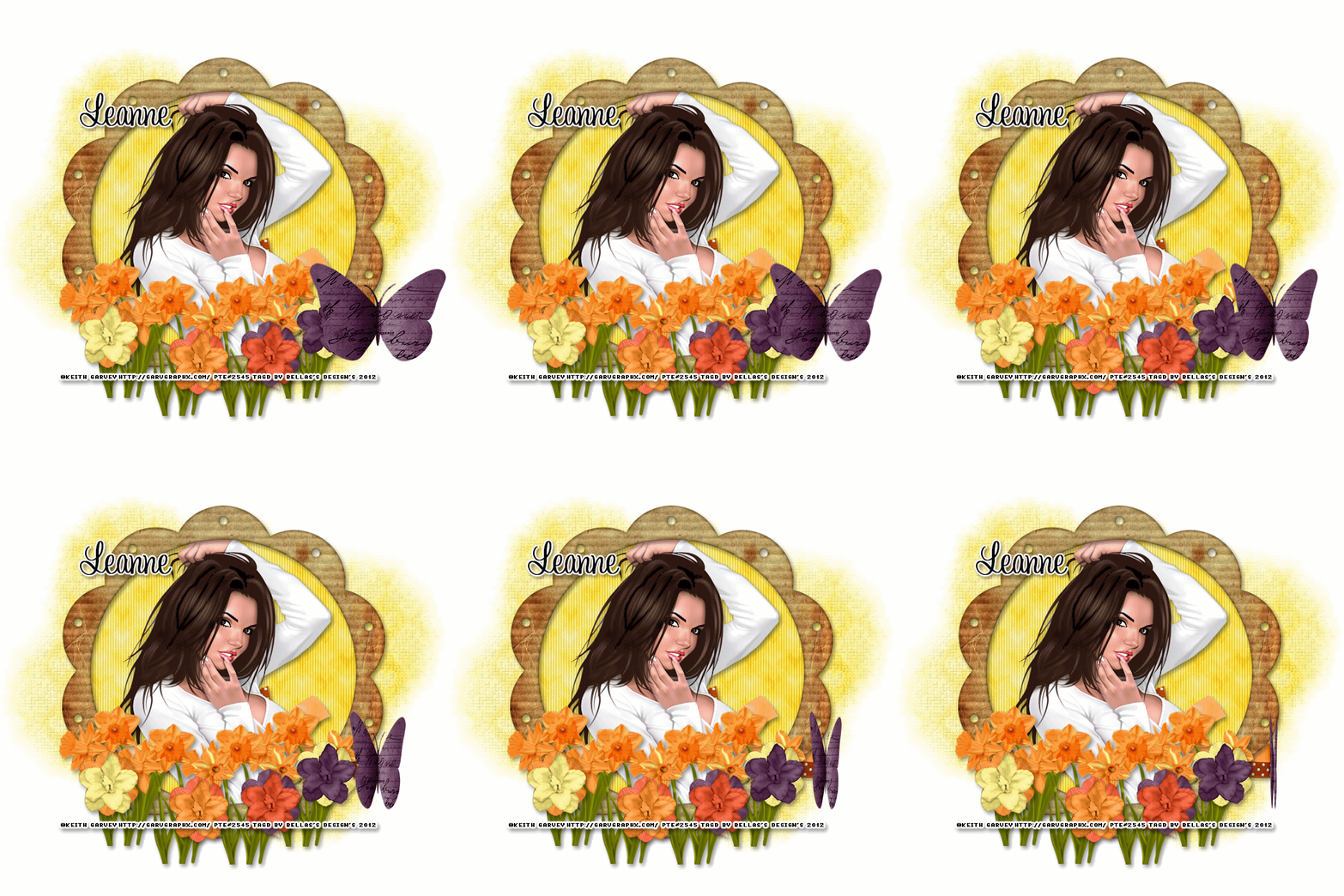
5.Open up your DBS_Daffodils02 copy and paste as new layer resize 60% the Duplicates 4 times Merge down,Resize 50%, Duplicates Image Mirror,Apply Lokas 3D Shadow with settings at B35, T60, Angles X,Y, and Z at 0, zoom 100, Offset X-Y by 5, Perspective at 35 color black


6.Open up all your Flowers01,02,03,04 copy and paste as new layer resize 40%x2 Merge down,Apply Lokas 3D Shadow with settings at B35, T60, Angles X,Y, and Z at 0, zoom 100, Offset X-Y by 5, Perspective at 35 color black


7.Add your copyright info and your watermark/logo


8.I hope you enjoyed my tutorial and come visit again real soon!


9.Open Animation Shop Edit Paste As New Animation


10.Edit Duplicate Selected.Repeat Duplicate Selected 4 more times.You should have 17 frames


11.Go Back into PSP.Open DBS_PaperButterfly01.Image Resize.Resize by 60%x2, Smart Size, Resize all layers unchecked.Adjust Sharpness Sharpen.Edit Copy.


12.Back into Animation Shop.Edit Paste As New Animation


13.Effects Insert Image Effect, with these settings Animation Frame checked effects length:4.0secs,Frames per second 4fps Effects Compress


14.Edit > Select All.Edit Copy.On your main canvas Edit Select All.Edit Paste Into Selected Frame.Place the butterfly at the top of your image, or to your liking.


save and we're done


Saturday, 3 March 2012

♥IndianSummer♥


This tutorial was written by me on March 3, 2012. Any resemblance to any other tutorial is pure coincidence. Please DO NOT claim this tutorial as your own or post it to any other blog or website without permission from me. It was written for PSP X, but should be compatible with any version of PSP. I wrote it assuming that you have a working knowledge of PSP and it's components.


Scrapkit of choice. I used a PTU kit by DesignedByStina Called IndianSummer  at purchased here

I used the artwork of Keith Garvey You have to be licensed to use this artwork and it can be purchased here

Plug-ins used:
Lokas Software - 3D Shadow
EyeCandy4000- gradient glow
Xero - Porcelain And Fritillary
Tramages – Tow the Line
Mura - Meister Copie


Template by Freebie Friends Scraps And More . by Tracy.F Designz -AutumnTemplate4. can be downloaded here

Wordart by Precious Beauties can be downloaded here or here thanks hun
Open up your template in psp.
Duplicates (Shift+D) And Close out the original.
Delete Following credit layer.Ribbon,dotted rectangle,Text
Canvas size 700x700 resize all layers by 120%


1.Click on your Dotted Circle1 Apply gradient glow fat white,


2.Click on your Circle select all float & defloat add new layer flood with #6e1222,Adjust add/remove Noise Add Noise with these settings Gaussian,Monochrome,Noise 20%, apply Xero: Fritillary with these settings: 3,30,10,11


3.Click on your Circle Frame select all float & defloat add new layer flood with #e79d9b,apply Xero: Fritillary with these settings: 3,30,10,11,Apply gradient glow fat white,Apply Lokas 3D Shadow with settings at B35, T60, Angles X,Y, and Z at 0, zoom 100, Offset X-Y by 5, Perspective at 35 color black.


4.Click on your Dotted Circle2 Apply gradient glow fat white,


5.Click on your Strips select all float & defloat add new layer flood with #6e1222,Adjust add/remove Noise Add Noise with these settings Gaussian,Monochrome,Noise 20%, apply Xero: Fritillary with these settings: 3,30,10,11,Keep selections,Modify select selections borders with these settings inside,Anti-alias border width-5, add new layer flood with #e79d9b,
apply Xero: Fritillary with these settings: 3,30,10,11,Apply gradient glow fat white,Apply Lokas 3D Shadow with settings at B35, T60, Angles X,Y, and Z at 0, zoom 100, Offset X-Y by 5, Perspective at 35 color black


6.Open up your DBS_AutumnBranch01 copy and paste as new layer resize 30%x2,Apply Plug-in Mura - Meister Copie with these settings : Encirce Default settings,Apply gradient glow fat white,Apply Lokas 3D Shadow with settings at B35, T60, Angles X,Y, and Z at 0, zoom 100, Offset X-Y by 5, Perspective at 35 color black.Duplicate Sent to bottom, apply Adjust-Blur-Gaussian-15 then apply Tramages- Tow the line with these setting 80,54,48,9


7.Open up your DBS_Bow01 copy and paste as new layer resize 30%x2,Duplicates Image Flip,Apply gradient glow fat white,Apply Lokas 3D Shadow with settings at B35, T60, Angles X,Y, and Z at 0, zoom 100, Offset X-Y by 5, Perspective at 35 color black.


8.Open up your DBS_TulleNet03 copy and paste as new layer resize 30%x2 Duplicates Image Mirror Apply Lokas 3D Shadow with settings at B35, T60, Angles X,Y, and Z at 0, zoom 100, Offset X-Y by 5, Perspective at 35 color black.


9.Open up your DBS_Sunflower03 copy and paste as new layer resize 30%x2,Apply gradient glow fat white,Apply Lokas 3D Shadow with settings at B35, T60, Angles X,Y, and Z at 0, zoom 100, Offset X-Y by 5, Perspective at 35 color black.


10.Open up your Tube copy and paste as new layer resize 80%,Apply Lokas 3D Shadow with settings at B35, T60, Angles X,Y, and Z at 0, zoom 100, Offset X-Y by 5, Perspective at 35 color black.


Merge all your layers and apply Xero Porcelain with settings at 50, 120, 140, 122, 47 and 96


Add your copyright info and your watermark/logo


I hope you enjoyed my tutorial and come visit again real soon!

Thursday, 2 February 2012

♥Sweet Love ♥


This tutorial was written by me on February 2, 2012. Any resemblance to any other tutorial is pure coincidence. Please DO NOT claim this tutorial as your own or post it to any other blog or website without permission from me. It was written for PSP X, but should be compatible with any version of PSP. I wrote it assuming that you have a working knowledge of PSP and it's components.

Scrapkit of choice. I used a PTU kit by DesignedByStina Called Angel kisses buy it at Digital Scrap n' Shop
I used the artwork of AnnaMarine You have to be licensed to use this artwork and it can be purchased here


Open up the template.

Shift + D.

Close out the original.

Delete following: RoundedRectangle,BottomStaples,TopStaples small heart, large heart
Plug-in Needed

Lokas Software - 3D Shadow

EyeCandy4000- gradient glow

Font Choice

template40 by Rachel thanks hun:)


1.click on your BlackSquare select all float defloat add new layer copy and paste your DBS_Paper11 into selections,

Apply gradient glow fat white line and selections modify expand by 3 selections modify select selections border outside, 5 ,
then apply same gradient glow as before.


2.click on your GreySquare select all float defloat add new layer copy and paste your DBS_Paper11 into selections,


3.Keep selections open up your tube copy and paste as new layer selections invert delete on keybroad.


4.click on your WhiteFrame select all float defloat add new layer copy and paste your DBS_Paper1 into selections,

Apply gradient glow fat white line and selections modify expand by 3 selections modify select selections border outside, 5 ,
then apply same gradient glow as before.


5.Click on your ScallopStrip duplicates, Merge together, select all float defloat Image Free Rotate 90% to right add new layer copy and paste your DBS_Paper1 into selections,

Apply gradient glow fat white line and selections modify expand by 3 selections modify select selections border outside, 5 ,
then apply same gradient glow as before.


6.Click on your BrushBottom and top brush duplicates you should have 4 total merge together and gradient glow, and .Apply Lokas 3D Shadow with settings at B35, T60, Angles X,Y, and Z at 0, zoom 100, Offset X-Y by 5, Perspective at 35 color black.


7.Open up your DBS_Sparkles02 duplucates Merge down and Duplicates Image Free Rotate 90% to right,Apply Lokas 3D Shadow with settings at B35, T60, Angles X,Y, and Z at 0, zoom 100, Offset X-Y by 5, Perspective at 35 color black.


8.Open up your DBS_DoveHanger01 copy and paste as new layer resize 50% Apply Lokas 3D Shadow with settings at B35, T60, Angles X,Y, and Z at 0, zoom 100, Offset X-Y by 5, Perspective at 35 color black.


9.Add any copyrights and your name.


Photobucket

Monday, 16 January 2012

♥Winter-Tenderness♥

Photobucket


This tutorial was written by me on January 16, 2012. Any resemblance to any other tutorial is pure coincidence. Please DO NOT claim this tutorial as your own or post it to any other blog or website without permission from me. It was written for PSP X, but should be compatible with any version of PSP. I wrote it assuming that you have a working knowledge of PSP and it's components.


Plug-in Needed

AlienSkin EyeCandy 5 Snow Drift

Lokas Software - 3D Shadow


Font Used:

JournalScriptSSK And Arial


Scrapkit of choice. I used a PTU kit by Designs By Stina Called SantasSecrets buy it at aussie scraps designs
I used the artwork of Suzanne Woocott You have to be licensed to use this artwork and it can be purchased here

Scene here


Open A New Canvas 700x700 Transparent

1.Open up your DBS_Holly02 copy and paste as new layer resize 30%,
Apply Plug-in Mura - Meister Copie with these settings : Encirce 10,65,65, And rest Default settings.

Take your magic wand click inside Holly and Modify Expand by 4 Open up your Scene Copy and paste as new layer Selections Invert Delete on keybroad
Move under your Holly layer.


2.Go Back to your Holly layer Duplicates Sent one under your Scene layer and Apply Blur with these settings Gaussian Blur 15.00, Apply AlienSkin EyeCandy 5 Snow Drift width-0 under settings select Dusting Moderate.


3.Open up your DBS_ChristmasTree copy and paste as new layer resize 60% Apply AlienSkin EyeCandy 5 Snow Drift width-3 under settings select Small Frist Flakes.


4.Open up your Tube Copy and paste as new layer resize 80% Apply Lokas 3D Shadow with settings at B35, T60, Angles X,Y, and Z at 0, zoom 100, Offset X-Y by 5, Perspective at 35 color black.


5.Open up your DBS_Dove01 Copy and paste as new layer resize 40% Apply Lokas 3D Shadow with settings at B35, T60, Angles X,Y, and Z at 0, zoom 100, Offset X-Y by 5, Perspective at 35 color black.


6.Open up your DBS_ForSanta01 Copy and paste as new layer resize 40% Apply Lokas 3D Shadow with settings at B35, T60, Angles X,Y, and Z at 0, zoom 100, Offset X-Y by 5, Perspective at 35 color black.


7.Now add your copyright information and your name.


~*~*~Open animation~*~*~


Continue for animation
Close off from background to main tube
Merge the remainder visible
Close this layer off
Merge the bottom layers
Copy bottom merged layer
Paste into AS as a new animation


Open snow
Duplicate your tag to 20 frames
On snow select all – copy
On tag select all – paste into selected frame
I added the snow twice, upper and lower


In psp open top merged layer
Take note of where deer are standing
Copy and paste into AS as a new animation
Edit – propagate paste
Drag frame onto main tag and position
When ready release
Run your animation
Save your tag