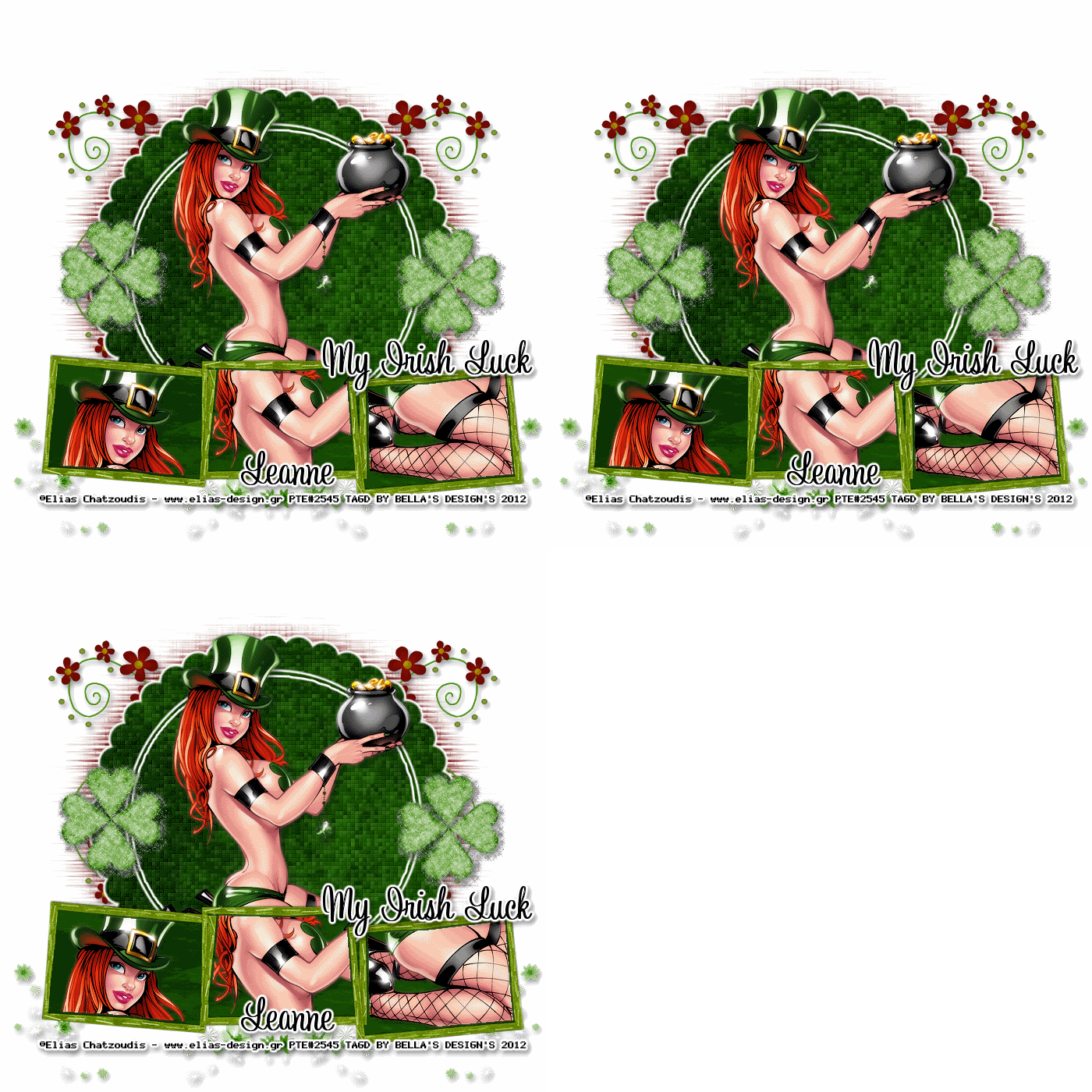
This tutorial was written by me on October 6, 2012. Any resemblance to any other tutorial is pure coincidence.
Please DO NOT claim this tutorial as your own or post it to any other blog or website without permission from me. It was written for PSP X,
but should be compatible with any version of PSP. I wrote it assuming that you have a working knowledge of PSP and it's components.
Scrapkit of choice: I used a PTU kit by Creative Scraps by Crys Called Brewing Up Some Fun at
purchased here You can visit her blog here
I used the artwork of Elias Chatzoudis You have to be licensed to use this
artwork and it can be purchased Here
Plug-ins used:
EyeCandy4000- gradient glow,
XERO- porcelain,Fritillary
Lokas 3D Shadow
Filters Unlimited
Open new Canvas 700x700 Transparent
1.Take your Selections Tool and Draw Circle in middle of your Canvas Add new layer Copy and paste your BUSF_Paper_7 into selections,
Duplicates Stay on your Duplicates Layer Apply Filters Unlimited Color Filters - Select Sepia and use default setting.Change Opacity to 70
Adjust - Blur - Gaussian Blur - set to 4,Change Blend Mode too Overlay,Apply Xero Fritillary with settings Granularity-6 Aggression:36 Tesseation-18 Variation-12,Apply Lokas 3D Shadow with settings at B35, T60, Angles X,Y, and Z at 0, zoom 100, Offset X-Y by 5, Perspective at 19 color black.
2.Keep Selections Going add Border Selections Modify Select selections Borders Both Side Border width:8 Add new layer flood with #1a1a1a
,Apply Inner Bevel Bevel #2, Width 13, Smoothness 15, Depth 9, Ambience-35, Shininess 34,Colour #FFFFFF, Angle 134, Intensity 40, Elevation 80,
Apply Lokas 3D Shadow with settings at B35, T60, Angles X,Y, and Z at 0, zoom 100, Offset X-Y by 5, Perspective at 19 color black.
3.Go back to your Circle layer Select all float defloat,copy and paste your close up tube as new layer,
selections invert delete Apply Xero porcelain set at 50/128/128/0/0/255,Duplicates On the duplicated tube layer, adjust, blur, Gaussian Blur set to 5 Layers, properties, change
blend mode to screen and lower the opacity to about 70,Apply richard rosenman scanlines with these setting 1,1,14,0,0 Noise type Line Orientation u/v color black,
Change Blend Mode too Luminance (Lagacy)Apply Lokas 3D Shadow with settings at B35, T60, Angles X,Y, and Z at 0,zoom 100, Offset X-Y by 5, Perspective at 19 color black.
4.Go back to your Circle layer Open up your BUSF_Element_32 copy and paste as new layer Selections invert delete,
Apply Lokas 3D Shadow with settings at B35, T60, Angles X,Y, and Z at 0, zoom 100, Offset X-Y by 5, Perspective at 19 color black.
5.Open up your BUSF_Element_20 Image Rotate to left Copy and paste as new layer Resize 70% Apply Lokas 3D Shadow with settings at B35, T60, Angles X,Y, and Z at 0,zoom 100, Offset X-Y by 5, Perspective at 19 color black.
6.Open up your BUSF_Element_21 Copy and paste as new layer Resize 60% Apply Lokas 3D Shadow with settings at B35, T60, Angles X,Y, and Z at 0,zoom 100, Offset X-Y by 5, Perspective at 19 color black.
7.Open up your BUSF_Element_26 Copy and paste as new layer Resize 60% Apply Lokas 3D Shadow with settings at B35, T60, Angles X,Y, and Z at 0,zoom 100, Offset X-Y by 5, Perspective at 19 color black.
8.Open up your BUSF_Element_45 Copy and paste as new layer Resize 60%x2 Apply Lokas 3D Shadow with settings at B35, T60, Angles X,Y, and Z at 0,zoom 100, Offset X-Y by 5, Perspective at 19 color black.
9.Take your preset shape draw Circle Don't Convert Layer,Take your Text Tool Write out happy halloween,
Apply Inner Bevel Bevel #2, Width 13, Smoothness 15, Depth 9, Ambience-35, Shininess 34,Colour #FFFFFF, Angle 134, Intensity 40, Elevation 80,
Apply Lokas 3D Shadow with settings at B35, T60, Angles X,Y, and Z at 0, zoom 100, Offset X-Y by 5, Perspective at 19 color black.