Showing posts with label Tutorials. Show all posts

Thursday, 29 November 2012

Victoria Christmas PTU♥

 
This tutorial was written by me on November 29, 2012. Any resemblance to any other tutorial is pure coincidence. Please DO NOT claim this tutorial as your own or post it to any other blog or website without permission from me. It was written for PSP X, but should be compatible with any version of PSP. I wrote it assuming that you have a working knowledge of PSP and it's components. 
 
 Scrapkit of choice: I used a PTU kit by Black Widow Creationz Called Christmas Candy at purchased here You can visit her blog here
 I'm using the amazing artwork of Pinuptoons You can purchase a license for this tube CDO 
Plugins Used: Xero Fritillary 
EyeCandy 4000 Gradient Glow
  Lokas 3D Shadow,
 Template of choice. I used template 129 which you can get from Millie's PSP Madness HERE.
Open the template, 
SHIFT + D and close the original.
 Remove the bg layer And Raster 6 and 10,9,8. 
go to Image resize the canvas to 800x800.
1.Click on your Raster1 Select all Float Defloat Selections Modify expand by 1 Smoothing Amount 5 Soft Corners 5 Anti-Alias checked Preserve Corners checked OK,
Add new layer flood with #b7a287 Apply Noise Add/Remove add noise with these setting Uniform Monochrome Noise 50% Contract Selections 6 Add new layer flood with your BWC_MsVictoriaWinter_PP10
On your Paper Apply Xero Fritillary with settings Granularity-5 Aggression:32 Tesseation-15 Variation-8
Apply Lokas 3D Shadow with settings at B35, T60, Angles X,Y, and Z at 0, zoom 100, Offset X-Y by 5, Perspective at 19 color black.

2.Click on your Raster2 Select all Float Defloat Selections Modify expand by 1 Smoothing Amount 5 Soft Corners 5 Anti-Alias checked Preserve Corners checked OK,
Add new layer flood with #b7a287 Apply Noise Add/Remove add noise with these setting Uniform Monochrome Noise 50% Contract Selections 6 Add new layer flood with your BWC_MsVictoriaWinter_PP9
On your Paper Apply Xero Fritillary with settings Granularity-5 Aggression:32 Tesseation-15 Variation-8
Apply Lokas 3D Shadow with settings at B35, T60, Angles X,Y, and Z at 0, zoom 100, Offset X-Y by 5, Perspective at 19 color black.

3.Click on your Raster3 Select all Float Defloat Selections Modify expand by 1 Smoothing Amount 5 Soft Corners 5 Anti-Alias checked Preserve Corners checked OK,
Add new layer flood with #b7a287 Apply Noise Add/Remove add noise with these setting Uniform Monochrome Noise 50% Contract Selections 6 Add new layer flood with your BWC_MsVictoriaWinter_PP9
On your Paper Apply Xero Fritillary with settings Granularity-5 Aggression:32 Tesseation-15 Variation-8
Apply Lokas 3D Shadow with settings at B35, T60, Angles X,Y, and Z at 0, zoom 100, Offset X-Y by 5, Perspective at 19 color black.

4.Click on your Raster4 Select all Float Defloat Selections Modify expand by 1 Smoothing Amount 5 Soft Corners 5 Anti-Alias checked Preserve Corners checked OK,
Add new layer flood with #b7a287 Apply Noise Add/Remove add noise with these setting Uniform Monochrome Noise 50% Contract Selections 6 Add new layer flood with your BWC_MsVictoriaWinter_PP10
On your Paper Apply Xero Fritillary with settings Granularity-5 Aggression:32 Tesseation-15 Variation-8
Apply Lokas 3D Shadow with settings at B35, T60, Angles X,Y, and Z at 0, zoom 100, Offset X-Y by 5, Perspective at 19 color black.

5.Open up your BWC_MsVictoriaWinter_EL5 copy and paste as new layer Duplicates Image Mirror, Image Flip,
Apply Lokas 3D Shadow with settings at B35, T60, Angles X,Y, and Z at 0, zoom 100, Offset X-Y by 5, Perspective at 19 color black.

6.Click on your Raster5 Select all Float Defloat Selections Modify expand by 1 Smoothing Amount 5 Soft Corners 5 Anti-Alias checked Preserve Corners checked OK,
Add new layer flood with #b7a287 Apply Noise Add/Remove add noise with these setting Uniform Monochrome Noise 50% Contract Selections 6 Add new layer flood with your BWC_MsVictoriaWinter_PP9
On your Paper Apply Xero Fritillary with settings Granularity-5 Aggression:32 Tesseation-15 Variation-8
Apply Lokas 3D Shadow with settings at B35, T60, Angles X,Y, and Z at 0, zoom 100, Offset X-Y by 5, Perspective at 19 color black.

7.Click on your Raster7 Select all Float Defloat Selections Modify expand by 1 Smoothing Amount 5 Soft Corners 5 Anti-Alias checked Preserve Corners checked OK, Add new layer flood with
#f7f7f7 Apply Noise Add/Remove add noise with these setting Uniform Monochrome Noise 50% Contract Selections 6 Add new layer flood with your BWC_MsVictoriaWinter_PP10,
Apply Xero Fritillary with settings Granularity-5 Aggression:32 Tesseation-15 Variation-8
Select all float defloat copy and past your Close Up tube
Selections Invert Delete,Apply Xero porcelain set at 50/128/128/0/0/255,On the duplicated tube layer, adjust, blur, Gaussian Blur set to 4
Layers, properties, change blend mode to screen,Apply Lokas 3D Shadow with settings at B35, T60, Angles X,Y, and Z at 0, zoom 100, Offset X-Y by 5, Perspective at 35 color black.

7.Open up your BWC_MsVictoriaWinter_EL10 copy and paste as new layer Duplicates Image Mirror, Image Flip,
Apply Lokas 3D Shadow with settings at B35, T60, Angles X,Y, and Z at 0, zoom 100, Offset X-Y by 5, Perspective at 19 color black.

8.Open up your BWC_MsVictoriaWinter_EL36 copy and paste as new layer resize 70%,Apply Lokas 3D Shadow with settings at B35, T60, Angles X,Y, and Z at 0, zoom 100, Offset X-Y by 5, Perspective at 19 color black.

9.Open up your BWC_MsVictoriaWinter_EL23 copy and paste as new layer resize 70%,Apply Lokas 3D Shadow with settings at B35, T60, Angles X,Y, and Z at 0, zoom 100, Offset X-Y by 5, Perspective at 19 color black.

10.Open up your BWC_MsVictoriaWinter_EL15 copy and paste as new layer resize 50%,Apply Lokas 3D Shadow with settings at B35, T60, Angles X,Y, and Z at 0, zoom 100, Offset X-Y by 5, Perspective at 19 color black.

11.Open up your BWC_MsVictoriaWinter_EL17 copy and paste as new layer resize 45%,Apply Lokas 3D Shadow with settings at B35, T60, Angles X,Y, and Z at 0, zoom 100, Offset X-Y by 5, Perspective at 19 color black.

12.Open up your BWC_MsVictoriaWinter_EL19 copy and paste as new layer resize 45%,Apply Lokas 3D Shadow with settings at B35, T60, Angles X,Y, and Z at 0, zoom 100, Offset X-Y by 5, Perspective at 19 color black.

13.Open up your Tube copy and past as new layer Apply Xero porcelain set at 50/128/128/0/0/255,On the duplicated tube layer, adjust, blur, Gaussian Blur set to 4
Layers, properties, change blend mode to screen,Apply Lokas 3D Shadow with settings at B35, T60, Angles X,Y, and Z at 0, zoom 100, Offset X-Y by 5, Perspective at 35 color black.
Add your CopyRight 
Save it PNG.
I hope you enjoyed this tutorial.
I’d love to see your results.
Email me!

Photobucket

Wednesday, 28 November 2012

♥The Urban Fairy ChristmasPTU♥


This tutorial was written by Me on November24, 2012. Any resemblance to any other tutorial is pure coincidence. Please DO NOT claim this tutorial as your own or post it to any other blog or website without permission from me. It was written for PSP X, but should be compatible with any version of PSP. I wrote it assuming that you have a working knowledge of PSP and it's components. 
Scrapkit of choice: I used a PTU kit by AlikasScraps Called AS Chilly Delight at purchased here You can visit her blog here
 I used the artwork of Suzanne Woolcotts You have to be licensed to use this artwork and it can be purchased Here 
Plug-ins used: 
 EyeCandy4000- gradient glow, 
 Lokas 3D Shadow,
 Supplies the Template and snow I use you can Get Here
1.Click on your Rectangle1 Select all Float Defloat Selections Modify expand by 1 Smoothing Amount 5 Soft Corners 5 Anti-Alias checked Preserve Corners checked OK,
Add new layer flood with #c7baa6 Apply Noise Add/Remove add noise with these setting Uniform Monochrome Noise 50% Contract Selections 5 Add new layer flood with your as_paper09
Apply Lokas 3D Shadow with settings at B35, T60, Angles X,Y, and Z at 0, zoom 100, Offset X-Y by 5, Perspective at 19 color black.

2.Click on your Rectangle2 Select all Float Defloat Selections Modify expand by 1 Smoothing Amount 5 Soft Corners 5 Anti-Alias checked Preserve Corners checked OK,
Add new layer flood with #c7baa6 Apply Noise Add/Remove add noise with these setting Uniform Monochrome Noise 50% Contract Selections 5 Add new layer flood with your as_paper09
Apply Lokas 3D Shadow with settings at B35, T60, Angles X,Y, and Z at 0, zoom 100, Offset X-Y by 5, Perspective at 19 color black.

3.Click on your Rectangle3 Select all Float Defloat Selections Modify expand by 1 Smoothing Amount 5 Soft Corners 5 Anti-Alias checked Preserve Corners checked OK,
Add new layer flood with #c7baa6 Apply Noise Add/Remove add noise with these setting Uniform Monochrome Noise 50% Contract Selections 5 Add new layer flood with your as_paper09
Apply Lokas 3D Shadow with settings at B35, T60, Angles X,Y, and Z at 0, zoom 100, Offset X-Y by 5, Perspective at 19 color black.

4.Click on your Rectangle4 Select all Float Defloat Selections Modify expand by 1 Smoothing Amount 5 Soft Corners 5 Anti-Alias checked Preserve Corners checked OK,
Add new layer flood with #c7baa6 Apply Noise Add/Remove add noise with these setting Uniform Monochrome Noise 50% Contract Selections 5 Add new layer flood with your as_paper09
Apply Lokas 3D Shadow with settings at B35, T60, Angles X,Y, and Z at 0, zoom 100, Offset X-Y by 5, Perspective at 19 color black.

5.Open up your as52 copy and paste as new layer, take magic wand click on it 2 times make sure you got clear part of it,add you snow, add 10 layers copy and paste into
selections untill 10 layer done slect none,Apply Lokas 3D Shadow with settings at B35, T60, Angles X,Y, and Z at 0, zoom 100, Offset X-Y by 5, Perspective at 19 color black.

6.Open up your as17 copy and paste as new layer Duplicates Image Mirror,Apply Lokas 3D Shadow with settings at B35, T60, Angles X,Y, and Z at 0, zoom 100, Offset X-Y by 5, Perspective at 19 color black.

7.Open up your as22 copy and paste as new layer resize 70%,Apply Lokas 3D Shadow with settings at B35, T60, Angles X,Y, and Z at 0, zoom 100, Offset X-Y by 5, Perspective at 19 color black.

8.Open up your as54 copy and paste as new layer resize 70%,Apply Lokas 3D Shadow with settings at B35, T60, Angles X,Y, and Z at 0, zoom 100, Offset X-Y by 5, Perspective at 19 color black.

9.Open up your as21 copy and paste as new layer resize 70%,Apply Lokas 3D Shadow with settings at B35, T60, Angles X,Y, and Z at 0, zoom 100, Offset X-Y by 5, Perspective at 19 color black.

10.Open up your as9 copy and paste as new layer resize 70%,Apply Lokas 3D Shadow with settings at B35, T60, Angles X,Y, and Z at 0, zoom 100, Offset X-Y by 5, Perspective at 19 color black.

11.Open up your as25 copy and paste as new layer resize 50%x2,Apply Lokas 3D Shadow with settings at B35, T60, Angles X,Y, and Z at 0, zoom 100, Offset X-Y by 5, Perspective at 19 color black.

12.Open up your as13 copy and paste as new layer resize 60% Duplicates Image Mirror,Apply Lokas 3D Shadow with settings at B35, T60, Angles X,Y, and Z at 0, zoom 100, Offset X-Y by 5, Perspective at 19 color black.

13.Open up your Tube Copy and paste as new layer,Apply Lokas 3D Shadow with settings at B35, T60, Angles X,Y, and Z at 0, zoom 100, Offset X-Y by 5, Perspective at 19 color black.

~*~*~Open animation~*~*~
Your layer palette should have all of the tag visible with only one animated layer showing, the other ones should have red Xs showing they are not visible. 
Click Edit-Copy Merged, go into Animation Shop and click Edit-Paste-As New Animation. 
Then back in PSP, close visibility on the first animated layer and open visibility on the next animated layer, again Click Edit-Copy Merged, then go into Animation Shop and right click on the image you just pasted there and choose Paste-After Current Frame. 
Repeat this for each animated layer and making sure each time in Animation Shop that you paste the new copy after the last frame of the image there
Photobucket

♥FroshytheSnowman PTU♥

 
This tutorial was written by Me on November 28, 2012. Any resemblance to any other tutorial is pure coincidence. Please DO NOT claim this tutorial as your own or post it to any other blog or website without permission from me. It was written for PSP X, but should be compatible with any version of PSP. I wrote it assuming that you have a working knowledge of PSP and it's components.
Scrapkit of choice. I used a PTU kit by EmJay Scraps Called Songs of Christmas Tagger buy it at Inspirations Of Scrap Friends
NO TUBE
 Plug-ins used: 
EyeCandy4000- gradient glow,
 Lokas 3D Shadow,
 
1.Open up your emjay_SOCelement27_tagger copy and paste as new layer resize 70%,Take your magic wand click inside expand by 4 Add new layer Flood with Winter Scene into selections
Duplicates Your Frame total of 3 Layer,Take your Using your Light/Darken Tool, run it over
each of the Skip light then untill you get other end Do same for Other set Lights
2.Open up your emjay_SOCelement12_tagger copy and paste as new layer resize 50%,Apply Lokas 3D Shadow with settings at B35, T60, Angles X,Y, and Z at 0, zoom
100, Offset X-Y by 5, Perspective at 19 color black.
3.Open up your emjay_SOCelement17_tagger copy and paste as new layer resize 50%,Apply Lokas 3D Shadow with settings at B35, T60, Angles X,Y, and Z at 0, zoom
100, Offset X-Y by 5, Perspective at 19 color black.
4.Open up your emjay_SOCelement13_tagger copy and paste as new layer resize 50%,Apply Lokas 3D Shadow with settings at B35, T60, Angles X,Y, and Z at 0, zoom
100, Offset X-Y by 5, Perspective at 19 color black.
5.Open up your emjay_SOCelement33_tagger copy and paste as new layer resize 50%,Apply Lokas 3D Shadow with settings at B35, T60, Angles X,Y, and Z at 0, zoom
100, Offset X-Y by 5, Perspective at 19 color black.
 
~*~*~Open animation~*~*~
Your layer palette should have all of the tag visible with only one animated layer showing, the other ones should have red Xs showing they are not visible. 
Click Edit-Copy Merged, go into Animation Shop and click Edit-Paste-As New Animation. 
Then back in PSP, close visibility on the first animated layer and open visibility on the next animated layer, again Click Edit-Copy Merged, then go into Animation Shop and right click on the image you just pasted there and choose Paste-After Current Frame. 
Repeat this for each animated layer and making sure each time in Animation Shop that you paste the new copy after the last frame of the image there
Photobucket

Saturday, 24 November 2012

Gingerbread Wishes & Snowman Kisses PTU♥

 
This tutorial was written by Me on November24, 2012. Any resemblance to any other tutorial is pure coincidence. Please DO NOT claim this tutorial as your own or post it to any other blog or website without permission from me. It was written for PSP X, but should be compatible with any version of PSP. I wrote it assuming that you have a working knowledge of PSP and it's components.
 Scrapkit of choice: I used a PTU kit by  Irish Bitch Designs  Called  Gingerbread Wishes & Snowman Kisses at purchased here You can visit her blog here 
 I used the artwork of Barbara Jensen You have to be licensed to use this artwork and it can be purchased Here 
 Plug-ins used: EyeCandy4000- gradient glow,
 Lokas 3D Shadow,
XERO,-Fritillary
Template #2 by Kristin Her Misfits Winter Fin freebies ~ HERE 
 
  Open template duplicate close original delete credits and pink rectangle,
  1. Merge Down Left Rectangle and Right rectangle Together,your Click on your Right Rectangle Select all Float Defloat Selections Modify expand by 1 Smoothing Amount 5 Soft Corners 5 Anti-Alias checked Preserve Corners checked OK, Add new layer flood with #f4f7f7 Apply Noise Add/Remove add noise with these setting
Uniform Monochrome Noise 50% Contract Selections 5 Add new layer flood with your #ea84a5 Apply Xero Fritillary with settings Granularity-5
Aggression:125 Tesseation-45 Variation-25,Apply Gradient Glow Fat white line, Apply Again Just Change fat white like too #ea84a5
Apply Lokas 3D Shadow with settings at B35, T60, Angles X,Y, and Z at 0, zoom 100, Offset X-Y by 5, Perspective at 19 color black.

2.Click on your Blue Rectangle Select all Float Defloat Selections Modify expand by 1 Smoothing Amount 5 Soft Corners 5 Anti-Alias checked Preserve Corners checked OK, Add new layer flood with #f4f7f7 Apply Noise Add/Remove add noise with these setting
Uniform Monochrome Noise 50% Contract Selections 7 Add new layer flood with your #e71d62 Apply Xero Fritillary with settings Granularity-5
Aggression:125 Tesseation-45 Variation-25,Apply Gradient Glow Fat white line, Apply Again Just Change fat white like too #e71d62
Apply Lokas 3D Shadow with settings at B35, T60, Angles X,Y, and Z at 0, zoom 100, Offset X-Y by 5, Perspective at 19 color black.

3. Merge Down Left Circle and Right Circle Together,your Click on your Left Circle Select all Float Defloat Selections Modify expand by 1 Smoothing Amount 5 Soft Corners 5 Anti-Alias checked Preserve Corners checked OK, Add new layer flood with #f4f7f7 Apply Noise Add/Remove add noise with these setting
Uniform Monochrome Noise 50% Contract Selections 7 Add new layer flood with your #ea84a5 Apply Xero Fritillary with settings Granularity-5
Aggression:125 Tesseation-45 Variation-25,Apply Gradient Glow Fat white line, Apply Again Just Change fat white like too #ea84a5
Apply Lokas 3D Shadow with settings at B35, T60, Angles X,Y, and Z at 0, zoom 100, Offset X-Y by 5, Perspective at 19 color black.

4.Click on your Oval Select all Float Defloat Selections Modify expand by 1 Smoothing Amount 5 Soft Corners 5 Anti-Alias checked Preserve Corners checked OK, Add new layer flood with #f4f7f7 Apply Noise Add/Remove add noise with these setting
Uniform Monochrome Noise 50% Contract Selections 7 Add new layer flood with your #e71d62 Apply Xero Fritillary with settings Granularity-5
Aggression:125 Tesseation-45 Variation-25,Apply Gradient Glow Fat white line, Apply Again Just Change fat white like too #e71d62
Apply Lokas 3D Shadow with settings at B35, T60, Angles X,Y, and Z at 0, zoom 100, Offset X-Y by 5, Perspective at 19 color black.

5.Open up your IBD_Tree copy and paste as new layer resize 80%,Duplicates Image Mirror,Apply Lokas 3D Shadow with settings at B35, T60, Angles X,Y, and Z at 0, zoom 100, Offset X-Y by 5, Perspective at 19 color black.

6.Open up your IBD_Ribbon copy and paste as new layer,Apply Lokas 3D Shadow with settings at B35, T60, Angles X,Y, and Z at 0, zoom 100, Offset X-Y by 5, Perspective at 19 color black.

7.Open up your Tube copy and paste as new layer resize 70%,Apply Lokas 3D Shadow with settings at B35, T60, Angles X,Y, and Z at 0, zoom 100, Offset X-Y by 5, Perspective at 19 color black.

8.Open up your IBD_Streetlight copy and paste as new layer resize 70%,Apply Lokas 3D Shadow with settings at B35, T60, Angles X,Y, and Z at 0, zoom 100, Offset X-Y by 5, Perspective at 19 color black.

9.Open up your IBD_Skates copy and paste as new layer resize 50%,Apply Lokas 3D Shadow with settings at B35, T60, Angles X,Y, and Z at 0, zoom 100, Offset X-Y by 5, Perspective at 19 color black.

9.Open up your IBD_Skates copy and paste as new layer Resize 80%,Apply Lokas 3D Shadow with settings at B35, T60, Angles X,Y, and Z at 0, zoom 100, Offset X-Y by 5, Perspective at 19 color black.

Photobucket

♥Winter Bear PTU♥


This tutorial was written by Me on November24, 2012. Any resemblance to any other tutorial is pure coincidence. Please DO NOT claim this tutorial as your own or post it to any other blog or website without permission from me. It was written for PSP X, but should be compatible with any version of PSP. I wrote it assuming that you have a working knowledge of PSP and it's components. 
Scrapkit of choice: I used a PTU kit by Petit Creaciones Called Santa's helper at purchased here You can visit her blog here 
I used the artwork of Suzanne Woolcotts You have to be licensed to use this artwork and it can be purchased Here 
Plug-ins used:
 EyeCandy4000- gradient glow,
 Lokas 3D Shado,
 Alien Skin Eye Candy 5 – Nature – Snow Drift
Supplie the Template and snow I use you can Get Here
1.Click on your Rectangle1 Select all Float Defloat Selections Modify expand by 1 Smoothing Amount 5 Soft Corners 5 Anti-Alias checked Preserve Corners checked OK, Add new layer flood with #cfddba Apply Noise Add/Remove add noise with these setting
Uniform Monochrome Noise 50% Contract Selections 5 Add new layer flood with your pt-shpaper18

2.Click on your Rectangle2 Select all Float Defloat Selections Modify expand by 1 Smoothing Amount 5 Soft Corners 5 Anti-Alias checked Preserve Corners checked OK, Add new layer flood with #cfddba Apply Noise Add/Remove add noise with these setting
Uniform Monochrome Noise 50% Contract Selections 5 Add new layer flood with your pt-shpaper18

3.Click on your Rectangle3 Select all Float Defloat Selections Modify expand by 1 Smoothing Amount 5 Soft Corners 5 Anti-Alias checked Preserve Corners checked OK, Add new layer flood with #cfddba Apply Noise Add/Remove add noise with these setting
Uniform Monochrome Noise 50% Contract Selections 5 Add new layer flood with your pt-shpaper18

4.Click on your Rectangle4 Select all Float Defloat Selections Modify expand by 1 Smoothing Amount 5 Soft Corners 5 Anti-Alias checked Preserve Corners checked OK, Add new layer flood with #cfddba Apply Noise Add/Remove add noise with these setting
Uniform Monochrome Noise 50% Contract Selections 7 Add new layer flood with your pt-shpaper18

5.Open up your pt-shframe2 copy and paste as new layer resize 50%x2 and Resize at 70%, Take your magic wand click inside modify expand by 2
Copy and paste your Tube as new layer,Apply Lokas 3D Shadow with settings at B35, T60, Angles X,Y, and Z at 0, zoom 100, Offset X-Y by 5, Perspective at 35 color black.

6.Go back to your pt-shframe2 Apply Alien Skin Eye Candy 5 – Nature – Snow Drift-Large, First Flakes
Snowbasic Tab-Drift Height(Pixels)-15.80,Clumping-100,Surface Roughness-40,Droop-0,Dust on all features-21,Dust on Bright Features-11,
Bright Features Threshold-20 Random Seed-4015,Under Lighting Tab Light Direction(')-85 Shadow Strength-10 Shadow Color #092e65

7.Go back to your Paper Layer select all float defloat Add 10 layer for your Snow ,Open up Snow in supplies copy and paste into selections

8.Go back to your Rectangle4 Take your Selections Tool and Draw Rectangle add new layer Apply Alien Skin Eye Candy 5 – Nature – Snow Drift-Large, First Flakes
Snowbasic Tab-Drift Height(Pixels)-15.80,Clumping-100,Surface Roughness-40,Droop-0,Dust on all features-21,Dust on Bright Features-11,
Bright Features Threshold-20 Random Seed-4015,Under Lighting Tab Light Direction(')-85 Shadow Strength-10 Shadow Color #092e65

9.Open up your pt-shflower copy and paste as new layer resize 30%,Apply Muras Meister Copies With these setting Encircle Number:6 ShiftX:48 ShiftY:50 rest defloat setting,
Apply Alien Skin Eye Candy 5 – Nature – Snow Drift-Large, First Flakes
Snowbasic Tab-Drift Height(Pixels)-15.80,Clumping-100,Surface Roughness-40,Droop-0,Dust on all features-21,Dust on Bright Features-11,
Bright Features Threshold-20 Random Seed-4015,Under Lighting Tab Light Direction(')-85 Shadow Strength-10 Shadow Color #092e65
Apply Lokas 3D Shadow with settings at B35, T60, Angles X,Y, and Z at 0, zoom 100, Offset X-Y by 5, Perspective at 35 color black.

10.Open up your pt-shelf3 copy and paste as new layer resize 50%x2 Apply Lokas 3D Shadow with settings at B35, T60, Angles X,Y, and Z at 0, zoom 100, Offset X-Y by 5, Perspective at 35 color black.

11.Open up your pt-shelf4 copy and paste as new layer resize 50%x2 Apply Lokas 3D Shadow with settings at B35, T60, Angles X,Y, and Z at 0, zoom 100, Offset X-Y by 5, Perspective at 35 color black.
~*~*~Open animation~*~*~
Your layer palette should have all of the tag visible with only one animated layer showing, the other ones should have red Xs showing they are not visible. 
Click Edit-Copy Merged, go into Animation Shop and click Edit-Paste-As New Animation. 
Then back in PSP, close visibility on the first animated layer and open visibility on the next animated layer, again Click Edit-Copy Merged, then go into Animation Shop and right click on the image you just pasted there and choose Paste-After Current Frame. 
Repeat this for each animated layer and making sure each time in Animation Shop that you paste the new copy after the last frame of the image there
Photobucket

♥Beary Wintery PTU♥

Image Hosted by ImageShack.us
This tutorial was written by Me on November24, 2012. Any resemblance to any other tutorial is pure coincidence. Please DO NOT claim this tutorial as your own or post it to any other blog or website without permission from me. It was written for PSP X, but should be compatible with any version of PSP. I wrote it assuming that you have a working knowledge of PSP and it's components.
 Scrapkit of choice: I used a PTU kit by Creative Scraps by Crys Called Beary Wintery at purchased here You can visit her blog here 
I used the artwork of PinsUpToons You have to be licensed to use this artwork and it can be purchased Here 
Plug-ins used: EyeCandy4000- gradient glow,
 XERO- porcelain,
 Lokas 3D Shadow 
  Template of choice. I used template 129 which you can get from Millie's PSP Madness HERE.
1.Click on your Raster1 Select all Float Defloat Selections Modify expand by 1 Smoothing Amount 5 Soft Corners 5 Anti-Alias checked Preserve Corners checked OK, Add new layer flood with #f7f7f7 Apply Noise Add/Remove add noise with these setting
Uniform Monochrome Noise 50% Contract Selections 6 Add new layer flood with your BW_Paper_11

2.Click on your Raster2 and 3 Select all Float Defloat Selections Modify expand by 1 Smoothing Amount 5 Soft Corners 5 Anti-Alias checked Preserve Corners checked OK, Add new layer flood with #f7f7f7 Apply Noise Add/Remove add noise with these setting
Uniform Monochrome Noise 50% Contract Selections 6 Add new layer flood with your BW_Paper_11

3.Click on your Raster4 Select all Float Defloat Selections Modify expand by 1 Smoothing Amount 5 Soft Corners 5 Anti-Alias checked Preserve Corners checked OK, Add new layer flood with #f7f7f7 Apply Noise Add/Remove add noise with these setting
Uniform Monochrome Noise 50% Contract Selections 6 Add new layer flood with your BW_Paper_11

4.Click on your Raster5 Select all Float Defloat Selections Modify expand by 1 Smoothing Amount 5 Soft Corners 5 Anti-Alias checked Preserve Corners checked OK, Add new layer flood with #f7f7f7 Apply Noise Add/Remove add noise with these setting
Uniform Monochrome Noise 50% Contract Selections 6 Add new layer flood with your BW_Paper_14

5.Click on your Raster6 Select all Float Defloat Selections Modify expand by 1 Smoothing Amount 5 Soft Corners 5 Anti-Alias checked Preserve Corners checked OK, Add new layer flood with #f7f7f7 Apply Noise Add/Remove add noise with these setting
Uniform Monochrome Noise 50% Contract Selections 6 Add new layer flood with your BW_Paper_11

6.Click on your Raster7 Select all Float Defloat Selections Modify expand by 1 Smoothing Amount 5 Soft Corners 5 Anti-Alias checked Preserve Corners checked OK, Add new layer flood with #f7f7f7 Apply Noise Add/Remove add noise with these setting
Uniform Monochrome Noise 50% Contract Selections 6 Add new layer flood with your BW_Paper_11, Keep selections copy and past your tube
Selections Invert Delete,Apply Xero porcelain set at 50/128/128/0/0/255,On the duplicated tube layer, adjust, blur, Gaussian Blur set to 4
Layers, properties, change blend mode to screen,Apply Lokas 3D Shadow with settings at B35, T60, Angles X,Y, and Z at 0, zoom 100, Offset X-Y by 5, Perspective at 35 color black.

7.Open up your BW_Element_61 copy and paste as new layer resize 60%, Image Free Rotate Direction-right Degrees 90% Apply Sharpeness-Sharpen
Duplicates Image Mirror,Apply Lokas 3D Shadow with settings at B35, T60, Angles X,Y, and Z at 0, zoom 100, Offset X-Y by 5, Perspective at 35 color black.

8.Open up your BW_Element_14 copy and paste as new layer resize 60%,Apply Sharpeness-Sharpen
Duplicates Image Mirror,Apply Lokas 3D Shadow with settings at B35, T60, Angles X,Y, and Z at 0, zoom 100, Offset X-Y by 5, Perspective at 35 color black.

9.Open up your BW_Element_36 copy and paste as new layer resize 60%,Apply Sharpeness-Sharpen
Duplicates Image Mirror,Apply Lokas 3D Shadow with settings at B35, T60, Angles X,Y, and Z at 0, zoom 100, Offset X-Y by 5, Perspective at 35 color black.

10.Open up your BW_Element_30 copy and paste as new layer resize 60%,Apply Sharpeness-Sharpen
Duplicates Image Mirror,Apply Lokas 3D Shadow with settings at B35, T60, Angles X,Y, and Z at 0, zoom 100, Offset X-Y by 5, Perspective at 35 color black.

11.Open up your BW_Element_48 copy and paste as new layer resize 50%,Apply Sharpeness-Sharpen
Duplicates Image Mirror,Apply Lokas 3D Shadow with settings at B35, T60, Angles X,Y, and Z at 0, zoom 100, Offset X-Y by 5, Perspective at 35 color black.

~*~*~Open animation~*~*~
Your layer palette should have all of the tag visible with only one animated layer showing, the other ones should have red Xs showing they are not visible. 
Click Edit-Copy Merged, go into Animation Shop and click Edit-Paste-As New Animation. 
Then back in PSP, close visibility on the first animated layer and open visibility on the next animated layer, again Click Edit-Copy Merged, then go into Animation Shop and right click on the image you just pasted there and choose Paste-After Current Frame. 
Repeat this for each animated layer and making sure each time in Animation Shop that you paste the new copy after the last frame of the image there
Photobucket

Thursday, 22 November 2012

♥WrappedInFun PTU♥


 This tutorial was written by Me on November 22, 2012. Any resemblance to any other tutorial is pure coincidence. Please DO NOT claim this tutorial as your own or post it to any other blog or website without permission from me. It was written for PSP X, but should be compatible with any version of PSP. I wrote it assuming that you have a working knowledge of PSP and it's components.

Scrapkit of choice: I used a PTU kit by HorsePlay'sPastureDesigns Called WrappedInFun at
purchased here You can visit her blog here

I used the artwork of Christina Lank You have to be licensed to use this artwork and it can be purchased Here

Plug-ins used: 

EyeCandy4000- gradient glow, 

XERO- porcelain,Fritillary

Lokas 3D Shadow 

Alien Skin Eye Candy 5 – Nature – Snow Drift

 Template # 14 made by Bella's Design's, which you can download on my blog here
 
1.Click on your Raster6 Select all Float Defloat Selections Modify expand by 1 Smoothing Amount 5 Soft Corners 5
Anti-Alias checked Preserve Corners checked OK, Add new layer flood with #399088,Apply Xero Fritillary with settings Granularity-5
Aggression:125 Tesseation-45 Variation-25,Apply Gradient Glow Fat white line, Apply Again Just Change fat white like too #399088
Apply Lokas 3D Shadow with settings at B35, T60, Angles X,Y, and Z at 0, zoom 100, Offset X-Y by 5, Perspective at 19 color black.

2.Open up your hpd_WIF_El34 copy and paste as new layer resize 50% Duplicates Image Mirror, merge down Duplicates Image Flip, Apply Lokas 3D Shadow with settings at B35, T60, Angles X,Y, and Z at 0, zoom 100, Offset X-Y by 5, Perspective at 19 color black.

3.Open up your hpd_WIF_El31 copy and paste as new layer resize 50% Duplicates Image Mirror, merge down Duplicates Image Flip, Apply Lokas 3D Shadow with settings at B35, T60, Angles X,Y, and Z at 0, zoom 100, Offset X-Y by 5, Perspective at 19 color black.

4.Click on your Raster2 Select all Float Defloat Selections Modify expand by 1 Smoothing Amount 5 Soft Corners 5
Anti-Alias checked Preserve Corners checked OK, Add new layer flood with #399088,Apply Xero Fritillary with settings Granularity-5
Aggression:125 Tesseation-45 Variation-25,Apply Gradient Glow Fat white line, Apply Again Just Change fat white like too #399088
Apply Lokas 3D Shadow with settings at B35, T60, Angles X,Y, and Z at 0, zoom 100, Offset X-Y by 5, Perspective at 19 color black.

5.Open up your hpd_WIF_El75 copy and paste as new layer resize 40% Apply Mura's Filter Meister-copies with these setting Encircle,Circle Tile MOde Behind,12,60,60 rest deflaut setting,
Apply Alien Skin Eye Candy 5 – Nature – Snow Drift-Large, Dusting Very Heavy
Apply Lokas 3D Shadow with settings at B35, T60, Angles X,Y, and Z at 0, zoom 100, Offset X-Y by 5, Perspective at 19 color black.

6.Click on your Raster3 Select all Float Defloat Selections Modify expand by 1 Smoothing Amount 5 Soft Corners 5
Anti-Alias checked Preserve Corners checked OK, Add new layer flood with #399088,Apply Xero Fritillary with settings Granularity-5
Aggression:125 Tesseation-45 Variation-25,Apply Gradient Glow Fat white line, Apply Again Just Change fat white like too #399088
Apply Lokas 3D Shadow with settings at B35, T60, Angles X,Y, and Z at 0, zoom 100, Offset X-Y by 5, Perspective at 19 color black.

7.Click on your Raster4 Select all Float Defloat Selections Modify expand by 1 Smoothing Amount 5 Soft Corners 5
Anti-Alias checked Preserve Corners checked OK, Add new layer flood with #399088,Apply Xero Fritillary with settings Granularity-5
Aggression:125 Tesseation-45 Variation-25,Apply Gradient Glow Fat white line, Apply Again Just Change fat white like too #399088
Apply Lokas 3D Shadow with settings at B35, T60, Angles X,Y, and Z at 0, zoom 100, Offset X-Y by 5, Perspective at 19 color black.

8.Click on your Raster5 Select all Float Defloat Open up your Tube Copy and paste as new layer selections invert delete
Apply Xero porcelain set at 50/128/128/0/0/255,On the duplicated tube layer, adjust, blur, Gaussian Blur set to 4
Layers, properties, change blend mode to screen,Apply Lokas 3D Shadow with settings at B35, T60, Angles X,Y, and Z at 0, zoom 100, Offset X-Y by 5, Perspective at 35 color black.

9.Click on your Raster5 Select all Float Defloat Selections Modify expand by 1 Smoothing Amount 5 Soft Corners 5
Anti-Alias checked Preserve Corners checked OK, Add new layer flood with #399088,Apply Xero Fritillary with settings Granularity-5
Aggression:32 Tesseation-15 Variation-8,Apply Gradient Glow Fat white line, Apply Again Just Change fat white like too #399088
Apply Lokas 3D Shadow with settings at B35, T60, Angles X,Y, and Z at 0, zoom 100, Offset X-Y by 5, Perspective at 35 color black.

10.Open up your hpd_WIF_El60 copy and paste as new layer resize 50%,Apply Lokas 3D Shadow with settings at B35, T60, Angles X,Y, and Z at 0, zoom 100, Offset X-Y by 5, Perspective at 35 color black.

11.Open up your hpd_WIF_El67 copy and paste as new layer resize 60%,Apply Lokas 3D Shadow with settings at B35, T60, Angles X,Y, and Z at 0, zoom 100, Offset X-Y by 5, Perspective at 35 color black.

12.Open up your hpd_WIF_El21 copy and paste as new layer resize 50%,Apply Lokas 3D Shadow with settings at B35, T60, Angles X,Y, and Z at 0, zoom 100, Offset X-Y by 5, Perspective at 35 color black.

Sunday, 14 October 2012

♥GentleFreeze PTU♥


This tutorial was written by me on October 12, 2012. Any resemblance to any other tutorial is pure coincidence. Please DO NOT claim this tutorial as your own or post it to any other blog or website without permission from me. It was written for PSP X, but should be compatible with any version of PSP. I wrote it assuming that you have a working knowledge of PSP and it's components.
 
Scrapkit of choice. I used a PTU kit by Cindy's Creative Designs Called Trick or Treat Fun buy it at Tagger Delight Check Her Blog Here 
I'm using the amazing artwork of Pinuptoons You can purchase a license for this tube at CDO
Plug-ins used:
 EyeCandy4000- gradient glow 
Lokas Software - 3D Shadow 
Xero-Fritillary And Porcelain
  Template I choice from was Becky P Creationz template 162 here
Open up your Template in PSP,
Duplicates (SHift+D) Close out Your Original,
Delete Following 18 top layers
1.Click on your double rectangles Select all Float Defloat Selections Modify expand by 1 Smoothing Amount 5 Soft Corners 5 Anti-Alias checked Preserve Corners checked OK, Add new layer flood with
#4d91b8,Apply Xero Fritillary with settings Granularity-6 Aggression:36 Tesseation-18 Variation-12,Open up Your Icicles copy and paste as new layer Resize 60% Selections Invert Delete do for both rectangles,
Apply Lokas 3D Shadow with settings at B35, T60, Angles X,Y, and Z at 0, zoom 100, Offset X-Y by 5, Perspective at 19 color black,Then Marge Down Apply Gradient Glow Fat white line, Apply Again Just Change fat white like too Black,

2.Click on your Circle2 Select all Float Defloat Selections Modify expand by 1 Smoothing Amount 5 Soft Corners 5 Anti-Alias checked Preserve Corners checked OK, Add new layer flood with
#1c2842,Apply Xero Fritillary with settings Granularity-6 Aggression:36 Tesseation-18 Variation-12,Apply Gradient Glow Fat white line, Apply Again Just Change fat white like too Black,

3.Click on your Circle1 Select all Float Defloat Selections Modify expand by 1 Smoothing Amount 5 Soft Corners 5 Anti-Alias checked Preserve Corners checked OK, Add new layer flood with
#1c2842,Apply Xero Fritillary with settings Granularity-6 Aggression:36 Tesseation-18 Variation-12,copy and paste your close up tube as new layer, selections invert delete Apply Xero porcelain set at 50/128/128/0/0/255,Duplicates
On the duplicated tube layer, adjust, blur, Gaussian Blur set to 5 Layers, properties, change blend mode to screen and lower the opacity to about 70,Apply richard rosenman scanlines with these setting 1,1,14,0,0 Noise type Line
Apply Gradient Glow Fat white line, Apply Again Just Change fat white like too Black,

4.Click on your scallop circle Select all Float Defloat Selections Modify expand by 1 Smoothing Amount 5 Soft Corners 5 Anti-Alias checked Preserve Corners checked OK, Add new layer flood with
#313e5a,Apply Xero Fritillary with settings Granularity-6 Aggression:36 Tesseation-18 Variation-12,Apply Gradient Glow Fat white line, Apply Again Just Change fat white like too Black,

5.Open up your TinselBough copy and paste as new layer resize 70% Duplicates Image flip

6.Open up your Tree1 copy and paste as new layer resize 90%Duplicates Image Mirror

7.Open up your ChristmasLights copy and paste as new layer resize 70% Duplicates Image flip,Duplicates total 3 top 3 bottom,Close
Photobucket

Saturday, 6 October 2012

♥WitchWoman PTU♥


This tutorial was written by me on October 6, 2012. Any resemblance to any other tutorial is pure coincidence.
Please DO NOT claim this tutorial as your own or post it to any other blog or website without permission from me. It was written for PSP X,
but should be compatible with any version of PSP. I wrote it assuming that you have a working knowledge of PSP and it's components.
Scrapkit of choice: I used a PTU kit by Creative Scraps by Crys Called Brewing Up Some Fun at
purchased here You can visit her blog here
I used the artwork of Elias Chatzoudis You have to be licensed to use this artwork and it can be purchased Here
Plug-ins used: 
EyeCandy4000- gradient glow, 
XERO- porcelain,Fritillary
Lokas 3D Shadow
  Filters Unlimited
 
 Open new Canvas 700x700 Transparent

1.Take your Selections Tool and Draw Circle in middle of your Canvas Add new layer Copy and paste your BUSF_Paper_7 into selections,
Duplicates Stay on your Duplicates Layer Apply Filters Unlimited Color Filters - Select Sepia and use default setting.Change Opacity to 70
Adjust - Blur - Gaussian Blur - set to 4,Change Blend Mode too Overlay,Apply Xero Fritillary with settings Granularity-6 Aggression:36 Tesseation-18 Variation-12,Apply Lokas 3D Shadow with settings at B35, T60, Angles X,Y, and Z at 0, zoom 100, Offset X-Y by 5, Perspective at 19 color black.
2.Keep Selections Going add Border Selections Modify Select selections Borders Both Side Border width:8 Add new layer flood with #1a1a1a
,Apply Inner Bevel Bevel #2, Width 13, Smoothness 15, Depth 9, Ambience-35, Shininess 34,Colour #FFFFFF, Angle 134, Intensity 40, Elevation 80,
Apply Lokas 3D Shadow with settings at B35, T60, Angles X,Y, and Z at 0, zoom 100, Offset X-Y by 5, Perspective at 19 color black.

3.Go back to your Circle layer Select all float defloat,copy and paste your close up tube as new layer, selections invert delete Apply Xero porcelain set at 50/128/128/0/0/255,Duplicates On the duplicated tube layer, adjust, blur, Gaussian Blur set to 5 Layers, properties, change blend mode to screen and lower the opacity to about 70,Apply richard rosenman scanlines with these setting 1,1,14,0,0 Noise type Line Orientation u/v color black, Change Blend Mode too Luminance (Lagacy)Apply Lokas 3D Shadow with settings at B35, T60, Angles X,Y, and Z at 0,zoom 100, Offset X-Y by 5, Perspective at 19 color black.

4.Go back to your Circle layer Open up your BUSF_Element_32 copy and paste as new layer Selections invert delete,
Apply Lokas 3D Shadow with settings at B35, T60, Angles X,Y, and Z at 0, zoom 100, Offset X-Y by 5, Perspective at 19 color black.

5.Open up your BUSF_Element_20 Image Rotate to left Copy and paste as new layer Resize 70% Apply Lokas 3D Shadow with settings at B35, T60, Angles X,Y, and Z at 0,zoom 100, Offset X-Y by 5, Perspective at 19 color black.

6.Open up your BUSF_Element_21 Copy and paste as new layer Resize 60% Apply Lokas 3D Shadow with settings at B35, T60, Angles X,Y, and Z at 0,zoom 100, Offset X-Y by 5, Perspective at 19 color black.

7.Open up your BUSF_Element_26 Copy and paste as new layer Resize 60% Apply Lokas 3D Shadow with settings at B35, T60, Angles X,Y, and Z at 0,zoom 100, Offset X-Y by 5, Perspective at 19 color black.

8.Open up your BUSF_Element_45 Copy and paste as new layer Resize 60%x2 Apply Lokas 3D Shadow with settings at B35, T60, Angles X,Y, and Z at 0,zoom 100, Offset X-Y by 5, Perspective at 19 color black.

9.Take your preset shape draw Circle Don't Convert Layer,Take your Text Tool Write out happy halloween,
Apply Inner Bevel Bevel #2, Width 13, Smoothness 15, Depth 9, Ambience-35, Shininess 34,Colour #FFFFFF, Angle 134, Intensity 40, Elevation 80,
Apply Lokas 3D Shadow with settings at B35, T60, Angles X,Y, and Z at 0, zoom 100, Offset X-Y by 5, Perspective at 19 color black.

Photobucket

Thursday, 27 September 2012

♥Witch Chloe PTU♥

 
This tutorial was written by me on September 27, 2012. Any resemblance to any other tutorial is pure coincidence. Please DO NOT claim this tutorial as your own or post it to any other blog or website without permission from me. It was written for PSP X, but should be compatible with any version of PSP. I wrote it assuming that you have a working knowledge of PSP and it's components.
 
Scrapkit of choice. I used a PTU kit by Black Widow Creationz Called Witch Chloe at purchased here You can visit her blog here
 
I'm using the amazing artwork of Zlata_M artwork and it can be purchased Scraps and The City
 
Plug-ins used: 
EyeCandy4000- gradient glow
 Lokas Software - 3D Shadow
 Photoeffex Scranlines 
Richard Rosenman Scanlines 
DBS Flux Bright Noise
 
Template 233 is by Denz Designz you can get here
 
Open up your Psp, 
Duplicates (Shift+D) 
close out your Orginal, 
Delete Following:
 
1.Click on your Raster2 Select all Float Defloat Selections Modify expand by 1 Smoothing Amount 5 Soft Corners 5 Anti-Alias checked Preserve Corners checked OK, Add new layer flood with #20bbb5 DBS flux Bright Noise Filter Options with these setting Intensity:24 Direction:Lighter,,Effex Scranlines with these setting Width-2 Spacing:2 Dark Band Strength:20 Light Nonband Strength:10, Noise-Amount:2 Darkness/Lightness:2 Vertical Toggle Checked Apply Lokas 3D Shadow with settings at B35, T60, Angles X,Y, and Z at 0, zoom 100, Offset X-Y by 5, Perspective at 19 color black.
 
2.Merge down Raster7 AND Copy of raster7 together,Select all Float Defloat Selections Modify expand by 1 Smoothing Amount 5 Soft Corners 5 Anti-Alias checked Preserve Corners checked OK, Add new layer flood with #8141a2 DBS flux Bright Noise Filter Options with these setting Intensity:24 Direction:Lighter,,Effex Scranlines with these setting Width-2 Spacing:2 Dark Band Strength:20 Light Nonband Strength:10, Noise-Amount:2 Darkness/Lightness:2 Vertical Toggle Checked Apply Lokas 3D Shadow with settings at B35, T60, Angles X,Y, and Z at 0, zoom 100, Offset X-Y by 5, Perspective at 19 color black.
 
3.Merge down Raster3 AND Copy of raster3 together,Select all Float Defloat Selections Modify expand by 1 Smoothing Amount 5 Soft Corners 5 Anti-Alias checked Preserve Corners checked OK, Add new layer flood with #8141a2 DBS flux Bright Noise Filter Options with these setting Intensity:24 Direction:Lighter,,Effex Scranlines with these setting Width-2 Spacing:2 Dark Band Strength:20 Light Nonband Strength:10, Noise-Amount:2 Darkness/Lightness:2 Vertical Toggle Checked Selections select selections Borders with these setting Both Sides Border Width:4 Anti-Alias check, Add new layer flood with #20bbb5 DBS flux Bright Noise Filter Options with these setting Intensity:24 Direction:Lighter,,Effex Scranlines with these setting Width-2 Spacing:2 Dark Band Strength:20 Light Nonband Strength:10, Noise-Amount:2 Darkness/Lightness:2 Vertical Toggle Checked Apply Lokas 3D Shadow with settings at B35, T60, Angles X,Y, and Z at 0, zoom 100, Offset X-Y by 5, Perspective at 19 color black.
 
4.Click on your Raster10,Select all Float Defloat Selections Modify expand by 1 Smoothing Amount 5 Soft Corners 5 Anti-Alias checked Preserve Corners checked OK, Add new layer flood with #20bbb5 DBS flux Bright Noise Filter Options with these setting Intensity:24 Direction:Lighter,,Effex Scranlines with these setting Width-2 Spacing:2 Dark Band Strength:20 Light Nonband Strength:10, Noise-Amount:2 Darkness/Lightness:2 Vertical Toggle Checked Selections select selections Borders with these setting Both Sides Border Width:4 Anti-Alias check, Add new layer flood with #8141a2 DBS flux Bright Noise Filter Options with these setting Intensity:24 Direction:Lighter,,Effex Scranlines with these setting Width-2 Spacing:2 Dark Band Strength:20 Light Nonband Strength:10, Noise-Amount:2 Darkness/Lightness:2 Vertical Toggle Checked Apply Lokas 3D Shadow with settings at B35, T60, Angles X,Y, and Z at 0, zoom 100, Offset X-Y by 5, Perspective at 19 color black.
 
5.Open up your BWC_WitchChloe__EL15 copy and paste as new layer,Apply Lokas 3D Shadow with settings at B35, T60, Angles X,Y, and Z at 0, zoom 100, Offset X-Y by 5, Perspective at 19 color black.
6.Open up your Tube copy and paste as new layer resize 60%, Apply Xero porcelain set at 50/128/128/0/0/255,Apply Lokas 3D Shadow with settings at B35, T60, Angles X,Y, and Z at 0, zoom 100, Offset X-Y by 5, Perspective at 19 color black.
 
7.Click on your Raster4 Select all Float Defloat Selections Modify expand by 1 Smoothing Amount 5 Soft Corners 5 Anti-Alias checked Preserve Corners checked OK, copy and paste your close up tube as new layer, selections invert delete Apply Xero porcelain set at 50/128/128/0/0/255,Duplicates On the duplicated tube layer, adjust, blur, Gaussian Blur set to 5 Layers, properties, change blend mode to screen and lower the opacity to about 70,Apply richard rosenman scanlines with these setting 1,1,14,0,0 Noise type Line Orientation u/v color black,Apply Lokas 3D Shadow with settings at B35, T60, Angles X,Y, and Z at 0,
 
8.Click on your Raster 5 Select all Float Defloat Selections Modify expand by 1 Smoothing Amount 5 Soft Corners 5 Anti-Alias checked Preserve Corners checked OK, Add new layer flood with #20bbb5 DBS flux Bright Noise Filter Options with these setting Intensity:24 Direction:Lighter,,Effex Scranlines with these setting Width-2 Spacing:2 Dark Band Strength:20 Light Nonband Strength:10, Noise-Amount:2 Darkness/Lightness:2 Vertical Toggle Checked Apply Lokas 3D Shadow with settings at B35, T60, Angles X,Y, and Z at 0, zoom 100, Offset X-Y by 5, Perspective at 19 color black.
 
9.Click on your Raster 6 Select all Float Defloat Selections Modify expand by 1 Smoothing Amount 5 Soft Corners 5 Anti-Alias checked Preserve Corners checked OK, Add new layer flood with #8141a2 DBS flux Bright Noise Filter Options with these setting Intensity:24 Direction:Lighter,,Effex Scranlines with these setting Width-2 Spacing:2 Dark Band Strength:20 Light Nonband Strength:10, Noise-Amount:2 Darkness/Lightness:2 Vertical Toggle Checked Apply Lokas 3D Shadow with settings at B35, T60, Angles X,Y, and Z at 0, zoom 100, Offset X-Y by 5, Perspective at 19 color black.
 
10.Hightlight your Raster 8 and Copy of Raster8 Apply Gradient glow With this Colors:#235c6d,Apply Lokas 3D Shadow with settings at B35, T60, Angles X,Y, and Z at 0, zoom 100, Offset X-Y by 5, Perspective at 19 color black.
11.Hightlight your raster13 Apply Gradient glow Fat white line, then change Colors To :#235c6d,Apply Lokas 3D Shadow with settings at B35, T60, Angles X,Y, and Z at 0, zoom 100, Offset X-Y by 5, Perspective at 19 color black.
 
12.Click on your Raster 11 Select all Float Defloat Selections Modify expand by 1 Smoothing Amount 5 Soft Corners 5 Anti-Alias checked Preserve Corners checked OK, Add new layer flood with #20bbb5 DBS flux Bright Noise Filter Options with these setting Intensity:24 Direction:Lighter,,Effex Scranlines with these setting Width-2 Spacing:2 Dark Band Strength:20 Light Nonband Strength:10, Noise-Amount:2 Darkness/Lightness:2 Vertical Toggle Checked Apply Lokas 3D Shadow with settings at B35, T60, Angles X,Y, and Z at 0, zoom 100, Offset X-Y by 5, Perspective at 19 color black.
 
13.Open Up your BWC_WitchChloe__EL17 Copy and paste as new layer resize 50%,Apply Lokas 3D Shadow with settings at B35, T60, Angles X,Y, and Z at 0, zoom 100, Offset X-Y by 5, Perspective at 19 color black.
 
14.Open Up your BWC_WitchChloe__EL13 Copy and paste as new layer resize 50%,Apply Lokas 3D Shadow with settings at B35, T60, Angles X,Y, and Z at 0, zoom 100, Offset X-Y by 5, Perspective at 19 color black.
 
15.Open Up your BWC_WitchChloe__EL17 Copy and paste as new layer resize 50%,Apply Lokas 3D Shadow with settings at B35, T60, Angles X,Y, and Z at 0, zoom 100, Offset X-Y by 5, Perspective at 19 color black.
16.Open Up your BWC_WitchChloe__EL31 Copy and paste as new layer resize 50%,Apply Lokas 3D Shadow with settings at B35, T60, Angles X,Y, and Z at 0, zoom 100, Offset X-Y by 5, Perspective at 19 color black.
 
16.Open Up your BWC_WitchChloe__EL40 Copy and paste as new layer Sent to bottom,DBS flux Bright Noise Filter Options with these setting Intensity:24 Direction:Lighter,,Effex Scranlines with these setting Width-2 Spacing:2 Dark Band Strength:20 Light Nonband Strength:10, Noise-Amount:2 Darkness/Lightness:2 Vertical Toggle Checked Apply Lokas 3D Shadow with settings at B35, T60, Angles X,Y, and Z at 0, zoom 100, Offset X-Y by 5, Perspective at 19 color black.
 
16.Open Up your BWC_WitchChloe__EL36 Copy and paste as new layer resize 50%,Apply Lokas 3D Shadow with settings at B35, T60, Angles X,Y, and Z at 0, zoom 100, Offset X-Y by 5, Perspective at 19 color black.
Photobucket

Wednesday, 19 September 2012

♥One Trick Witch PTU♥

 
This tutorial was written by me on September 19, 2012. Any resemblance to any other tutorial is pure coincidence.
Please DO NOT claim this tutorial as your own or post it to any other blog or website without permission from me.
It was written for PSP X, but should be compatible with any version of PSP.
I wrote it assuming that you have a working knowledge of PSP and it's components.

Scrapkit of choice. I used a PTU kit by Scrappin Krazy Designs Called SKDS One Trick Witch buy it at purchased here Her Blog here

I used the artwork of Elias Chatzoudis You have to be licensed to use this
artwork and it can be purchased Now he has been at PTE but with them closing August 1, 2012 but you can buy his tube at his site here

GinasGems_Template3 here

Plug-ins used:
EyeCandy4000- gradient glow,
Effeex Scranlines,
Xero Radiance

Open up your Template in PSP,
Duplicates (SHift+D) Close out Your Original,
Delete Following Credit

1.Click on your Skinny Rectangles Select all Float Defloat Selections Modify expand by 1 Smoothing Amount 5 Soft Corners 5
Anti-Alias checked Preserve Corners checked OK, Add new layer flood with #94aa46,Effeex Scranlines with these setting Width-2 Spacing:2 Dark Band Strength:20 Light Nonband Strength:60,
Noise-Amount:13 Darkness/Lightness:18 Vertical Toggle Checked Apply Gradient Glow Fat White Line,Effect 3D Effects Apply DropShadow..Vertical & Horizontal +1, Opacity 50, Blur 10.00, Shadow on new layer - unchecked.
Effect 3D Effects Apply DropShadow..Vertical & Horizontal -1, Opacity 50, Blur 10.00, Shadow on new layer - unchecked.

2.Click on your White skiiny Rectangle frames Select all Float Defloat Selections Modify expand by 1 Smoothing Amount 5 Soft Corners 5
Anti-Alias checked Preserve Corners checked OK, Add new layer flood with #262626,Effeex Scranlines with these setting Width-2 Spacing:2 Dark Band Strength:20 Light Nonband Strength:60,
Noise-Amount:13 Darkness/Lightness:18 Vertical Toggle Checked Apply Gradient Glow Fat White Line,Effect 3D Effects Apply DropShadow..Vertical & Horizontal +1, Opacity 50, Blur 10.00, Shadow on new layer - unchecked.
Effect 3D Effects Apply DropShadow..Vertical & Horizontal -1, Opacity 50, Blur 10.00, Shadow on new layer - unchecked.

3.Click on your Middle Rectangle Select all Float Defloat Selections Modify expand by 1 Smoothing Amount 5 Soft Corners 5
Anti-Alias checked Preserve Corners checked OK, Add new layer flood with #94aa46,Effeex Scranlines with these setting Width-2 Spacing:2 Dark Band Strength:20 Light Nonband Strength:60,
Noise-Amount:13 Darkness/Lightness:18 Vertical Toggle Checked Apply Gradient Glow Fat White Line,Effect 3D Effects Apply DropShadow..Vertical & Horizontal +1, Opacity 50, Blur 10.00, Shadow on new layer - unchecked.
Effect 3D Effects Apply DropShadow..Vertical & Horizontal -1, Opacity 50, Blur 10.00, Shadow on new layer - unchecked.

4.Click on your middle rectangle frame Select all Float Defloat Selections Modify expand by 1 Smoothing Amount 5 Soft Corners 5
Anti-Alias checked Preserve Corners checked OK, Add new layer flood with #262626,Effeex Scranlines with these setting Width-2 Spacing:2 Dark Band Strength:20 Light Nonband Strength:60,
Noise-Amount:13 Darkness/Lightness:18 Vertical Toggle Checked Apply Gradient Glow Fat White Line,Effect 3D Effects Apply DropShadow..Vertical & Horizontal +1, Opacity 50, Blur 10.00, Shadow on new layer - unchecked.
Effect 3D Effects Apply DropShadow..Vertical & Horizontal -1, Opacity 50, Blur 10.00, Shadow on new layer - unchecked.

5.Click on your Picture Fill Select all Float Defloat Selections Modify expand by 1 Smoothing Amount 5 Soft Corners 5
Anti-Alias checked Preserve Corners checked OK, Add new layer flood with #94aa46,Effeex Scranlines with these setting Width-2 Spacing:2 Dark Band Strength:20 Light Nonband Strength:60,
Noise-Amount:13 Darkness/Lightness:18 Vertical Toggle Checked Apply Gradient Glow Fat White Line,Effect 3D Effects Apply DropShadow..Vertical & Horizontal +1, Opacity 50, Blur 10.00, Shadow on new layer - unchecked.
Effect 3D Effects Apply DropShadow..Vertical & Horizontal -1, Opacity 50, Blur 10.00, Shadow on new layer - unchecked.

6.Click on your Picture Frames Select all Float Defloat Selections Modify expand by 1 Smoothing Amount 5 Soft Corners 5
Anti-Alias checked Preserve Corners checked OK, Add new layer flood with #262626,Effeex Scranlines with these setting Width-2 Spacing:2 Dark Band Strength:20 Light Nonband Strength:60,
Noise-Amount:13 Darkness/Lightness:18 Vertical Toggle Checked Apply Gradient Glow Fat White Line,Effect 3D Effects Apply DropShadow..Vertical & Horizontal +1, Opacity 50, Blur 10.00, Shadow on new layer - unchecked.
Effect 3D Effects Apply DropShadow..Vertical & Horizontal -1, Opacity 50, Blur 10.00, Shadow on new layer - unchecked.

7.Click on your Picture Fill select all float defloat Open your tube copy and paste as new layer selections invert delete,Apply Xero Radiance to my tube with these setting Strangeness:128 Charm:50 Truth:128 Beauty:255, Effect 3D Effects Apply DropShadow..Vertical & Horizontal +1, Opacity 50, Blur 10.00, Shadow on new layer - unchecked.
Effect 3D Effects Apply DropShadow..Vertical & Horizontal -1, Opacity 50, Blur 10.00, Shadow on new layer - unchecked.

8.Open up your Tree2 Copy and paste as new layer, Duplicates Image Mirror,Effect 3D Effects Apply DropShadow..Vertical & Horizontal -1, Opacity 50, Blur 10.00, Shadow on new layer - unchecked.

9.Open up your spider1 Copy and paste as new layer,Effect 3D Effects Apply DropShadow..Vertical & Horizontal -1, Opacity 50, Blur 10.00, Shadow on new layer - unchecked.

10.Open up your spider3 Copy and paste as new layer,resize 60% Effect 3D Effects Apply DropShadow..Vertical & Horizontal -1, Opacity 50, Blur 10.00, Shadow on new layer - unchecked.

11.Open up your Bat1 Copy and paste as new layer,Resize 60% Effect 3D Effects Apply DropShadow..Vertical & Horizontal -1, Opacity 50, Blur 10.00, Shadow on new layer - unchecked.

12.Open up your sparkle Copy and paste as new layer,Resize 60% Effect 3D Effects Apply DropShadow..Vertical & Horizontal -1, Opacity 50, Blur 10.00, Shadow on new layer - unchecked.

12.Open up your witchcat Copy and paste as new layer,Resize 50% Effect 3D Effects Apply DropShadow..Vertical & Horizontal -1, Opacity 50, Blur 10.00, Shadow on new layer - unchecked.


Photobucket

Tuesday, 18 September 2012

♥Pumpkin Moon PTU♥

 
This tutorial was written by me on September 18, 2012. Any resemblance to any other tutorial is pure coincidence.
Please DO NOT claim this tutorial as your own or post it to any other blog or website without permission from me.
It was written for PSP X, but should be compatible with any version of PSP.
I wrote it assuming that you have a working knowledge of PSP and it's components.

Scrapkit of choice. I used a PTU kit by Irish Bitch Designs Called
Pumpkin Moon at purchased here Her Blog here

Template Of Choice: Halloween Template 7 ● by Toxic Desirez you can get here
Plug-ins used:
EyeCandy4000- gradient glow
Lokas Software - 3D Shadow
Xero-Fritillary,
Tramages – Tow the Line
 
Open up your Template in PSP,
Duplicates (SHift+D) Close out Your Original,
Delete Following Credit
 
1.Click on your Circle Right And Circle Left Select all Float Defloat Selections Modify expand by 1 Smoothing Amount 5 Soft Corners 5
Anti-Alias checked Preserve Corners checked OK, Add new layer flood with #333333,Apply Xero Fritillary with settings Granularity-5 Aggression:32 Tesseation-15 Variation-10,
Duplicate Adjust – Blur – Gaussian – 15 Apply Tramages – Tow the Line with these setting Defloat Setting sent to bottom,Give Top layer Gradient Glow Fat What Line Give your Top layer Apply DropShadow..Vertical & Horizontal 1, Opacity 60, Blur 10, Shadow on new layer - unchecked,
Merge together

2.Click on your Left Square And Right Square Select all Float Defloat Selections Modify expand by 1 Smoothing Amount 5 Soft Corners 5
Anti-Alias checked Preserve Corners checked OK, Add new layer flood with #47455b ,Apply Xero Fritillary with settings Granularity-5 Aggression:32 Tesseation-15 Variation-10,
Duplicate Adjust – Blur – Gaussian – 15 Apply Tramages – Tow the Line with these setting Defloat Setting sent to bottom,Give Top layer Gradient Glow Fat What Line Give your Top layer Apply DropShadow..Vertical & Horizontal 1, Opacity 60, Blur 10, Shadow on new layer - unchecked,
Merge together

3.Click on your Circle1 Select all Float Defloat Selections Modify expand by 1 Smoothing Amount 5 Soft Corners 5
Anti-Alias checked Preserve Corners checked OK, Add new layer flood with #333333,Apply Xero Fritillary with settings Granularity-5 Aggression:32 Tesseation-15 Variation-10,
Duplicate Adjust – Blur – Gaussian – 15 Apply Tramages – Tow the Line with these setting Defloat Setting sent to bottom,Give Top layer Gradient Glow Fat What Line Give your Top layer Apply DropShadow..Vertical & Horizontal 1, Opacity 60, Blur 10, Shadow on new layer - unchecked,
Merge together

4.Click on your Rectangle Select all Float Defloat Selections Modify expand by 1 Smoothing Amount 5 Soft Corners 5
Anti-Alias checked Preserve Corners checked OK, Add new layer flood with #47455b ,Apply Xero Fritillary with settings Granularity-5 Aggression:32 Tesseation-15 Variation-10,
Duplicate Adjust – Blur – Gaussian – 15 Apply Tramages – Tow the Line with these setting Defloat Setting sent to bottom,Give Top layer Gradient Glow Fat What Line Give your Top layer Apply DropShadow..Vertical & Horizontal 1, Opacity 60, Blur 10, Shadow on new layer - unchecked,
Merge together

5.Click on your GLitter Circle Select all Float Defloat Selections Modify expand by 1 Smoothing Amount 5 Soft Corners 5
Anti-Alias checked Preserve Corners checked OK, Add new layer flood with #333333,Apply Xero Fritillary with settings Granularity-5 Aggression:32 Tesseation-15 Variation-10,
Duplicate Adjust – Blur – Gaussian – 15 Apply Tramages – Tow the Line with these setting Defloat Setting sent to bottom,Give Top layer Gradient Glow Fat What Line Give your Top layer Apply DropShadow..Vertical & Horizontal 1, Opacity 60, Blur 10, Shadow on new layer - unchecked,
Merge together

6.Click on your Circle2 Select all Float Defloat Selections Modify expand by 1 Smoothing Amount 5 Soft Corners 5
Anti-Alias checked Preserve Corners checked OK, Add new layer flood with #47455b,Apply Xero Fritillary with settings Granularity-5 Aggression:32 Tesseation-15 Variation-10,
Duplicate Adjust – Blur – Gaussian – 15 Apply Tramages – Tow the Line with these setting Defloat Setting sent to bottom,Give Top layer Gradient Glow Fat What Line Give your Top layer Apply DropShadow..Vertical & Horizontal 1, Opacity 60, Blur 10, Shadow on new layer - unchecked,
Merge together

7.Open up your IBD_Fene copy and paste as new layer resize 50%, Duplicates Image Mirror Merge down Adjust Sharpeness-Sharpen,
Apply DropShadow..Vertical & Horizontal 1, Opacity 60, Blur 10, Shadow on new layer - unchecked,

8.Open up your IBD_Swirls copy and paste as new layer resize 60%, Duplicates Image Mirror Merge down Adjust Sharpeness-Sharpen,
Apply DropShadow..Vertical & Horizontal 1, Opacity 60, Blur 10, Shadow on new layer - unchecked,

9.Open up your IBD_Banner copy and paste as new layer resize 60%, Duplicates Image Mirror Merge down Adjust Sharpeness-Sharpen,Duplicates Move one to bottom
Apply DropShadow..Vertical & Horizontal 1, Opacity 60, Blur 10, Shadow on new layer - unchecked,

10.Open up your IBD_skullsitter copy and paste as new layer resize 60%,Adjust Sharpeness-Sharpen Apply DropShadow..Vertical & Horizontal 1, Opacity 60, Blur 10, Shadow on new layer - unchecked,

11.Open up your IBD_House copy and paste as new layer resize 85%,Adjust Sharpeness-Sharpen More Apply DropShadow..Vertical & Horizontal 1, Opacity 60, Blur 10, Shadow on new layer - unchecked,

12.Open up your IBD_PumpkinStack copy and paste as new layer resize 60%,Adjust Sharpeness-Sharpen More Apply DropShadow..Vertical & Horizontal 1, Opacity 60, Blur 10, Shadow on new layer - unchecked,

13.Open up your IBD_PumpkinStack copy and paste as new layer resize 60%,Adjust Sharpeness-Sharpen More Apply DropShadow..Vertical & Horizontal 1, Opacity 60, Blur 10, Shadow on new layer - unchecked,

Photobucket

Monday, 17 September 2012

♥Cute n Sassy Witch PTU♥


This tutorial was written by me on September 17, 2012. Any resemblance to any other tutorial is pure coincidence.
Please DO NOT claim this tutorial as your own or post it to any other blog or website without permission from me.
It was written for PSP X, but should be compatible with any version of PSP.
I wrote it assuming that you have a working knowledge of PSP and it's components.


Scrapkit of choice. I used a PTU kit by Black Widow Creationz Called Cute n Sassy Witch at purchased here You can visit her blog here


I'm using the amazing artwork of Michael Calandra artwork and it can be purchased Now he has been at PTE but with them closing August 1, 2012 but you can buy his tube at his At CDO on September 8th 2012


GinasGems_Template4 here

Plug-ins used:
EyeCandy4000- gradient glow,
Effeex Scranlines,
Xero Radiance
 Animation Shop

Open up your Template in PSP,
Duplicates (SHift+D) Close out Your Original,
Delete Following Credit

1.Click on your rectrangle right And rectrangle Left Select all Float Defloat Selections Modify expand by 1 Smoothing Amount 5 Soft Corners 5
Anti-Alias checked Preserve Corners checked OK, Add new layer flood with #333333,Effeex Scranlines with these setting Width-2 Spacing:2 Dark Band Strength:20 Light Nonband Strength:60,
Noise-Amount:13 Darkness/Lightness:18 Vertical Toggle Checked Apply Gradient Glow Fat White Line,Effect 3D Effects Apply DropShadow..Vertical & Horizontal +1, Opacity 50, Blur 10.00, Shadow on new layer - unchecked.
Effect 3D Effects Apply DropShadow..Vertical & Horizontal -1, Opacity 50, Blur 10.00, Shadow on new layer - unchecked.

2.Open up your BWC_CutenSassyWitch_EL8 copy and paste as new layer,Effect 3D Effects Apply DropShadow..Vertical & Horizontal +1, Opacity 50, Blur 10.00, Shadow on new layer - unchecked.
Effect 3D Effects Apply DropShadow..Vertical & Horizontal -1, Opacity 50, Blur 10.00, Shadow on new layer - unchecked.

3.Click on your Circle Fill Select all Float Defloat Selections Modify expand by 1 Smoothing Amount 5 Soft Corners 5
Anti-Alias checked Preserve Corners checked OK, Add new layer flood with #c17eb0,Effeex Scranlines with these setting Width-2 Spacing:2 Dark Band Strength:20 Light Nonband Strength:60,
Noise-Amount:13 Darkness/Lightness:18 Vertical Toggle Checked,Effect 3D Effects Apply DropShadow..Vertical & Horizontal +1, Opacity 50, Blur 10.00, Shadow on new layer - unchecked.
Effect 3D Effects Apply DropShadow..Vertical & Horizontal -1, Opacity 50, Blur 10.00, Shadow on new layer - unchecked.

4.Click on your Circle Frame Fill Select all Float Defloat Selections Modify expand by 1 Smoothing Amount 5 Soft Corners 5
Anti-Alias checked Preserve Corners checked OK, Add new layer flood with #333333,Effeex Scranlines with these setting Width-2 Spacing:2 Dark Band Strength:20 Light Nonband Strength:60,
Noise-Amount:13 Darkness/Lightness:18 Vertical Toggle Checked Apply Gradient Glow Fat White Line,Effect 3D Effects Apply DropShadow..Vertical & Horizontal +1, Opacity 50, Blur 10.00, Shadow on new layer - unchecked.
Effect 3D Effects Apply DropShadow..Vertical & Horizontal -1, Opacity 50, Blur 10.00, Shadow on new layer - unchecked.

5.Open up your BWC_CutenSassyWitch_EL13 Copy and paste as new layer resize 70% Duplicates Image Mirror, Effect 3D Effects Apply DropShadow..Vertical & Horizontal +1, Opacity 50, Blur 10.00, Shadow on new layer - unchecked.
Effect 3D Effects Apply DropShadow..Vertical & Horizontal -1, Opacity 50, Blur 10.00, Shadow on new layer - unchecked.

6.Open up your Tube Go to your Circle Fill select all float defloat, Copy and paste your Tube selections invert delete,
Apply Xero Radiance to my tube with these setting Strangeness:128 Charm:50 Truth:128 Beauty:255, Effect 3D Effects Apply DropShadow..Vertical & Horizontal +1, Opacity 50, Blur 10.00, Shadow on new layer - unchecked.
Effect 3D Effects Apply DropShadow..Vertical & Horizontal -1, Opacity 50, Blur 10.00, Shadow on new layer - unchecked.

7.Open up your BWC_CutenSassyWitch_EL27 Copy and paste as new layer resize 50% Duplicates Image Mirror, Effect 3D Effects Apply DropShadow..Vertical & Horizontal +1, Opacity 50, Blur 10.00, Shadow on new layer - unchecked.
Effect 3D Effects Apply DropShadow..Vertical & Horizontal -1, Opacity 50, Blur 10.00, Shadow on new layer - unchecked.

8.Open up your BWC_CutenSassyWitch_EL7 Copy and paste as new layer resize 50% Effect 3D Effects Apply DropShadow..Vertical & Horizontal +1, Opacity 50, Blur 10.00, Shadow on new layer - unchecked.
Effect 3D Effects Apply DropShadow..Vertical & Horizontal -1, Opacity 50, Blur 10.00, Shadow on new layer - unchecked.

9.Open up your BWC_CutenSassyWitch_EL4 Copy and paste as new layer resize 50% Effect 3D Effects Apply DropShadow..Vertical & Horizontal +1, Opacity 50, Blur 10.00, Shadow on new layer - unchecked.
Effect 3D Effects Apply DropShadow..Vertical & Horizontal -1, Opacity 50, Blur 10.00, Shadow on new layer - unchecked.

10.Open up your BWC_CutenSassyWitch_EL31 Copy and paste as new layer resize 50% Effect 3D Effects Apply DropShadow..Vertical & Horizontal +1, Opacity 50, Blur 10.00, Shadow on new layer - unchecked.
Effect 3D Effects Apply DropShadow..Vertical & Horizontal -1, Opacity 50, Blur 10.00, Shadow on new layer - unchecked.

11.Open up your BWC_CutenSassyWitch_EL9 Copy and paste as new layer resize 50% Effect 3D Effects Apply DropShadow..Vertical & Horizontal +1, Opacity 50, Blur 10.00, Shadow on new layer - unchecked.
Effect 3D Effects Apply DropShadow..Vertical & Horizontal -1, Opacity 50, Blur 10.00, Shadow on new layer - unchecked.

~*~*~Open animation~*~*~
1.Go back to your BWC_CutenSassyWitch_EL27 Duplicates 3 times, Take your Using your Light/Darken Tool, run it 3 times, Skip layer,
2.Your layer palette should have all of the tag visible with only one animated layer showing, the other ones should have red Xs
showing they are not visible. Click Edit-Copy Merged, go into Animation Shop and click Edit-Paste-As New Animation. Then back in PSP,
close visibility on the first animated layer and open visibility on the next animated layer, again Click Edit-Copy
Merged, then go into Animation Shop and right click on the image you just pasted there and choose Paste-After Current Frame.
Repeat this for each animated layer and making sure each time in Animation Shop that you paste the new copy after the last frame of the image there
Photobucket

Saturday, 15 September 2012

♥TheWitchesBrew PTU♥

This tutorial was written by me on September 15, 2012. Any resemblance to any other tutorial is pure coincidence.
Please DO NOT claim this tutorial as your own or post it to any other blog or website without permission from me.
It was written for PSP X, but should be compatible with any version of PSP.
I wrote it assuming that you have a working knowledge of PSP and it's components.

Scrapkit of choice. I used a PTU kit by Kirstys Scraps Called TheWitchesBrew
buy it at THE PSP Project  Her Blog Here

I used the artwork of Zindy S.D.Nielsen You have to be licensed to use this artwork and it can be purchased here

Halloween Template 8 By Tracy @ Freebies & Friends (Scroll about half way down the page & click on Tracy's Halloween Templates 1-10.)

Mask i choice was from Mont you can get it here

Plug-ins used:
EyeCandy4000- gradient glow
Xero-Fritillary
Xenofex Constellation

Open up your Template in PSP,
Duplicates (SHift+D) Close out Your Original,
Delete Following Credit,text

1.Click on your Raster1 Select all Float Defloat Selections Modify expand by 1 Smoothing Amount 5 Soft Corners 5
Anti-Alias checked Preserve Corners checked OK, Add new layer flood with #333333,Apply Xero Fritillary with settings Granularity-5 Aggression:32 Tesseation-15 Variation-10,
Effect 3D Effects Apply DropShadow..Vertical & Horizontal 0, Opacity 50, Blur 8, Shadow on new layer - unchecked.

2.Click on your Web Select all Float Defloat Selections Modify expand by 1 Smoothing Amount 5 Soft Corners 5
Anti-Alias checked Preserve Corners checked OK, Add new layer flood with #333333

3.Click on your square Select all Float Defloat Selections Modify expand by 1 Smoothing Amount 5 Soft Corners 5
Anti-Alias checked Preserve Corners checked OK, Add new layer flood with #e3831f,Apply Xero Fritillary with settings Granularity-5 Aggression:32 Tesseation-15 Variation-10,
Effect 3D Effects Apply DropShadow..Vertical & Horizontal 0, Opacity 50, Blur 8, Shadow on new layer - unchecked.

4.Open up your Tube copy and paste as new layer resize 70%, selections invert delete,
Effect 3D Effects Apply DropShadow..Vertical & Horizontal 0, Opacity 50, Blur 8, Shadow on new layer - unchecked.

5.Click on your Frame Select all Float Defloat Add new layer flood with #333333,
Keep Selections Effect 3D Effects Apply DropShadow..Vertical & Horizontal +1, Opacity 50, Blur 8, Shadow on new layer - unchecked.
Effect 3D Effects Apply DropShadow..Vertical & Horizontal-1, Opacity 50, Blur 8, Shadow on new layer - unchecked.

6.Click on your rectangles Select all Float Defloat Selections Modify expand by 1 Smoothing Amount 5 Soft Corners 5
Anti-Alias checked Preserve Corners checked OK, Add new layer flood with #e3831f,Apply Xero Fritillary with settings Granularity-5 Aggression:32 Tesseation-15 Variation-10,
Effect 3D Effects Apply DropShadow..Vertical & Horizontal 0, Opacity 50, Blur 8, Shadow on new layer - unchecked.

7.Click on your Frame Select all Float Defloat Add new layer flood with #333333,
Keep Selections Effect 3D Effects Apply DropShadow..Vertical & Horizontal +1, Opacity 50, Blur 8, Shadow on new layer - unchecked.
Effect 3D Effects Apply DropShadow..Vertical & Horizontal-1, Opacity 50, Blur 8, Shadow on new layer - unchecked.

8.Open up your KISM-TheWitchesBrew-Fence copy and paste as new layer resize 70%,Effect 3D Effects Apply DropShadow..Vertical & Horizontal +1, Opacity 50, Blur 8, Shadow on new layer - unchecked.
Effect 3D Effects Apply DropShadow..Vertical & Horizontal-1, Opacity 50, Blur 8, Shadow on new layer - unchecked.

9.Open up your KISM-TheWitchesBrew-SpookyHouse copy and paste as new layer resize 60%,Apply Gradient Glow Deflaut setting,
Effect 3D Effects Apply DropShadow..Vertical & Horizontal +1, Opacity 50, Blur 8, Shadow on new layer - unchecked.
Effect 3D Effects Apply DropShadow..Vertical & Horizontal-1, Opacity 50, Blur 8, Shadow on new layer - unchecked.

10.Open up your KISM-TheWitchesBrew-Witch copy and paste as new layer resize 50%,
Effect 3D Effects Apply DropShadow..Vertical & Horizontal +1, Opacity 50, Blur 8, Shadow on new layer - unchecked.
Effect 3D Effects Apply DropShadow..Vertical & Horizontal-1, Opacity 50, Blur 8, Shadow on new layer - unchecked.

11.Open up your KISM-TheWitchesBrew-Fog copy and paste as new layer resize 50% Duplicates Total of 3 Move them beside each other

13.Open up your KISM-TheWitchesBrew-Lanterns copy and paste as new layer resize 70%, Duplicates total 3 top 3 bottom,Close 2 top ones off,
Using your Light/Darken Tool, run it over each of the Lanterns then untill you get other end Do same for Other Lanterns

11.Go Back To Your web Duplicate total of 3, apply Xenofex Constellation with these setting 2.00,50,50,25,50,75 Twinkle rotation 45% ,
Fill with solid Color, JUst Change Random Seed Click on it close top 2 layers

Photobucket

Thursday, 13 September 2012

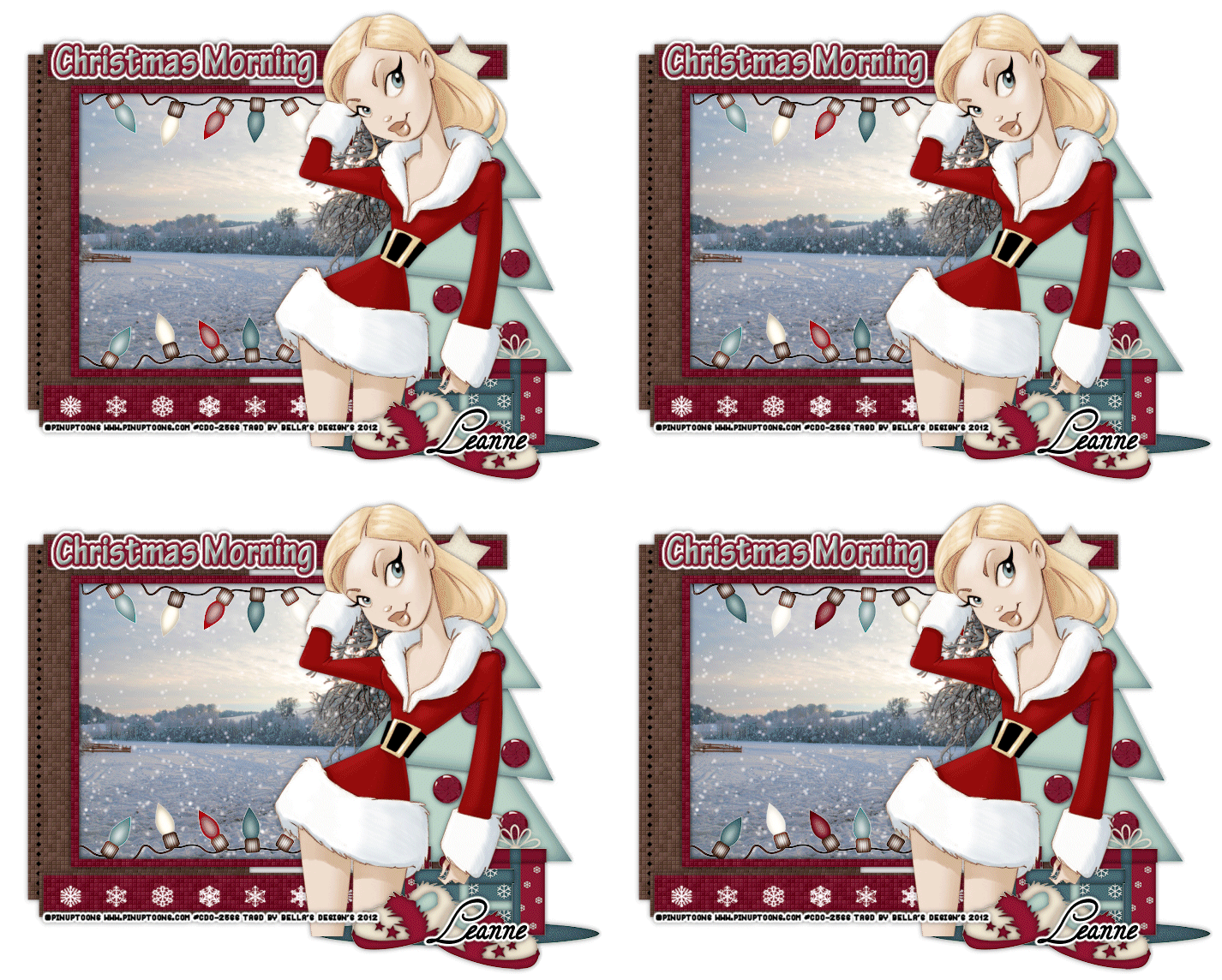
♥Christmas MorningPTU♥

Photobucket

This tutorial was written by me on September 13, 2012. Any resemblance to any other tutorial is pure coincidence.
Please DO NOT claim this tutorial as your own or post it to any other blog or website without permission from me.
It was written for PSP X, but should be compatible with any version of PSP.
I wrote it assuming that you have a working knowledge of PSP and it's components.

Scrapkit of choice. I used a PTU kit by Creative Scraps by Crys Called Christmas Morning
buy it at Scrappin Dollars Check Her Blog Here

I'm using the amazing artwork of Pinuptoons You can purchase a license for this tube here

Template87 From Becky Creations Here

Plug-ins used:
EyeCandy4000- gradient glow
xero: Fritillary
VDL Adrenaline-Snowflakes

Open up your Template in PSP,
Duplicates (SHift+D) Close out Your Original,
Delete Following Credit, Tou and Preview & hearts & I snow & large snowflake & Small snowflake
Canvas Size 700x700

1.Click on your lg Rectangle Select all Float Defloat Selections Modify expand by 1 Smoothing Amount 5 Soft Corners 5
Anti-Alias checked Preserve Corners checked OK, Add new layer flood with #604539 Apply Xero Fritillary with settings Granularity-5Aggression:32 Tesseation-15 Variation-10,
Effect 3D Effects Apply DropShadow..Vertical & Horizontal 0, Opacity 50, Blur 8, Shadow on new layer - unchecked.

2.Click on your Frame fill Select all Float Defloat Selections Modify expand by 1 Smoothing Amount 5 Soft Corners 5
Anti-Alias checked Preserve Corners checked OK, Add new layer flood with Scene

3.Click on your Frame Select all Float Defloat Selections Modify expand by 1 Smoothing Amount 5 Soft Corners 5
Anti-Alias checked Preserve Corners checked OK, Add new layer flood with #711127 Apply Xero Fritillary with settings Granularity-5Aggression:32 Tesseation-15 Variation-10,Keep Selections Effect 3D Effects Apply DropShadow..Vertical & Horizontal +1, Opacity 50, Blur 8, Shadow on new layer - unchecked.
Effect 3D Effects Apply DropShadow..Vertical & Horizontal-1, Opacity 50, Blur 8, Shadow on new layer - unchecked.

4.Open up your CM_Element_35 copy and paste them as new layer resize 70% Duplicates Image Flip, Duplicates total 3 top 3 bottom,Close
2 top and 2 bottom, Using your Light/Darken Tool, run it over each of the Skip light then untill you get other end Do same for Other set Lights

5.Click on your banner 2 background & banner 1 background Select all Float Defloat Selections Modify expand by 1 Smoothing Amount 5 Soft Corners 5
Anti-Alias checked Preserve Corners checked OK, Add new layer flood with #604539 Apply Xero Fritillary with settings Granularity-5Aggression:32 Tesseation-15 Variation-10,
Effect 3D Effects Apply DropShadow..Vertical & Horizontal 0, Opacity 50, Blur 8, Shadow on new layer - unchecked.

6.Click on your banner 1 & banner 2 Select all Float Defloat Selections Modify expand by 1 Smoothing Amount 5 Soft Corners 5
Anti-Alias checked Preserve Corners checked OK, Add new layer flood with #711127 Apply Xero Fritillary with settings Granularity-5Aggression:32 Tesseation-15 Variation-10,Keep Selections Effect 3D Effects Apply DropShadow..Vertical & Horizontal +1, Opacity 50, Blur 8, Shadow on new layer - unchecked.
Effect 3D Effects Apply DropShadow..Vertical & Horizontal-1, Opacity 50, Blur 8, Shadow on new layer - unchecked.

7.Go back to your Scene Add new layer Duplicates 3 times Then we going add Snowflake with settings 20,0,20,0,0 Snow Color Basic Snow White and change Random seed 2-3-4 for other layers.

8.Open up your CM_Element_33 copy and paste them as new layer resize 80%,Effect 3D Effects Apply DropShadow..Vertical & Horizontal-1, Opacity 50, Blur 8, Shadow on new layer - unchecked.

9.Open up your CM_Element_34 copy and paste them as new layer resize 50%x2,Duplicates Effect 3D Effects Apply DropShadow..Vertical & Horizontal-1, Opacity 50, Blur 8, Shadow on new layer - unchecked.

10.Open up your CM_Element_40 copy and paste them as new layer resize 50%x2,Effect 3D Effects Apply DropShadow..Vertical & Horizontal-1, Opacity 50, Blur 8, Shadow on new layer - unchecked.

10.Open up your CM_Element_46 copy and paste them as new layer resize 50%,Effect 3D Effects Apply DropShadow..Vertical & Horizontal-1, Opacity 50, Blur 8, Shadow on new layer - unchecked.

~*~*~Open animation~*~*~


Your layer palette should have all of the tag visible with only one animated layer showing, the other ones should have red Xs
showing they are not visible. Click Edit-Copy Merged, go into Animation Shop and click Edit-Paste-As New Animation. Then back in PSP,
close visibility on the first animated layer and open visibility on the next animated layer, again Click Edit-Copy
Merged, then go into Animation Shop and right click on the image you just pasted there and choose Paste-After Current Frame.
Repeat this for each animated layer and making sure each time in Animation Shop that you paste the new copy after the last frame of the image there


Photobucket