Showing posts with label Suzanne Woolcott. Show all posts

Wednesday, 28 November 2012

♥The Urban Fairy ChristmasPTU♥


This tutorial was written by Me on November24, 2012. Any resemblance to any other tutorial is pure coincidence. Please DO NOT claim this tutorial as your own or post it to any other blog or website without permission from me. It was written for PSP X, but should be compatible with any version of PSP. I wrote it assuming that you have a working knowledge of PSP and it's components. 
Scrapkit of choice: I used a PTU kit by AlikasScraps Called AS Chilly Delight at purchased here You can visit her blog here
 I used the artwork of Suzanne Woolcotts You have to be licensed to use this artwork and it can be purchased Here 
Plug-ins used: 
 EyeCandy4000- gradient glow, 
 Lokas 3D Shadow,
 Supplies the Template and snow I use you can Get Here
1.Click on your Rectangle1 Select all Float Defloat Selections Modify expand by 1 Smoothing Amount 5 Soft Corners 5 Anti-Alias checked Preserve Corners checked OK,
Add new layer flood with #c7baa6 Apply Noise Add/Remove add noise with these setting Uniform Monochrome Noise 50% Contract Selections 5 Add new layer flood with your as_paper09
Apply Lokas 3D Shadow with settings at B35, T60, Angles X,Y, and Z at 0, zoom 100, Offset X-Y by 5, Perspective at 19 color black.

2.Click on your Rectangle2 Select all Float Defloat Selections Modify expand by 1 Smoothing Amount 5 Soft Corners 5 Anti-Alias checked Preserve Corners checked OK,
Add new layer flood with #c7baa6 Apply Noise Add/Remove add noise with these setting Uniform Monochrome Noise 50% Contract Selections 5 Add new layer flood with your as_paper09
Apply Lokas 3D Shadow with settings at B35, T60, Angles X,Y, and Z at 0, zoom 100, Offset X-Y by 5, Perspective at 19 color black.

3.Click on your Rectangle3 Select all Float Defloat Selections Modify expand by 1 Smoothing Amount 5 Soft Corners 5 Anti-Alias checked Preserve Corners checked OK,
Add new layer flood with #c7baa6 Apply Noise Add/Remove add noise with these setting Uniform Monochrome Noise 50% Contract Selections 5 Add new layer flood with your as_paper09
Apply Lokas 3D Shadow with settings at B35, T60, Angles X,Y, and Z at 0, zoom 100, Offset X-Y by 5, Perspective at 19 color black.

4.Click on your Rectangle4 Select all Float Defloat Selections Modify expand by 1 Smoothing Amount 5 Soft Corners 5 Anti-Alias checked Preserve Corners checked OK,
Add new layer flood with #c7baa6 Apply Noise Add/Remove add noise with these setting Uniform Monochrome Noise 50% Contract Selections 5 Add new layer flood with your as_paper09
Apply Lokas 3D Shadow with settings at B35, T60, Angles X,Y, and Z at 0, zoom 100, Offset X-Y by 5, Perspective at 19 color black.

5.Open up your as52 copy and paste as new layer, take magic wand click on it 2 times make sure you got clear part of it,add you snow, add 10 layers copy and paste into
selections untill 10 layer done slect none,Apply Lokas 3D Shadow with settings at B35, T60, Angles X,Y, and Z at 0, zoom 100, Offset X-Y by 5, Perspective at 19 color black.

6.Open up your as17 copy and paste as new layer Duplicates Image Mirror,Apply Lokas 3D Shadow with settings at B35, T60, Angles X,Y, and Z at 0, zoom 100, Offset X-Y by 5, Perspective at 19 color black.

7.Open up your as22 copy and paste as new layer resize 70%,Apply Lokas 3D Shadow with settings at B35, T60, Angles X,Y, and Z at 0, zoom 100, Offset X-Y by 5, Perspective at 19 color black.

8.Open up your as54 copy and paste as new layer resize 70%,Apply Lokas 3D Shadow with settings at B35, T60, Angles X,Y, and Z at 0, zoom 100, Offset X-Y by 5, Perspective at 19 color black.

9.Open up your as21 copy and paste as new layer resize 70%,Apply Lokas 3D Shadow with settings at B35, T60, Angles X,Y, and Z at 0, zoom 100, Offset X-Y by 5, Perspective at 19 color black.

10.Open up your as9 copy and paste as new layer resize 70%,Apply Lokas 3D Shadow with settings at B35, T60, Angles X,Y, and Z at 0, zoom 100, Offset X-Y by 5, Perspective at 19 color black.

11.Open up your as25 copy and paste as new layer resize 50%x2,Apply Lokas 3D Shadow with settings at B35, T60, Angles X,Y, and Z at 0, zoom 100, Offset X-Y by 5, Perspective at 19 color black.

12.Open up your as13 copy and paste as new layer resize 60% Duplicates Image Mirror,Apply Lokas 3D Shadow with settings at B35, T60, Angles X,Y, and Z at 0, zoom 100, Offset X-Y by 5, Perspective at 19 color black.

13.Open up your Tube Copy and paste as new layer,Apply Lokas 3D Shadow with settings at B35, T60, Angles X,Y, and Z at 0, zoom 100, Offset X-Y by 5, Perspective at 19 color black.

~*~*~Open animation~*~*~
Your layer palette should have all of the tag visible with only one animated layer showing, the other ones should have red Xs showing they are not visible. 
Click Edit-Copy Merged, go into Animation Shop and click Edit-Paste-As New Animation. 
Then back in PSP, close visibility on the first animated layer and open visibility on the next animated layer, again Click Edit-Copy Merged, then go into Animation Shop and right click on the image you just pasted there and choose Paste-After Current Frame. 
Repeat this for each animated layer and making sure each time in Animation Shop that you paste the new copy after the last frame of the image there
Photobucket

Saturday, 24 November 2012

♥Winter Bear PTU♥


This tutorial was written by Me on November24, 2012. Any resemblance to any other tutorial is pure coincidence. Please DO NOT claim this tutorial as your own or post it to any other blog or website without permission from me. It was written for PSP X, but should be compatible with any version of PSP. I wrote it assuming that you have a working knowledge of PSP and it's components. 
Scrapkit of choice: I used a PTU kit by Petit Creaciones Called Santa's helper at purchased here You can visit her blog here 
I used the artwork of Suzanne Woolcotts You have to be licensed to use this artwork and it can be purchased Here 
Plug-ins used:
 EyeCandy4000- gradient glow,
 Lokas 3D Shado,
 Alien Skin Eye Candy 5 – Nature – Snow Drift
Supplie the Template and snow I use you can Get Here
1.Click on your Rectangle1 Select all Float Defloat Selections Modify expand by 1 Smoothing Amount 5 Soft Corners 5 Anti-Alias checked Preserve Corners checked OK, Add new layer flood with #cfddba Apply Noise Add/Remove add noise with these setting
Uniform Monochrome Noise 50% Contract Selections 5 Add new layer flood with your pt-shpaper18

2.Click on your Rectangle2 Select all Float Defloat Selections Modify expand by 1 Smoothing Amount 5 Soft Corners 5 Anti-Alias checked Preserve Corners checked OK, Add new layer flood with #cfddba Apply Noise Add/Remove add noise with these setting
Uniform Monochrome Noise 50% Contract Selections 5 Add new layer flood with your pt-shpaper18

3.Click on your Rectangle3 Select all Float Defloat Selections Modify expand by 1 Smoothing Amount 5 Soft Corners 5 Anti-Alias checked Preserve Corners checked OK, Add new layer flood with #cfddba Apply Noise Add/Remove add noise with these setting
Uniform Monochrome Noise 50% Contract Selections 5 Add new layer flood with your pt-shpaper18

4.Click on your Rectangle4 Select all Float Defloat Selections Modify expand by 1 Smoothing Amount 5 Soft Corners 5 Anti-Alias checked Preserve Corners checked OK, Add new layer flood with #cfddba Apply Noise Add/Remove add noise with these setting
Uniform Monochrome Noise 50% Contract Selections 7 Add new layer flood with your pt-shpaper18

5.Open up your pt-shframe2 copy and paste as new layer resize 50%x2 and Resize at 70%, Take your magic wand click inside modify expand by 2
Copy and paste your Tube as new layer,Apply Lokas 3D Shadow with settings at B35, T60, Angles X,Y, and Z at 0, zoom 100, Offset X-Y by 5, Perspective at 35 color black.

6.Go back to your pt-shframe2 Apply Alien Skin Eye Candy 5 – Nature – Snow Drift-Large, First Flakes
Snowbasic Tab-Drift Height(Pixels)-15.80,Clumping-100,Surface Roughness-40,Droop-0,Dust on all features-21,Dust on Bright Features-11,
Bright Features Threshold-20 Random Seed-4015,Under Lighting Tab Light Direction(')-85 Shadow Strength-10 Shadow Color #092e65

7.Go back to your Paper Layer select all float defloat Add 10 layer for your Snow ,Open up Snow in supplies copy and paste into selections

8.Go back to your Rectangle4 Take your Selections Tool and Draw Rectangle add new layer Apply Alien Skin Eye Candy 5 – Nature – Snow Drift-Large, First Flakes
Snowbasic Tab-Drift Height(Pixels)-15.80,Clumping-100,Surface Roughness-40,Droop-0,Dust on all features-21,Dust on Bright Features-11,
Bright Features Threshold-20 Random Seed-4015,Under Lighting Tab Light Direction(')-85 Shadow Strength-10 Shadow Color #092e65

9.Open up your pt-shflower copy and paste as new layer resize 30%,Apply Muras Meister Copies With these setting Encircle Number:6 ShiftX:48 ShiftY:50 rest defloat setting,
Apply Alien Skin Eye Candy 5 – Nature – Snow Drift-Large, First Flakes
Snowbasic Tab-Drift Height(Pixels)-15.80,Clumping-100,Surface Roughness-40,Droop-0,Dust on all features-21,Dust on Bright Features-11,
Bright Features Threshold-20 Random Seed-4015,Under Lighting Tab Light Direction(')-85 Shadow Strength-10 Shadow Color #092e65
Apply Lokas 3D Shadow with settings at B35, T60, Angles X,Y, and Z at 0, zoom 100, Offset X-Y by 5, Perspective at 35 color black.

10.Open up your pt-shelf3 copy and paste as new layer resize 50%x2 Apply Lokas 3D Shadow with settings at B35, T60, Angles X,Y, and Z at 0, zoom 100, Offset X-Y by 5, Perspective at 35 color black.

11.Open up your pt-shelf4 copy and paste as new layer resize 50%x2 Apply Lokas 3D Shadow with settings at B35, T60, Angles X,Y, and Z at 0, zoom 100, Offset X-Y by 5, Perspective at 35 color black.
~*~*~Open animation~*~*~
Your layer palette should have all of the tag visible with only one animated layer showing, the other ones should have red Xs showing they are not visible. 
Click Edit-Copy Merged, go into Animation Shop and click Edit-Paste-As New Animation. 
Then back in PSP, close visibility on the first animated layer and open visibility on the next animated layer, again Click Edit-Copy Merged, then go into Animation Shop and right click on the image you just pasted there and choose Paste-After Current Frame. 
Repeat this for each animated layer and making sure each time in Animation Shop that you paste the new copy after the last frame of the image there
Photobucket

Thursday, 8 November 2012

♥A Secret Placein Wood PTU♥

 
 This tutorial was written by me on November 8, 2012. Any resemblance to any other tutorial is pure coincidence. Please DO NOT claim this tutorial as your own or post it to any other blog or website without permission from me. It was written for PSP X, but should be compatible with any version of PSP. I wrote it assuming that you have a working knowledge of PSP and it's components.
Scrapkit of choice: I used a PTU kit by  Broken Sky Dezine Called A Secret Place - Tagger Kit
at purchased here You can visit her blog here
I used the artwork of Suzanne Woocott You have to be licensed to use this artwork and it can be purchased here
 Plug-ins used:
EyeCandy4000- gradient glow
xero: Fritillary 
Open a new Canvas 800x800 Transparent

1.Open up your BSD_44 copy and paste as new layer resize 70%, Take your Magic wand Click inside modify expand by 10,Add new layer under frame layer
Open up your BSD_Paper6,Apply Xero Fritillary with settings Granularity-5 Aggression:125 Tesseation-45 Variation-25,Apply drop shadow H-3, V-3, O50, B10, colour #000000
Merge Down Image Free Rotate Direction: Left Degrees: 20.00

2.Open up your BSD_44 copy and paste as new layer resize 70%, Take your Magic wand Click inside modify expand by 10,Add new layer under frame layer
Open up your BSD_Paper6,Apply Xero Fritillary with settings Granularity-5 Aggression:125 Tesseation-45 Variation-25,Apply drop shadow H-3, V-3, O50, B10, colour

3.Open up your BSD_15 copy and paste as new layer resize 70%, Duplicates Image Mirror,Apply drop shadow H-3, V-3, O50, B10, colour

4.Open up your BSD_16 copy and paste as new layer resize 70%, Duplicates Image Mirror,Apply drop shadow H-3, V-3, O50, B10, colour

5.Open up your BSD_16 copy and paste as new layer resize 70%,drop shadow H-3, V-3, O50, B10, colour

Photobucket

Saturday, 18 August 2012

♥Fantasyland♥


This tutorial was written by me on August 18, 2012. Any resemblance to any other tutorial is pure coincidence.
Please DO NOT claim this tutorial as your own or post it to any other blog or website without permission from me.
It was written for PSP X, but should be compatible with any version of PSP.
I wrote it assuming that you have a working knowledge of PSP and it's components.

Scrapkit of choice. I used a PTU kit by Creative Intentionz CalledFantasy Land at purchased here You can visit her blog here
I used the artwork of Suzanne Woolcott You have to be licensed to use this artwork and it can be purchased here
                       

Template Of Choice was from New Collab Templates - Punky & Pooker you can get here or here
Plug-ins used:
EyeCandy4000- gradient glow
Lokas Software - 3D Shadow
Xero-Fritillary

                                                                            Let Start

Open up the template.
Shift + D.
Close out the original.
Delete following: Top 4 Layers and I HAVE C.C.A wordart and Checks and Pink Circle and White Dotted
Image/Canvas Size:700x700

1.Click on your right small rectangle and Left small rectangle select all float defloat modify expand by 2 smooth 5,5 add new layer flood with
#87628d Adjust Add/remove Noise add Noise with
these setting Gaussian Monochrome Noise 50%,Apply Lokas 3D Shadow with settings at B35, T60, Angles X,Y, and Z at 0, zoom 100, Offset X-Y by 5, Perspective at 19 color black.

2.Click on your DK Pink Left Square & DK Pink Right Square select all float defloat modify expand by 2 smooth 5,5 add new layer flood with #87628d, Apply Gradient Glow White fat line Apply Xero-Fritillary with these setting 5,30,25,9,
Apply Lokas 3D Shadow with settings at B35, T60, Angles X,Y, and Z at 0, zoom 100, Offset X-Y by 5, Perspective at 19 color black.

3.Click on your Pink Square1 & Pink Square2 select all float defloat modify expand by 2 smooth 5,5 add new layer flood with #a4af77, Apply Gradient Glow White fat line Apply Xero-Fritillary with these setting 5,30,25,9,
Apply Lokas 3D Shadow with settings at B35, T60, Angles X,Y, and Z at 0, zoom 100, Offset X-Y by 5, Perspective at 19 color black.

4.Click on your Black Rectangle select all float defloat modify expand by 2 smooth 5,5 add new layer flood with #87628d,
Apply Gradient Glow White fat line Apply Xero-Fritillary with these setting 5,30,25,9,
Apply Lokas 3D Shadow with settings at B35, T60, Angles X,Y, and Z at 0, zoom 100, Offset X-Y by 5, Perspective at 19 color black.

5.Click on your White Rectangle select all float defloat modify expand by 2 smooth 5,5 add new layer flood with #a4af77,
Apply Gradient Glow White fat line Apply Xero-Fritillary with these setting 5,30,25,9,
Apply Lokas 3D Shadow with settings at B35, T60, Angles X,Y, and Z at 0, zoom 100, Offset X-Y by 5, Perspective at 19 color black.

6. Open up your ciz_fantasyland_floralframe2 copy and paste as new layer Apply Lokas 3D Shadow with settings at B35, T60, Angles X,Y, and Z at 0, zoom 100, Offset X-Y by 5, Perspective at 19 color black.

7.Click on your Dk Pink Circle select all float defloat modify expand by 2 smooth 5,5 add new layer flood with #8fbeea,
Apply Gradient Glow White fat line Apply Xero-Fritillary with these setting 5,30,25,9,
Apply Lokas 3D Shadow with settings at B35, T60, Angles X,Y, and Z at 0, zoom 100, Offset X-Y by 5, Perspective at 19 color black.

8.Click on your Dk pink circle frame select all float defloat modify expand by 2 smooth 5,5 add new layer flood with #a4af77,
Apply Gradient Glow White fat line Apply Xero-Fritillary with these setting 5,30,25,9,
Apply Lokas 3D Shadow with settings at B35, T60, Angles X,Y, and Z at 0, zoom 100, Offset X-Y by 5, Perspective at 19 color black.

9.Open up your ciz_fantasyland_path copy and paste as new layer under your circle frame and take your Eraser tool and Eraser what hang ,
Apply Lokas 3D Shadow with settings at B35, T60, Angles X,Y, and Z at 0, zoom 100, Offset X-Y by 5, Perspective at 19 color black.

10. Open up your ciz_fantasy_stumps copy and paste as new layer resize 60%, Duplicates Image Mirror,Apply Lokas 3D Shadow with settings at B35, T60, Angles X,Y, and Z at 0, zoom 100, Offset X-Y by 5, Perspective at 19 color black.

11. Open up your ciz_fantasyland_deer1 copy and paste as new layer resize 60%, Apply Lokas 3D Shadow with settings at B35, T60, Angles X,Y, and Z at 0, zoom 100, Offset X-Y by 5, Perspective at 19 color black.

12.Open up your ciz_fantasyland_tree2 copy and paste as new layer resize 60%,Duplicates Image Mirror Apply Lokas 3D Shadow with settings at B35, T60, Angles X,Y, and Z at 0, zoom 100, Offset X-Y by 5, Perspective at 19 color black.

13.Open up your ciz_fantasyland_hummingbird2 copy and paste as new layer resize 80%, Apply Lokas 3D Shadow with settings at B35, T60, Angles X,Y, and Z at 0, zoom 100, Offset X-Y by 5, Perspective at 19 color black.

13.Open up your ciz_fantasyland_sign copy and paste as new layer resize 60%, Apply Lokas 3D Shadow with settings at B35, T60, Angles X,Y, and Z at 0, zoom 100, Offset X-Y by 5, Perspective at 19 color black.

14.OPen up your Tube Copy and paste as new layer resize 80% Apply Lokas 3D Shadow with settings at B35, T60, Angles X,Y, and Z at 0, zoom 100, Offset X-Y by 5, Perspective at 19 color black.

Photobucket

Wednesday, 15 August 2012

♥Rainy Dayz♥


This tutorial was written by me on August 15, 2012. Any resemblance to any other tutorial is pure coincidence.
Please DO NOT claim this tutorial as your own or post it to any other blog or website without permission from me.
It was written for PSP X, but should be compatible with any version of PSP.
I wrote it assuming that you have a working knowledge of PSP and it's components.
 
Scrapkit of choice. I used a PTU kit by Stef'sScrapkits Called Rainy Dayz buy it at Scrappin dollars You can visit her blog here

I used the artwork of Suzanne Woolcott You have to be licensed to use this artwork and it can be purchased here

Template Of Choice was from Vickie Tutorials 11 you can get here

Plug-ins used:
EyeCandy4000- gradient glow
Lokas Software - 3D Shadow
Xero Porcelain,
Xero-Fritillary

Let Start

Open up the template.
Shift + D.
Close out the original.
Delete following:©Right leaf and Left Leaf
Image/Canvas Size:700x700

1.Click on your Raster3 select all float defloat modify expand by 1 smooth 5,5 Add new layer flood with #0a5781,Apply Xero-Fritillary with these setting 5,30,25,9, Keep selections Open up your tube copy and paste as new layer invert edit cut,
,Duplicate your main tube layer On the original tube layer, Xero porcelain set at 50/128/128/0/0/255 On the duplicated tube layer, adjust, blur, Gaussian Blur set to 5
Layers, properties, change blend mode to screen and lower the opacity to about 70, invert keep select apply gradient glow fat white line Apply Lokas 3D Shadow with settings at B35, T60, Angles X,Y, and Z at 0, zoom 100, Offset X-Y by 5, Perspective at 35 color black.

2.Click on your Raster2 select all float defloat modify expand by 1 smooth 5,5 Add new layer flood with #64b6b2,Apply Xero-Fritillary with these setting 5,30,25,9,
apply gradient glow fat white line, Apply Lokas 3D Shadow with settings at B35, T60, Angles X,Y, and Z at 0, zoom 100, Offset X-Y by 5, Perspective at 35 color black.

3.Click on your Black Rectangle select all float defloat modify expand by 1 smooth 5,5 Add new layer flood with #0a5781,Apply Xero-Fritillary with these setting 5,30,25,9,
apply gradient glow fat white line, Apply Lokas 3D Shadow with settings at B35, T60, Angles X,Y, and Z at 0, zoom 100, Offset X-Y by 5, Perspective at 35 color black.

3.Click on your White Gltter Rectangle select all float defloat modify expand by 1 smooth 5,5 Add new layer flood with #64b6b2,Apply Xero-Fritillary with these setting 5,30,25,9,
apply gradient glow fat white line, Apply Lokas 3D Shadow with settings at B35, T60, Angles X,Y, and Z at 0, zoom 100, Offset X-Y by 5, Perspective at 35 color black.

4.Open up your ele17_RainyDayz_Stef'sScrapkits copy and paste as new layer resize 50% then resize 60%,Duplicates image Mirror,merge down together,
Apply Lokas 3D Shadow with settings at B35, T60, Angles X,Y, and Z at 0, zoom 100, Offset X-Y by 5, Perspective at 35 color black.

5.Click on your Thin Black Strip 1 and 2 select all float defloat modify expand by 1 smooth 5,5 Add new layer flood with #64b6b2 Apply Xero-Fritillary with these setting 5,30,25,9
Apply Lokas 3D Shadow with settings at B35, T60, Angles X,Y, and Z at 0, zoom 100, Offset X-Y by 5, Perspective at 35 color black.

6.Click on your Thin White Glitter and Strip 1and 2 select all float defloat modify expand by 1 smooth 5,5 Add new layer flood with #64b6b2, Apply Xero-Fritillary with these setting 5,30,25,9
Apply Lokas 3D Shadow with settings at B35, T60, Angles X,Y, and Z at 0, zoom 100, Offset X-Y by 5, Perspective at 35 color black.

5.Click on your Large Black Circle select all float defloat modify expand by 1 smooth 5,5 Add new layer flood with #64b6b2 Apply Xero-Fritillary with these setting 5,30,25,9
Apply Lokas 3D Shadow with settings at B35, T60, Angles X,Y, and Z at 0, zoom 100, Offset X-Y by 5, Perspective at 35 color black.

6.Click on your Thin Large Gltter Circle select all float defloat modify expand by 1 smooth 5,5 Add new layer flood with #64b6b2, Apply Xero-Fritillary with these setting 5,30,25,9
Apply Lokas 3D Shadow with settings at B35, T60, Angles X,Y, and Z at 0, zoom 100, Offset X-Y by 5, Perspective at 35 color black.

7.Open up your ele657_RainyDayz_Stef'sScrapkits copy and paste as new layer resize 70% ,Duplicates image Mirror,merge down together,
Apply Lokas 3D Shadow with settings at B35, T60, Angles X,Y, and Z at 0, zoom 100, Offset X-Y by 5, Perspective at 35 color black.

8.Open up your ele61_RainyDayz_Stef'sScrapkits copy and paste as new layer resize 50% then resize 60%,Duplicates image Mirror,merge down together,
Apply Lokas 3D Shadow with settings at B35, T60, Angles X,Y, and Z at 0, zoom 100, Offset X-Y by 5, Perspective at 35 color black.

9.Open up your ele63_RainyDayz_Stef'sScrapkits copy and paste as new layer resize 50%,Apply Lokas 3D Shadow with settings at B35, T60, Angles X,Y, and Z at 0, zoom 100, Offset X-Y by 5, Perspective at 35 color black.

10.Open up your ele55_RainyDayz_Stef'sScrapkits copy and paste as new layer resize


MY Friend Dixie did my tut look what she done thanks Dixie I love it<3


Photobucket

Saturday, 23 June 2012

♥EvesGarden Banner♥


This tutorial was written by me on June 23, 2012. Any resemblance to any other tutorial is pure coincidence.
Please DO NOT claim this tutorial as your own or post it to any other blog or website without permission from me. It was written for PSP X, but should be compatible with any version of PSP.
I wrote it assuming that you have a working knowledge of PSP and it's components.


Scrapkit of choice. I used a PTU kit by Alika's Scraps Called AS Eve's Garden at purchased here


I used the artwork of Suzanne Woolcott You have to be licensed to use this artwork and it can be purchased here


Plugins Used:
Xero Fritillary
EyeCandy 4000 Gradient Glow
AAA- Photoframe


Template Of Choice :Template021 by Spawns and can be found : HERE


1.Click on your Main background select all ,Add new layer Flood with #e6af86,Apply Xero-Fritillary with these setting Granularity-5,
aggression-30 tesselation-100 variation-97


2.Click on your Angled Lines. select all float defloat
add new layer flood with #8f0e4f,Apply Xero-Fritillary with these setting Granularity-5,
aggression-30 tesselation-100 variation-97 Apply Gradient Glow Color-Black,Duplicates Merge Down,
DropShadow..Vertical & Horizontal 0, Opacity 60, Blur 10, Shadow on new layer - unchecked


3.Open up your as29 copy and paste as new layer ,Duplicates Image Mirror, Apply Gradient Glow Color-Black,Duplicates Merge Down,
DropShadow..Vertical & Horizontal 0, Opacity 60, Blur 10, Shadow on new layer - unchecked


4.Click on your Right Circle Background. select all float defloat
add new layer flood with #e6af86 Apply Xero Fritillary with settings at with these setting Granularity-5,
aggression-32 tesselation-14 variation-6


5.Click on your Right Circle's Squares. select all float defloat
add new layer flood with #8f0e4f,Apply Xero-Fritillary with these setting Granularity-5,
aggression-30 tesselation-100 variation-97 Apply Gradient Glow Color-Black,Duplicates Merge Down,
DropShadow..Vertical & Horizontal 0, Opacity 60, Blur 10, Shadow on new layer - unchecked


6.Open up your as38 copy and paste as new layer resize 50%, Apply Gradient Glow Color-Black,Duplicates Merge Down,
DropShadow..Vertical & Horizontal 0, Opacity 60, Blur 10, Shadow on new layer - unchecked


7.Click on your Right Circle Outline. select all float defloat
add new layer flood with #8f0e4f,Apply Xero-Fritillary with these setting Granularity-5,
aggression-30 tesselation-100 variation-97 Apply Gradient Glow Color-Black,Duplicates Merge Down,
DropShadow..Vertical & Horizontal 0, Opacity 60, Blur 10, Shadow on new layer - unchecked


8.Click on your Left Circle Background. select all float defloat
add new layer flood with #e6af86 Apply Xero Fritillary with settings at with these setting Granularity-5,
aggression-32 tesselation-14 variation-6


9.Click on your Left Circle's Squares. select all float defloat
add new layer flood with #8f0e4f,Apply Xero-Fritillary with these setting Granularity-5,
aggression-30 tesselation-100 variation-97 Apply Gradient Glow Color-Black,Duplicates Merge Down,
DropShadow..Vertical & Horizontal 0, Opacity 60, Blur 10, Shadow on new layer - unchecked


10.Open up your as38 copy and paste as new layer resize 50%, Apply Gradient Glow Color-Black,Duplicates Merge Down,
DropShadow..Vertical & Horizontal 0, Opacity 60, Blur 10, Shadow on new layer - unchecked


11.Click on your Left Circle Outline. select all float defloat
add new layer flood with #8f0e4f,Apply Xero-Fritillary with these setting Granularity-5,
aggression-30 tesselation-100 variation-97 Apply Gradient Glow Color-Black,Duplicates Merge Down,
DropShadow..Vertical & Horizontal 0, Opacity 60, Blur 10, Shadow on new layer - unchecked


12.Click on your Middle Circle Background. select all float defloat
add new layer flood with #e6af86,Apply Xero-Fritillary with these setting Granularity-5,
aggression-30 tesselation-100 variation-97 Apply Gradient Glow Color-Black,Duplicates Merge Down,
DropShadow..Vertical & Horizontal 0, Opacity 60, Blur 10, Shadow on new layer - unchecked


13.Click on your Middle Circle's Squares. select all float defloat
add new layer flood with #8f0e4f,Apply Xero-Fritillary with these setting Granularity-5,
aggression-30 tesselation-100 variation-97 Apply Gradient Glow Color-Black,Duplicates Merge Down,
DropShadow..Vertical & Horizontal 0, Opacity 60, Blur 10, Shadow on new layer - unchecked


14.Go Back to your Middle Circle background Open up your Tube Copy and paste as new layer,
Selections Invert Edit Cut DropShadow..Vertical & Horizontal 0, Opacity 60, Blur 10, Shadow on new layer - unchecked


15.Click on your Middle Circle Outline. select all float defloat
add new layer flood with #8f0e4f,Apply Xero-Fritillary with these setting Granularity-5,
aggression-30 tesselation-100 variation-97 Apply Gradient Glow Color-Black,Duplicates Merge Down,
DropShadow..Vertical & Horizontal 0, Opacity 60, Blur 10, Shadow on new layer - unchecked


16.Open up your as02 copy and paste as new layer,DropShadow..Vertical & Horizontal 0, Opacity 60, Blur 10, Shadow on new layer - unchecked


17. Merge Visible.
AAA- Photoframe with these Settings:Width:10,Brightness:-10 Stroke:191 Matte:2 Red and Green and Blue:0 Opacity:100


Photobucket

Tuesday, 5 June 2012

♥Tea For Two♥

 
This tutorial was written by me on June 5, 2012. Any resemblance to any other tutorial is pure coincidence.
Please DO NOT claim this tutorial as your own or post it to any other blog or website without permission from me. It was written for PSP X, but should be compatible with any version of PSP.
I wrote it assuming that you have a working knowledge of PSP and it's components.


Scrapkit of choice. I used a PTU kit by Creative Scraps by Crys Called Tea For Two can be purchased here


I used the artwork of Suzanne Woolcott You have to be licensed to use this artwork and it can be purchased here


Plugins Used:

Xero Fritillary and Porcelain

EyeCandy 4000 Gradient Glow


Template Of Choice : Toxic Desirez Template #146 and can be found : HERE


Open up your template in psp.

Duplicates (Shift+D) And Close out the original.

Delete Following Designer Credit And Wordart and lollipop

Canvas size 750x750


1.Click on your Frame1 Select all float defloat,selections modify expand by 1,
selections modify smoothness 5,5 Add new layer flood with #79c7d7
Xero Fritillary with settings at 5, 32, 14, 6.Gradient Glow Fat White Line,
DropShadow..Vertical & Horizontal 0, Opacity 60, Blur 10, Shadow on new layer - unchecked.


2.Click on your Circle Select all float defloat,selections modify expand by 1,
selections modify smoothness 5,5 Add new layer flood with #b792c1
Xero Fritillary with settings at 5, 32, 14, 6.Gradient Glow Fat White Line,


3.Click on your Glittered Rectangle 1 Select all float defloat,selections modify expand by 1,
selections modify smoothness 5,5 Add new layer flood with #87d0cb
Add/remove noise add noise with these setting Random Noise 60% Monochrome
DropShadow..Vertical & Horizontal 0, Opacity 60, Blur 10, Shadow on new layer - unchecked.


4.Click on your Glittered Rectangle 2 Select all float defloat,selections modify expand by 1,
selections modify smoothness 5,5 Add new layer flood with #87d0cb
Add/remove noise add noise with these setting Random Noise 60% Monochrome
DropShadow..Vertical & Horizontal 0, Opacity 60, Blur 10, Shadow on new layer - unchecked.


5.Click on your Rectangle 1&2 Select all float defloat,selections modify expand by 1,
selections modify smoothness 5,5 Add new layer flood with #79c7d7
Xero Fritillary with settings at 5, 32, 14, 6.
DropShadow..Vertical & Horizontal 0, Opacity 60, Blur 10, Shadow on new layer - unchecked.


6.Click on your Sm Rectangle Select all float defloat,selections modify expand by 1,
selections modify smoothness 5,5 Add new layer flood with #b792c1
Xero Fritillary with settings at 5, 32, 14, 6.
DropShadow..Vertical & Horizontal 0, Opacity 60, Blur 10, Shadow on new layer - unchecked.


7.Open up your TFT_Element_5 copy and paste as new layer, Duplicates Image
DropShadow..Vertical & Horizontal 0, Opacity 60, Blur 10, Shadow on new layer - unchecked.


7.Open up your TFT_Element_49 copy and paste as new layer, Duplicates Image
DropShadow..Vertical & Horizontal 0, Opacity 60, Blur 10, Shadow on new layer - unchecked.


8.Open up your TFT_Frame_3 copy and paste as new layer resize 80%,Adjust HUE and Saturation and Hue-204 and Sat-71


9.Click on your Frame Back 1 and 2 Select all float defloat,selections modify expand by 1,
selections modify smoothness 5,5 Add new layer flood with #b792c1
Xero Fritillary with settings at 5, 32, 14, 6.
DropShadow..Vertical & Horizontal 0, Opacity 60, Blur 10, Shadow on new layer - unchecked.


10.Click on your Frame 1&2 Select all float defloat,selections modify expand by 1,
selections modify smoothness 5,5 Add new layer flood with #87d0cb
Add/remove noise add noise with these setting Random Noise 60% Monochrome
DropShadow..Vertical & Horizontal 0, Opacity 60, Blur 10, Shadow on new layer - unchecked.


11.Open up your Tube copy and paste as new layer behind your Frame ,
Add Xero Porcelain with settings at 50, 126, 132, 112, 52 and 94
DropShadow..Vertical & Horizontal 0, Opacity 60, Blur 10, Shadow on new layer - unchecked.


12.Open up your TFT_Element_57 copy and paste as new layer, Duplicates Image
DropShadow..Vertical & Horizontal 0, Opacity 60, Blur 10, Shadow on new layer - unchecked.


13.Open up your TFT_Element_6 copy and paste as new layer, Resize 30%
DropShadow..Vertical & Horizontal 0, Opacity 60, Blur 10, Shadow on new layer - unchecked.


14.Open up your TFT_Element_44 copy and paste as new layer, Resize 60%
DropShadow..Vertical & Horizontal 0, Opacity 60, Blur 10, Shadow on new layer - unchecked.


Add your copyright info and your watermark/logo


I hope you enjoyed my tutorial and come visit again real soon!

Friday, 18 May 2012

♥Fairy Tales Friends♥

Photobucket


This tutorial was written by me on May 18, 2012. Any resemblance to any other tutorial is pure coincidence.

Please DO NOT claim this tutorial as your own or post it to any other blog or website without permission from me. It was written for PSP X, but should be compatible with any version of PSP.

I wrote it assuming that you have a working knowledge of PSP and it's components.


crapkit of choice. I used a PTU kit by DesignedByStina Called Finding Neverland (Full Size) buy it at here


I used the artwork of Suzanne Woocott You have to be licensed to use this artwork and it can be purchased here


TracyF.Designz-Template31.pspimage This template i use you can get here


Plug-ins used:
EyeCandy4000- gradient glow
xero: Fritillary
Penta.com - Dot and Cross


1.Click on your Rectangle select all float defloat

Add new Layer flood with #c5a1dd Apply xero: Fritillary with

these settings: 5,55,11,17,

Apply penta.com Dot and Cross. Settings:

Amount = 255. Cross Distance = 10. Cross width = 5,

Apply Gradient Glow Fat What Line,and


2.Open up your DBS_FairyLights copy and paste as new layer resize 60%

selections Invert edit cut,Duplicates 2 times total

Go to your middle one and apply Adjust Brightness Contrast Brightness/Contrast with the following settings:
Brightness:40 Contrast:0 come back to this when it time to ANIMATE


3.Open up your DBS_tree01 copy and paste as new layer resize 60%

Duplicates Image Mirror


4.Click on your Strip1 select all float defloat

Add new Layer flood with #c5a1dd Apply xero: Fritillary with

these settings: 5,55,11,17,

Apply penta.com Dot and Cross. Settings:

Amount = 255. Cross Distance = 10. Cross width = 5,

Apply Gradient Glow Fat What Line,and


5.Click on your Strip2 select all float defloat

Add new Layer flood with #c5a1dd Apply xero: Fritillary with

these settings: 5,55,11,17,

Apply penta.com Dot and Cross. Settings:

Amount = 255. Cross Distance = 10. Cross width = 5,

Apply Gradient Glow Fat What Line,


6.Click on your Square select all float defloat

Open up your Tube copy and paste as new layer
selections invert edit cut,Duplicate, on the bottom tube layer

I changed the blend Mode to Screen and on the top tube layer I used Hard Light

and changed the Opacity to 50. Do the same thing for the other


7.Click on your Square select all float defloat

Add new Layer flood with #735280


8.Click on your Frames select all float defloat

Add new Layer flood with #c5a1dd Apply xero: Fritillary with

these settings: 5,55,11,17,

Apply penta.com Dot and Cross. Settings:

Amount = 255. Cross Distance = 10. Cross width = 5,

Apply Gradient Glow Fat What Line,and

Effect 3D Effects dropshadow with these settings: V-H:0 Opacity:50 Blur:8.00 color:Black


9.Open up your DBS_Flower04 & DBS_Flower02 copy and paste

as new layer resize 40%x2 Duplicates Image Mirror


10.Open up your DBS_FlutterbyGlow Take your Freehand

Circle on of flutterbyglow and cut copy and paste as new layer

Effect 3D Effects dropshadow with these settings: V-H:0 Opacity:50 Blur:8.00 color:Black


Take your Text any font will work i use was AKApprique Black i wrote out Fairy Tales Friends


Add your copyright info and your watermark/logo


~*~Ready for Anmations Shop~*~


our layer palette should have all of the tag visible with only one animated layer showing,

the other ones should have red Xs showing they are not visible.

Click Edit-Copy Merged, go into Animation Shop and click Edit-Paste-As New Animation.

Then back in PSP, close visibility on the first animated layer and open visibility on the next animated layer,

again Click Edit-Copy Merged, then go into Animation Shop and right click on the image you just pasted there and

choose Paste-After Current Frame. Repeat this for each animated layer and making sure each time in Animation Shop that you paste the new copy after the last frame

of the image there

Save as a .gif image


Photobucket

Thursday, 10 May 2012

♥Citrus♥


This tutorial was written by me on May 10, 2012. Any resemblance to any other tutorial is pure coincidence. Please DO NOT claim this tutorial as your own or post it to any other blog or website without permission from me. It was written for PSP X, but should be compatible with any version of PSP. I wrote it assuming that you have a working knowledge of PSP and it's components.


Scrapkit of choice: I used a PTU kit by Lise-Lotte Sunesen Called Citrus FS you can get here


I used the artwork of Suzanne Woocott You have to be licensed to use this artwork and it can be purchased here


the tag template by Kandi, which you can find here


1.Click on your Blue Square select all float defloat selections feather by 1
Add new layer flood with lhsSOLIDPAPER_kitCitrus_2_purple


2.Click on your Black Square select all float defloat selections feather by 1
Add new layer flood with lhsSOLIDPAPER_kitCitrus_purple


3.Click on your Black Rectangle select all float defloat selections feather by 1
Add new layer flood with lhsSOLIDPAPER_kitCitrus_2_purple


3.Click on your Blue Rectangle select all float defloat selections feather by 1
Add new layer flood with lhsSOLIDPAPER_kitCitrus_purple


4.Click on your Pink Rectangle select all float defloat selections feather by 1
Add new layer flood with lhsSOLIDPAPER_kitCitrus_2_purple


5.Click on your Frame3,2,1 select all float defloat selections feather by 1
Add new layer flood with lhsSOLIDPAPER_kitCitrus_blue


6.Click on your pink circles select all float defloat selections feather by 1
Add new layer flood with lhsSOLIDPAPER_kitCitrus_blue


7.Click on your Blue circles select all float defloat selections feather by 1
Add new layer flood with lhsSOLIDPAPER_kitCitrus_blue


8.Click on your circles Frame select all float defloat selections feather by 1
Add new layer flood with lhsSOLIDPAPER_kitCitrus_purple


9.all your layers Apply Drop Shadow....Vertical & Horizontal 0, Opacity 60, Blur 10, Shadow on new layer - unchecked.


10.Open up your lhsBRACKET_kitCitrus_1 copy and paste as new layer
Resize 50%x2 Apply Drop Shadow....Vertical & Horizontal 0, Opacity 60, Blur 10, Shadow on new layer - unchecked.


11.Open up your lhsDOTS_kitCitrus_2 copy and paste as new layer
Resize 50%x2 Apply Drop Shadow....Vertical & Horizontal 0, Opacity 60, Blur 10, Shadow on new layer - unchecked.


12.Open up your lhsFLAG_kitCitrus_8 copy and paste as new layer
Resize 50%x2 Apply Drop Shadow....Vertical & Horizontal 0, Opacity 60, Blur 10, Shadow on new layer - unchecked.


13.Open up your lhsFLOWERBRANCH_kitCitrus_1 copy and paste as new layer
Resize 50%x2 Duplicates Image Mirror,Apply Drop Shadow....
Vertical & Horizontal 0, Opacity 60, Blur 10, Shadow on new layer - unchecked.


14.Open up your lhsRIBBON_kitCitrus_5 copy and paste as new layer
Resize 50%x2 Apply Drop Shadow....Vertical & Horizontal 0, Opacity 60, Blur 10, Shadow on new layer - unchecked.


15.Open up your tube copy and paste as new layer,Apply Drop Shadow....Vertical & Horizontal 0, Opacity 60, Blur 10, Shadow on new layer - unchecked.


16.Open up your lhsLEMONBRANCH_kitCitrus_1 copy and paste as new layer
Resize 50%x2 Sent to Bottom,Apply Drop Shadow....Vertical & Horizontal
0, Opacity 60, Blur 10, Shadow on new layer - unchecked.


Tuesday, 24 April 2012

♥SpringLove♥

This tutorial was written by me on April 24, 2012. Any resemblance to any other tutorial is pure coincidence. Please DO NOT claim this tutorial as your own or post it to any other blog or website without permission from me. It was written for PSP X, but should be compatible with any version of PSP. I wrote it assuming that you have a working knowledge of PSP and it's components.


Scrapkit of choice. I used a PTU kit by DesignedByStina Called HopeSpringsEternal buy it at here


I used the artwork of Suzanne Woocott You have to be licensed to use this artwork and it can be purchased here

Yvette_EOC_Template32.pspimage this template i use you can get here
Plug-ins needed:
Lokas Software - 3D Shadow
DSB-Flux:Bright Noise


1.Click on your Raster1 select all float defloat add new layer flood with #abb533,Apply xero: Fritillary with these settings: 3,30,10,20,Apply Gradient Fat White line,Apply Lokas 3D Shadow with settings at B35, T60, Angles X,Y, and Z at 0, zoom 100, Offset X-Y by 5, Perspective at 35 color black.


2.Click on your Raster2 select all float defloat add new layer flood with #abb533,Apply xero: Fritillary with these settings: 3,30,10,20,Apply Gradient Fat White line,Apply Lokas 3D Shadow with settings at B35, T60, Angles X,Y, and Z at 0, zoom 100, Offset X-Y by 5, Perspective at 35 color black.


3.Click on your Raster3 select all float defloat add new layer flood with #abb533,Apply xero: Fritillary with these settings: 3,30,10,20,Apply Gradient Fat White line,Apply Lokas 3D Shadow with settings at B35, T60, Angles X,Y, and Z at 0, zoom 100, Offset X-Y by 5, Perspective at 35 color black.


4.Click on your Raster4 select all float defloat add new layer flood with #7fc6bd,Apply xero: Fritillary with these settings: 3,30,10,20,Apply Gradient Fat White line,Apply Lokas 3D Shadow with settings at B35, T60, Angles X,Y, and Z at 0, zoom 100, Offset X-Y by 5, Perspective at 35 color black.


5.Click on your Raster5 select all float defloat add new layer flood with #7fc6bd,Apply xero: Fritillary with these settings: 3,30,10,20,Apply Gradient Fat White line,Apply Lokas 3D Shadow with settings at B35, T60, Angles X,Y, and Z at 0, zoom 100, Offset X-Y by 5, Perspective at 35 color black.


6.Open up your DBS_Frame02 copy and paste as new layer resize 50%x2,Take your magic wand click inside add new layer flood with DBS_Paper04,Apply xero: Fritillary with these settings: 6,30,23,15,Apply Lokas 3D Shadow with settings at B35, T60, Angles X,Y, and Z at 0, zoom 100, Offset X-Y by 5, Perspective at 35 color black. Sent to bottom


7.Open up your Tube copy and paste as new layer ,Apply Lokas 3D Shadow with settings at B35, T60, Angles X,Y, and Z at 0, zoom 100, Offset X-Y by 5, Perspective at 35 color black.


8.Open up your DBS_flowers05 copy and paste as new layer resize 50%x2 take your selections tool and draw rectangle bottom of your flowers and cut what hanging from your flowers,Duplicates Image Mirror,Apply Lokas 3D Shadow with settings at B35, T60, Angles X,Y, and Z at 0, zoom 100, Offset X-Y by 5, Perspective at 35 color black.


9.Open up your DBS_flowers05 Image Rotate to left copy and paste as new layer resize 50%x2,selections tool and draw rectangle bottom of your flowers and cut what hanging from your flowers,Duplicates Image Mirror,Apply Lokas 3D Shadow with settings at B35, T60, Angles X,Y, and Z at 0, zoom 100, Offset X-Y by 5, Perspective at 35 color black.


Add any copyrights and your name.


I hope you enjoyed my tutorial and come visit again real soon!


~*~*~Open animation~*~*~


Copy merged. Open up Animation Shop. Paste as a new animation in AS. Back in PSP. go to Edit


Go to Your DBS_Frame02 apply BrightNoise with these setting Intensity:33,Directions:Mix,Merge Layer Copy and paste in Animation Shop,paste after current layer


Undo BrightNoise Apply BrightNoise again but hit the random seed button. Copy merged and paste after the first frame in AS.


Repeat the above stop one more time so you have a total of 3 frames. Select all frames (CTRL+A) Change the frame properties to 13.


Optimize and save as GIF.


Friday, 16 March 2012

♥Spring Spirit ♥


This tutorial was written by me on March 16, 2012. Any resemblance to any other tutorial is pure coincidence. Please DO NOT claim this tutorial as your own or post it to any other blog or website without permission from me. It was written for PSP X, but should be compatible with any version of PSP. I wrote it assuming that you have a working knowledge of PSP and it's components


Scrapkit of choice: I used a FTU kit by Bluedream Designs Called Spring Spirit you can get here


I used the artwork of Suzanne Woolcott You have to be licensed to use this artwork and it can be purchased here


Plug-ins used:
Lokas Software - 3D Shadow
EyeCandy4000- gradient glow
xero:fritillary
Open a new canvas 700x700 Transparent

1.Open up your BD-Sping Spirit-Frame1 copy and paste as new layer resize 80% take your magic wand click inside by by 5 add new flood with BD-Spring Spirit-Paper4, Apply Xero:fritillary with these setting,5,55,11,17,Apply Lokas 3D Shadow with settings at B35, T60, Angles X,Y, and Z at 0, zoom 100, Offset X-Y by 5, Perspective at 35 color black


2.Open up your BVS leaves spring spirit copy and paste as new layer resize 40% Duplucates 6 times Place them bottom of your frame Merge down,Apply Lokas 3D Shadow with settings at B35, T60, Angles X,Y, and Z at 0, zoom 100, Offset X-Y by 5, Perspective at 35 color black


3.Open up your BVS flower 01 spring spirit copy and paste as new layer resize 50% Duplicates 3 times,Apply Lokas 3D Shadow with settings at B35, T60, Angles X,Y, and Z at 0, zoom 100, Offset X-Y by 5, Perspective at 35 color black


4.Open up your BVS flower 02 spring spirit copy and paste as new layer resize 50% Duplicates 2 times,Apply Lokas 3D Shadow with settings at B35, T60, Angles X,Y, and Z at 0, zoom 100, Offset X-Y by 5, Perspective at 35 color black


Open up your tube copy and paste as new layer resize 80%,Apply Lokas 3D Shadow with settings at B35, T60, Angles X,Y, and Z at 0, zoom 100, Offset X-Y by 5, Perspective at 35 color black


Take your Text tool written The world favorite season is the spring, apply gradient glow Diffuse,Apply Lokas 3D Shadow with settings at B35, T60, Angles X,Y, and Z at 0, zoom 100, Offset X-Y by 5, Perspective at 35 color black


Apply your Mask,

Add your copyright info and your watermark/logo


I hope you enjoyed my tutorial and come visit again real soon!

Wednesday, 14 March 2012

♥Spring Dream♥


This tutorial was written by me on March 14, 2012. Any resemblance to any other tutorial is pure coincidence. Please DO NOT claim this tutorial as your own or post it to any other blog or website without permission from me. It was written for PSP X, but should be compatible with any version of PSP. I wrote it assuming that you have a working knowledge of PSP and it's components


Scrapkit of choice: I used a PTU kit by Tootypup Scraps Called Spring Dream buy it at Scrap Wishes


I used the artwork of Suzanne Woolcott You have to be licensed to use this artwork and it can be purchased here


Plug-ins used:
Lokas Software - 3D Shadow
EyeCandy4000- gradient glow
xero:fritillary


Template by BeckyCreations Tag Template 140 you can get here


Open up your template in psp
Duplicates (Shift+D) And Close out the original.
Delete Following:delete the info layer and all shadow layersand Put and pinuptoons and Bars back and bar and 2 hearts
Canvas size 700x700 Resize all layers by 110%


1.Click on your Black Rectangle Select all float defloat add new layer flood with #fff7af,Apply Xero:fritillary with these setting,5,55,11,17,


2.Open up your TP_Grass_01 copy and paste as new layer resize 50% Duplicates Image Mirror, Merge Down,Sharpen


3.Click on your Background Select all float defloat add new layer flood with #ddb657,Apply Xero:fritillary with these setting,5,55,11,17,


4.Click on your Circlebg Select all float defloat add new layer flood with #ddb657,Apply Xero:fritillary with these setting,5,55,11,17,


5.Click on your Circle Select all float defloat add new layer flood with #fff7af,Apply Xero:fritillary with these setting,5,55,11,17,


6.Open up your TP_FlowerVine_05 copy and paste as new layer resize 50% Duplicates Image Mirror,Duplicates Image Flip,Apply Lokas 3D Shadow with settings at B35, T60, Angles X,Y, and Z at 0, zoom 100, Offset X-Y by 5, Perspective at 35 color black


7.Open up your TP_FlowerVine_03 copy and paste as new layer resize 50% Duplicates Image Mirror,Duplicates Image Flip,Take your Eraser Tool and eraser what hang from your vine,Apply Lokas 3D Shadow with settings at B35, T60, Angles X,Y, and Z at 0, zoom 100, Offset X-Y by 5, Perspective at 35 color black


8.Open up your TP_FlowerVine_02 Image Rotate to left copy and paste as new layer resize 60% Duplicates ,Apply Lokas 3D Shadow with settings at B35, T60, Angles X,Y, and Z at 0, zoom 100, Offset X-Y by 5, Perspective at 35 color black


9.Open up your TP_EasterBasket_04 copy and paste as new layer resize 60%, Duplicates Image Mirror,Apply Lokas 3D Shadow with settings at B35, T60, Angles X,Y, and Z at 0, zoom 100, Offset X-Y by 5, Perspective at 35 color black


10. Open up your tube copy and paste as new layer,Apply Lokas 3D Shadow with settings at B35, T60, Angles X,Y, and Z at 0, zoom 100, Offset X-Y by 5, Perspective at 35 color black


11.take your Text tool and put spring dream


Add your copyright info and your watermark/logo


I hope you enjoyed my tutorial and come visit again real soon!


Monday, 12 March 2012

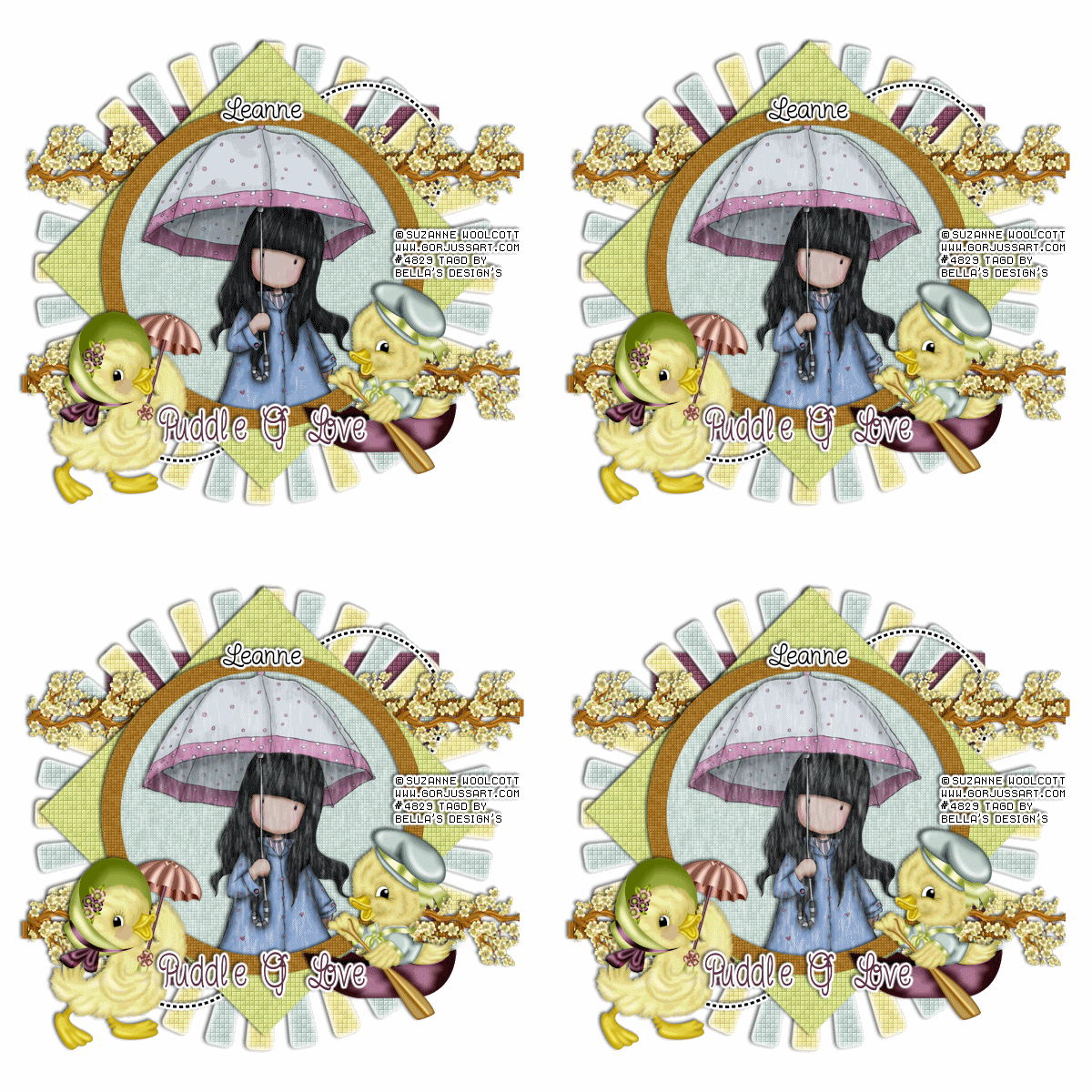
♥Puddle Of Love♥

Photobucket


This tutorial was written by me on March 12, 2012. Any resemblance to any other tutorial is pure coincidence. Please DO NOT claim this tutorial as your own or post it to any other blog or website without permission from me. It was written for PSP X, but should be compatible with any version of PSP. I wrote it assuming that you have a working knowledge of PSP and it's components.


Scrapkit of choice. I used a PTU kit by Butterfly Kisses Scraps Called A Sunny Ducky Day, buy it at Whimsical Divas


I used the artwork of Suzanne Woolcott You have to be licensed to use this artwork and it can be purchased here


Plug-ins used:
Lokas Software - 3D Shadow
EyeCandy4000- gradient glow
xero: Fritillary
Mura - Meister Copie
VDL Adrenaline-Snowflakes


Template by Denz Designs template60 you can get here


Open up your template in psp
Duplicates (Shift+D) And Close out the original.
Delete Following:Stars Super Star and Denz Designz


1.Click on your Square back select all float and defloat add new layer flood #824b60 with apply Xero-Fritillary with these setting 5,30,25,9,Apply Lokas 3D Shadow with settings at B35, T60, Angles X,Y, and Z at 0, zoom 100, Offset X-Y by 5, Perspective at 35 color black


2.Open up your Sun copy and paste as new layer apply Xero: Fritillary with these settings: 5,30,25,9, Apply gradient Glow with these settings Fat White Line.Apply Lokas 3D Shadow with settings at B35, T60, Angles X,Y, and Z at 0, zoom 100, Offset X-Y by 5, Perspective at 35 color black


3.Click on your Dotted Circles Apply gradient Glow with these settings Fat White Line.Apply Lokas 3D Shadow with settings at B35, T60, Angles X,Y, and Z at 0, zoom 100, Offset X-Y by 5, Perspective at 35 color black


4.Click on your Strips Select all float defloat add new layer flood with #b06e18 Apply photoeffex-scanlines with these settings:1,2,20,10,0,0, vertical togger checked, Apply Lokas 3D Shadow with settings at B35, T60, Angles X,Y, and Z at 0, zoom 100, Offset X-Y by 5, Perspective at 35 color black.


5.Open up your Branch01 copy and paste as new layer resize 20% , Mura - Meister Copie with these settings Line,Wraparound Behind, Duplicates Image Flip , Merge Down Resize 90%,Apply Lokas 3D Shadow with settings at B35, T60, Angles X,Y, and Z at 0, zoom 100, Offset X-Y by 5, Perspective at 35 color black


6.Click on your Diamond Shape select all float and defloat add new layer flood with #d0dd85,apply Xero: Fritillary with these settings: 5,30,25,9, .Apply Lokas 3D Shadow with settings at B35, T60, Angles X,Y, and Z at 0, zoom 100, Offset X-Y by 5, Perspective at 35 color black


7.Click on your Circle Back select all float defloat add new layer flood with apply Xero: Fritillary with these settings: 5,30,15,9,


8.Open up your tube copy and paste as new layer selections invert delete


9.Click on your circle frame select all float and defloat add new layer flood with #a57529 apply Xero: Fritillary with these settings: 3,30,15,9, .Apply Lokas 3D Shadow with settings at B35, T60, Angles X,Y, and Z at 0, zoom 100, Offset X-Y by 5, Perspective at 35 color black


10.Open up your Duckie01 & Duckie02 copy and paste as new layer resize 40% Apply Lokas 3D Shadow with settings at B35, T60, Angles X,Y, and Z at 0, zoom 100, Offset X-Y by 5, Perspective at 35 color black


11.Take your Text And Write out Puddle Of Love


Go Back To your Circle Back Select all float defloat Click on your laste raster and Apply Snowflake with these settings 98,0,15,48,0,Color White Below and add 3 raster and On first blank layer, click Effects-Plugins-VDL Adrenaline-Snowflakes and use these settings: Next blank up, Snowflakes again and only change the random to 8, next blank up Snowflakes again and only change random to 12,
next blank up Snowflakes again and change random to 16. Keep selected. On first snow layer, click Adjust-Blur-Motion Blur with these settings: Angle 0, Strength 24.Next layer up blur again and change strength to 28, Next layer up blur again and change strength to 32, Next layer up blur again and change strength to 36.
Deselect. Close off visibility of top 3 snowflake layers.


Add your copyright info and your watermark/logo


Ready for Anmations Shop

Your layer palette should have all of the tag visible with only one animated layer showing,
the other ones should have red Xs showing they are not visible.
Click Edit-Copy Merged, go into Animation Shop and click Edit-Paste-As New Animation.
Then back in PSP, close visibility on the first animated layer and open visibility on the next animated layer,
again Click Edit-Copy Merged, then go into Animation Shop and right click on the image you just pasted there and
choose Paste-After Current Frame. Repeat this for each animated layer and making sure each time in Animation Shop that you paste the new copy after the last frame
of the image there


Save as a .gif image


I hope you enjoyed my tutorial and come visit again real soon!

Tuesday, 21 February 2012

♥Spring has Sprung♥


This tutorial was written by me on February 21, 2012. Any resemblance to any other tutorial is pure coincidence. Please DO NOT claim this tutorial as your own or post it to any other blog or website without permission from me. It was written for PSP X, but should be compatible with any version of PSP. I wrote it assuming that you have a working knowledge of PSP and it's components.
***Note**


This tutorial was written on February. 21th, 2012 by Bella's Design's Exclusively for Digital Scrap World


Scrapkit of choice. I used a PTU kit by Lise-Lotte Sunesen Called Spring Cleaning buy it at Digital Scrap World


I used the artwork of Suzanne woolcott You have to be licensed to use this artwork and it can be purchased here


Plug-ins used:
Lokas Software - 3D Shadow
EyeCandy4000- gradient glow
Xero - Porcelain
photoeffex-scanlines


Template by Becky's Creations. Template 106 can be downloaded here


Open up your template in psp.
Duplicates (Shift+D) And Close out the original.
Delete Following credit layer.
Image Canvas size 700x700


1.Click on your Frame fill select all float and defloat Add your your tube copy and paste as new layer selections invert delete on keybroad,,Apply gradient glow fat white line,apply Xero Porcelain with settings at 50, 120, 140, 122, 47 and 96
,Apply Lokas 3D Shadow with settings at B35, T60, Angles X,Y, and Z at 0, zoom 100, Offset X-Y by 5, Perspective at 35 color black.


2.Click on your Frame fill select all float and defloat add new layer flood with #9cc2cb,Apply photoeffex-scanlines with these settings:2,2,20,10,2,0, vertical togger checked,


3.Click on your frame select all float and defloat add new layer flood with #c6d39d,Apply photoeffex-scanlines with these settings:2,2,20,10,2,0, vertical togger checked, Apply Lokas 3D Shadow with settings at B35, T60, Angles X,Y, and Z at 0, zoom 100, Offset X-Y by 5, Perspective at 35 color black.


4.Click on your Rectangle1 select all float and defloat add new layer flood with #c6d39d,Apply photoeffex-scanlines with these settings:2,2,20,10,2,0, vertical togger checked,,Apply Lokas 3D Shadow with settings at B35, T60, Angles X,Y, and Z at 0, zoom 100, Offset X-Y by 5, Perspective at 35 color black.


5.Click on rectangle1 background select all float and defloat add new layer flood with #a6ccd5,Apply photoeffex-scanlines with these settings:2,2,20,10,2,0, vertical togger checked,,Apply Lokas 3D Shadow with settings at B35, T60, Angles X,Y, and Z at 0, zoom 100, Offset X-Y by 5, Perspective at 35 color black.


6.Open up your lhsCHERRYBLOSSOM_kitSpringCleaning_01 frist before you copy and paste go Image Rotate to left and copy and paste as new layer resize 30%,Duplicates Image Mirror,Apply Lokas 3D Shadow with settings at B35, T60, Angles X,Y, and Z at 0, zoom 100, Offset X-Y by 5, Perspective at 35 color black


7.Click on your circle select all float and defloat add new layer flood with #d0dda7,Apply photoeffex-scanlines with these settings:2,2,20,10,2,0, vertical togger checked,,Apply Lokas 3D Shadow with settings at B35, T60, Angles X,Y, and Z at 0, zoom 100, Offset X-Y by 5, Perspective at 35 color black.


8.Click on your circle scallop select all float and defloat add new layer flood with #a6ccd5 Apply gradient glow fat white line,Apply Lokas 3D Shadow with settings at B35, T60, Angles X,Y, and Z at 0, zoom 100, Offset X-Y by 5, Perspective at 35 color black


9.Click on your Rectangle2 select all float and defloat add new layer flood with #d0dda7,Apply photoeffex-scanlines with these settings:2,2,20,10,2,0, vertical togger checked,,Apply Lokas 3D Shadow with settings at B35, T60, Angles X,Y, and Z at 0, zoom 100, Offset X-Y by 5, Perspective at 35 color black.


10.Click on your rectangle scallop select all float and defloat add new layer flood with #a6ccd5 Apply gradient glow fat white line,Apply Lokas 3D Shadow with settings at B35, T60, Angles X,Y, and Z at 0, zoom 100, Offset X-Y by 5, Perspective at 35 color black


11.Open up your lhsLEAVES_kitSpringCleaning_01 frist before you copy and paste go Image Rotate to left and copy and paste as new layer resize 30%,Duplicates Image Mirror,Apply Lokas 3D Shadow with settings at B35, T60, Angles X,Y, and Z at 0, zoom 100, Offset X-Y by 5, Perspective at 35 color black

Friday, 17 February 2012

♥Have A Beautiful Day♥


This tutorial was written by me on February 17, 2012. Any resemblance to any other tutorial is pure coincidence. Please DO NOT claim this tutorial as your own or post it to any other blog or website without permission from me. It was written for PSP X, but should be compatible with any version of PSP. I wrote it assuming that you have a working knowledge of PSP and it's components.


Scrapkit of choice. I used a PTU kit by S.G.Rowe Designs Called Ms. L. Bug & Friends buy it at Scrappin Dollars


I used the artwork of Suzanne woolcott You have to be licensed to use this artwork and it can be purchased here


Plug-ins used:
Lokas Software - 3D Shadow
EyeCandy4000- gradient glow
Xero - Porcelain
Xero: Fritillary

Template 310 from Divine Intentionz and More you cand get here


Open up your template in psp.
Duplicates (Shift+D) And Close out the original.
Delete Following credit layer. wordart by missy and pump up the volume
Image Canvas size 700x700 then resize all layer by 90%


1.Click on your frame3 background select all float & defloat add new layer flood with #f3ede1. apply Xero: Fritillary with these settings: 4,30,10,15, Copy and paste your tube Selections invert delete, Apply gradient glow fat white, then change the blend mode to Luminance (Legacy),Apply Lokas 3D Shadow with settings at B35, T60, Angles X,Y, and Z at 0, zoom 100, Offset X-Y by 5, Perspective at 35 color black.


2.Click on your frame2 background select all float & defloat add new layer flood with #f3ede1. apply Xero: Fritillary with these settings: 4,30,10,15, Copy and paste your tube Selections invert delete, Apply gradient glow fat white, then change the blend mode to Luminance (Legacy),Apply Lokas 3D Shadow with settings at B35, T60, Angles X,Y, and Z at 0, zoom 100, Offset X-Y by 5, Perspective at 35 color black.


3.Click on your Frame2 select all float & defloat add new layer flood with #7a0305,Apply photoeffex-scanlines with these settings:2,2,20,10,2,0, vertical togger checked,Apply Lokas 3D Shadow with settings at B35, T60, Angles X,Y, and Z at 0, zoom 100, Offset X-Y by 5, Perspective at 35 color black.


4.Click on your Frame3 select all float & defloat add new layer flood with #7a0305,Apply photoeffex-scanlines with these settings:2,2,20,10,2,0, vertical togger checked,Apply Lokas 3D Shadow with settings at B35, T60, Angles X,Y, and Z at 0, zoom 100, Offset X-Y by 5, Perspective at 35 color black.


5.Click on your rectangle2 select all float& defloat add new layer flood with #7c7531 Apply Apply Alien skin Xenofex2 Burnt Edges with these settings:-2.65,8.90,6, Overtall Opacity: 75,Apply Lokas 3D Shadow with settings at B35, T60, Angles X,Y, and Z at 0, zoom 100, Offset X-Y by 5, Perspective at 35 color black
.


6.Click on your rectangle1 select all float& defloat add new layer flood with #7c7531 Apply Apply Alien skin Xenofex2 Burnt Edges with these settings:-2.65,8.90,6, Overtall Opacity: 75,Apply Lokas 3D Shadow with settings at B35, T60, Angles X,Y, and Z at 0, zoom 100, Offset X-Y by 5, Perspective at 35 color black.


7.Click on your gradient background select all float and defloat add new layer flood with #f3ede1,Apply photoeffex-scanlines with these settings:2,2,20,10,2,0, vertical togger checked,Apply Lokas 3D Shadow with settings at B35, T60, Angles X,Y, and Z at 0, zoom 100, Offset X-Y by 5, Perspective at 35 color black.


8.Click on your Frame1 select all float & defloat add new layer flood with #7a0305,Apply photoeffex-scanlines with these settings:2,2,20,10,2,0, vertical togger checked,Apply Lokas 3D Shadow with settings at B35, T60, Angles X,Y, and Z at 0, zoom 100, Offset X-Y by 5, Perspective at 35 color black.


9.Open up your sgrd_mslbugandfriends_treeswing copy and paste as new layer resize 60% duplicates Image Mirror Apply Lokas 3D Shadow with settings at B35, T60, Angles X,Y, and Z at 0, zoom 100, Offset X-Y by 5, Perspective at 35 color black.


10.Click on your circle select all float & defloat add new layer flood with #7a0305,apply Xero: Fritillary with these settings: 4,30,10,15,Apply Lokas 3D Shadow with settings at B35, T60, Angles X,Y, and Z at 0, zoom 100, Offset X-Y by 5, Perspective at 35 color black.


11.Open up your sgrd_mslbugandfriends_vine01&sgrd_mslbugandfriends_vine02 copy and paste as new layer resize 30% ,Apply Plug-in Mura - Meister Copie with these settings : Encirce 16,62,62, And rest Default settings,Apply gradient glow fat white,Apply Lokas 3D Shadow with settings at B35, T60, Angles X,Y, and Z at 0, zoom 100, Offset X-Y by 5, Perspective at 35 color black.


12.Click on your glittered circle select all float & defloat add new layer flood with #f3ede1,Apply photoeffex-scanlines with these settings:2,2,20,10,2,0, vertical togger checked,Apply Lokas 3D Shadow with settings at B35, T60, Angles X,Y, and Z at 0, zoom 100, Offset X-Y by 5, Perspective at 35 color black.


13.Open up your sgrd_mslbugandfriends_flower02 copy and paste as new layer resize 50%,Apply Lokas 3D Shadow with settings at B35, T60, Angles X,Y, and Z at 0, zoom 100, Offset X-Y by 5, Perspective at 35 color black.


14.Open up your sgrd_mslbugandfriends_butterfly03 copy and paste as new layer resize 40%,Apply Lokas 3D Shadow with settings at B35, T60, Angles X,Y, and Z at 0, zoom 100, Offset X-Y by 5, Perspective at 35 color black.


Merge all your layers together and apply Xero Porcelain with settings at 50, 120, 140, 122, 47 and 96


Add your copyright info and your watermark/logo


I hope you enjoyed my tutorial and come visit again real soon!

Tuesday, 14 February 2012

♥Spring Fever♥


This tutorial was written by me on February 14, 2012. Any resemblance to any other tutorial is pure coincidence. Please DO NOT claim this tutorial as your own or post it to any other blog or website without permission from me. It was written for PSP X, but should be compatible with any version of PSP. I wrote it assuming that you have a working knowledge of PSP and it's components.


Scrapkit of choice. I used a PTU kit by PspgirlDesign Called Looking For Spring buy it at scrappinwithfriends


I used the artwork of Suzanne Woolcott You have to be licensed to use this artwork and it can be purchased here


Plug-ins used:
Lokas Software - 3D Shadow
EyeCandy4000- gradient glow
Xero - Porcelain
I.C.NET Software Filters Unlimited 2
Alien Skin Xenofes2 burnt edges


Open up your template in psp.
Duplicates (Shift+D) And Close out the original.
Delete Following credit layer, Black star and gery star and raster2
Canvas size 700x700


Template Of Choice: template08 by ziggyfanscraps you can get here


1.Click on your Stripes select all float defloat add new layer copy and paste your Pspgirl_Looking for Spring_P10 into selections, Effects/Texture Effects/Blinds with these settings: Width 3, Opacity 30, Color Black, Horizontal & Light from Left/Top both checked.
then apply Apply Alien skin Xenofex2 with these settings: -2.65,8.90,6, Overall opacity 75


2.Click on your Large Frame select all float defloat add new layer copy and paste your Pspgirl_Looking for Spring_P10, Effects/Texture Effects/Blinds with these settings: Width 3, Opacity 30, Color Black, Horizontal & Light from Left/Top both checked.Keep selections copy and paste your Tube as new layer selections Invert delete on keybroad, Apply Lokas 3D Shadow with settings at B35, T60, Angles X,Y, and Z at 0, zoom 100, Offset X-Y by 5, Perspective at 35 color black.


3.Click on your Small Frame select all float defloat add new layer copy and paste your Pspgirl_Looking for Spring_P10,Effects/Texture Effects/Blinds with these settings: Width 3, Opacity 30, Color Black, Horizontal & Light from Left/Top both checked. Keep selections copy and paste your Tube as new layer selections Invert delete on keybroad, Apply Lokas 3D Shadow with settings at B35, T60, Angles X,Y, and Z at 0, zoom 100, Offset X-Y by 5, Perspective at 35 color black.


4.Click on your Large border select all float defloat add new layer copy and paste your Pspgirl_Looking for Spring_P5 into selections merge template layer and paper layer together, apply Apply Alien skin Xenofex2 with these settings: -8.85,8.90,6, Overall opacity 75


5.Click on your small border select all float defloat add new layer copy and paste your Pspgirl_Looking for Spring_P5 into selections merge template layer and paper layer together, apply Apply Alien skin Xenofex2 with these settings: -8.85,8.90,6, Overall opacity 75


6.Open up your Pspgirl_Looking for Spring_ele30 copy and paste as new layer sent down on top your stripes layer,Apply gradient glow fat white line.Apply Lokas 3D Shadow with settings at B35, T60, Angles X,Y, and Z at 0, zoom 100, Offset X-Y by 5, Perspective at 35 color black.


7.Open up your Pspgirl_Looking for Spring_ele15 copy and paste as new layer,Apply gradient glow fat white line.Apply Lokas 3D Shadow with settings at B35, T60, Angles X,Y, and Z at 0, zoom 100, Offset X-Y by 5, Perspective at 35 color black.


8.Open up your Pspgirl_Looking for Spring_ele33 copy and paste as new layer ,Apply Lokas 3D Shadow with settings at B35, T60, Angles X,Y, and Z at 0, zoom 100, Offset X-Y by 5, Perspective at 35 color black.


9.Open up your Pspgirl_Looking for Spring_P10 apply Effects Plugins I.C.NET Software Filters Unlimited 2 Edges, Square Square Edge 04,Free rotate 20 degrees


10.Merge all your layers together and apply Xero Porcelain with settings at 50, 120, 140, 122, 47 and 96


Add your copyright info and your watermark/logo


I hope you enjoyed my tutorial and come visit again real soon!

Monday, 13 February 2012

♥Cute Patootie♥


This tutorial was written by me on February 13, 2012. Any resemblance to any other tutorial is pure coincidence. Please DO NOT claim this tutorial as your own or post it to any other blog or website without permission from me. It was written for PSP X, but should be compatible with any version of PSP. I wrote it assuming that you have a working knowledge of PSP and it's components.
Scrapkit of choice. I used a PTU kit by Tootypup Scraps Called I LoveYou buy it at Scrap Wishes
I used the artwork of Suzanne Woolcott You have to be licensed to use this artwork and it can be purchased here


Plug-ins used:
Lokas Software - 3D Shadow
EyeCandy4000- gradient glow
xero: Fritillary


Template Of Choice :133 by Divineintentionz by missy thanks hun :) You can get here


Open up your template in psp.
Duplicates (Shift+D) And Close out the original.
Delete Following tone,credit layer and Frame background and Frame
Canvas size 700x700


1.Click on your Circle select all float and defloat add new layer flood with #ffc5c7,apply xero: Fritillary with these settings: 5,30,10,10, then Apply gradient glow fat white line.Apply Lokas 3D Shadow with settings at B35, T60, Angles X,Y, and Z at 0, zoom 100, Offset X-Y by 5, Perspective at 35 color black.


2.Click on your raster3 select all float and defloat add new layer flood with #b3465b,apply xero: Fritillary with these settings: 5,30,10,10, then Apply gradient glow fat white line.Apply Lokas 3D Shadow with settings at B35, T60, Angles X,Y, and Z at 0, zoom 100, Offset X-Y by 5, Perspective at 35 color black.


3.Open up your tp-flowervine02 copy and paste as new layer resize 30%,Free Rotate Directions: Left Degrees 90% Duplicates 2 times and Merge 2 together and then repeat free rotate again.Apply Lokas 3D Shadow with settings at B35, T60, Angles X,Y, and Z at 0, zoom 100, Offset X-Y by 5, Perspective at 35 color black.Apply Lokas 3D Shadow with settings at B35, T60, Angles X,Y, and Z at 0, zoom 100, Offset X-Y by 5, Perspective at 35 color black.


4.Click on your thin rectangle select all float and defloat add new layer flood with #b3465b,apply xero: Fritillary with these settings: 5,30,10,10, then Apply gradient glow fat white line.Apply Lokas 3D Shadow with settings at B35, T60, Angles X,Y, and Z at 0, zoom 100, Offset X-Y by 5, Perspective at 35 color black.


4.Click on your thin rectangle2 select all float and defloat add new layer flood with #ffc5c7,apply xero: Fritillary with these settings: 5,30,10,10, then Apply gradient glow fat white line.Apply Lokas 3D Shadow with settings at B35, T60, Angles X,Y, and Z at 0, zoom 100, Offset X-Y by 5, Perspective at 35 color black.


5.Click on your Circle select all float and defloat add new layer flood with #ffc5c7,apply xero: Fritillary with these settings: 5,30,10,10, then Apply gradient glow fat white line.Apply Lokas 3D Shadow with settings at B35, T60, Angles X,Y, and Z at 0, zoom 100, Offset X-Y by 5, Perspective at 35 color black.


6.Open up your tp-flowervine02 copy and paste as new layer resize 30%,Free Rotate Directions: Left Degrees 90% Duplicates 2 times and Merge 2 together and then repeat free rotate again.Apply Lokas 3D Shadow with settings at B35, T60, Angles X,Y, and Z at 0, zoom 100, Offset X-Y by 5, Perspective at 35 color black.Apply Lokas 3D Shadow with settings at B35, T60, Angles X,Y, and Z at 0, zoom 100, Offset X-Y by 5, Perspective at 35 color black.


7.Open up your tp-flowersDeco3 take your freehand selections and go around one flowers and copy and paste on your image , Apply Mura's Filter meister copies with these setting: Encirce 18,50,50 reset default settings,Apply Lokas 3D Shadow with settings at B35, T60, Angles X,Y, and Z at 0, zoom 100, Offset X-Y by 5, Perspective at 35 color black.


8.Open up your tube copy and paste as new layer.


9.Take your Text tool and size 72 and written out Cute Patootie convert layers,Apply gradient glow fat white line.Apply Lokas 3D Shadow with settings at B35, T60, Angles X,Y, and Z at 0, zoom 100, Offset X-Y by 5, Perspective at 35 color black.


10.Add your copyright info and your watermark/logo