This tutorial was written by me on August 12, 2012. Any resemblance to any other tutorial is pure coincidence.
Please DO NOT claim this tutorial as your own or post it to any other blog or website without permission from me.
It was written for PSP X, but should be compatible with any version of PSP.
I wrote it assuming that you have a working knowledge of PSP and it's components.
Scrapkit of choice. I used a PTU kit by kirstysscraps Called CuteDarkness
buy it at THE PSP Project
Template Of Choice was from Vickie Tutorials 11 you can get here
I used the artwork of Keith Gravey You have to be licensed to use this
artwork and it can be purchased Now he has been at PTE but with them closing August 1, 2012 but you can buy his tube at his site here
Plug-ins used:
EyeCandy4000- gradient glow
Lokas Software - 3D Shadow
Xero Porcelain,
Xero-Fritillary
Photoeffex scanlinesOpen up the template.
Shift + D.
Close out the original.
Delete following:©Right leaf and Left Leaf
Image/Canvas Size:700x700 1.Click on your Large Gltter Circle select all float defloat modify expand by 1 smooth 5,5 Add new layer flood with #2e9ea9,Apply Photoeffex scanlines with these
setting 2,2,20,10,2,2,Vertical toggle uncheck apply again same setting,Apply Lokas 3D Shadow with settings at B35, T60, Angles X,Y, and Z at 0, zoom 100, Offset X-Y by 5, Perspective at 35 color black.
2.Click on your Large Black Circle select all float defloat modify expand by 1 smooth 5,5 Add new layer flood with #a82f38,Apply Photoeffex scanlines with these
setting 2,2,20,10,2,2,Vertical toggle uncheck apply again same setting,Apply Lokas 3D Shadow with settings at B35, T60, Angles X,Y, and Z at 0, zoom 100, Offset X-Y by 5, Perspective at 35 color black.
3.Open up your KISM-CuteDarkness-Beads-2 copy and paste as new layer ,Apply Lokas 3D Shadow with settings at B35, T60, Angles X,Y, and Z at 0, zoom 100, Offset X-Y by 5, Perspective at 35 color black.
4.Click on your Thin White Glitter and Strip 1and 2 select all float defloat modify expand by 1 smooth 5,5 Add new layer flood with #2e9ea9, Apply Xero-Fritillary with these setting 5,30,25,9,Apply Lokas 3D Shadow with settings at B35, T60, Angles X,Y, and Z at 0, zoom 100, Offset X-Y by 5, Perspective at 35 color black.
5.Click on your Thin Black Strip 1 and 2 select all float defloat modify expand by 1 smooth 5,5 Add new layer flood with #a82f38 Apply Xero-Fritillary with these setting 5,30,25,9,Apply Lokas 3D Shadow with settings at B35, T60, Angles X,Y, and Z at 0, zoom 100, Offset X-Y by 5, Perspective at 35 color black.
6.Open up your KISM-CuteDarkness-Beads-2 copy and paste as new layer ,Apply Lokas 3D Shadow with settings at B35, T60, Angles X,Y, and Z at 0, zoom 100, Offset X-Y by 5, Perspective at 35 color black.
7.Click on your White Gltter Rectangle select all float defloat modify expand by 1 smooth 5,5 Add new layer flood with #2e9ea9, Apply Xero-Fritillary with these setting 5,30,25,9,Apply Lokas 3D Shadow with settings at B35, T60, Angles X,Y, and Z at 0, zoom 100, Offset X-Y by 5, Perspective at 35 color black.
8.Click on your Black Rectangle select all float defloat modify expand by 1 smooth 5,5 Add new layer flood with #a82f38 Apply Xero-Fritillary with these setting 5,30,25,9,Apply Lokas 3D Shadow with settings at B35, T60, Angles X,Y, and Z at 0, zoom 100, Offset X-Y by 5, Perspective at 35 color black.
9.Open up your KISM-CuteDarkness-Doodle-1 copy and paste as new layer resize 70%, Duplicates Image Mirror, merge down duplicates Flip, Merge down together,Apply Lokas 3D Shadow with settings at B35, T60, Angles X,Y, and Z at 0, zoom 100, Offset X-Y by 5, Perspective at 35 color black.
10.Click on your Raster2 select all float defloat modify expand by 1 smooth 5,5 Add new layer flood with #2e9ea9, Apply Photoeffex scanlines with these
setting 2,2,20,10,2,2,Vertical toggle uncheck apply again same setting,Apply Lokas 3D Shadow with settings at B35, T60, Angles X,Y, and Z at 0, zoom 100, Offset X-Y by 5, Perspective at 35 color black.
8.Click on your Raster3 select all float defloat modify expand by 1 smooth 5,5 Add new layer flood with #a82f38 Apply Xero-Fritillary with these setting 5,30,25,9, Keep selections Open up your tube copy and paste as new layer invert edit cut,
,Duplicate your main tube layer On the original tube layer, Xero porcelain set at 50/128/128/0/0/255 On the duplicated tube layer, adjust, blur, Gaussian Blur set to 5
Layers, properties, change blend mode to screen and lower the opacity to about 70
Apply Lokas 3D Shadow with settings at B35, T60, Angles X,Y, and Z at 0, zoom 100, Offset X-Y by 5, Perspective at 35 color black.
9.Open up your KISM-CuteDarkness-Cluster-3 copy and paste as new layer resize 70%, Duplicates Image Mirror,Apply Lokas 3D Shadow with settings at B35, T60, Angles X,Y, and Z at 0, zoom 100, Offset X-Y by 5, Perspective at 35 color black.

This tutorial was written by me on August 10, 2012. Any resemblance to any other tutorial is pure coincidence.
Please DO NOT claim this tutorial as your own or post it to any other blog or website without permission from me.
It was written for PSP X, but should be compatible with any version of PSP.
I wrote it assuming that you have a working knowledge of PSP and it's components.
Scrapkit of choice. I used a PTU kit by Wicked Princess Called MELODY OF MY SOUL
buy it at THE PSP Project
I used the artwork of Keith Gravey You have to be licensed to use this
artwork and it can be purchased Now he has been at PTE but with them closing August 1, 2012 but you can buy his tube at his site here
Template of choice i use 141 HorsePlay'sPastureDesigns you can get here
Plug-ins used:
EyeCandy4000- gradient glow
Lokas Software - 3D Shadow
Xero Porcelain
Texture Texturozer
1.Open up your WP_MOMS_PEARBLOSSOM copy and paste as new layer resize 40%, Apply Plug-in Mura - Meister Copie with these settings : Encirce 12,60,60, And rest Default settings. sent to bottom,
Apply Lokas 3D Shadow with settings at B35, T60, Angles X,Y, and Z at 0, zoom 100, Offset X-Y by 5, Perspective at 35 color black.
2.Click on your Rectangle1 select all float defloat modify expand by 1 smooth 5,5 add new layer flood with #846522,Apply Texturozer with these setting Texture: Canvas 100% 4, Top,
Apply Gradient Glow fat white line,Apply Lokas 3D Shadow with settings at B35, T60, Angles X,Y, and Z at 0, zoom 100, Offset X-Y by 5, Perspective at 35 color black.
3.Click on your Circle1 select all float defloat modify expand by 1 smooth 5,5 add new layer flood with #cec395,Apply Texturozer with these setting Texture: Canvas 100% 4, Top,
Apply Lokas 3D Shadow with settings at B35, T60, Angles X,Y, and Z at 0, zoom 100, Offset X-Y by 5, Perspective at 35 color black.
4.Open up your WP_MOMS_GRASS copy and paste as new layer resize 50%, Duplicates Image Mirror,Apply Lokas 3D Shadow with settings at B35, T60, Angles X,Y, and Z at 0, zoom 100, Offset X-Y by 5, Perspective at 35 color black.
5.Click on your Rectangle2 select all float defloat modify expand by 1 smooth 5,5 add new layer flood with #846522,Apply Texturozer with these setting Texture: Canvas 100% 4, Top,
Apply Gradient Glow fat white line,Apply Lokas 3D Shadow with settings at B35, T60, Angles X,Y, and Z at 0, zoom 100, Offset X-Y by 5, Perspective at 35 color black.
6.Open up your WP_MOMS_HOUSE copy and paste as new layer resize 50%,Apply Lokas 3D Shadow with settings at B35, T60, Angles X,Y, and Z at 0, zoom 100, Offset X-Y by 5, Perspective at 35 color black.
7.Click on your Circle2 select all float defloat modify expand by 1 smooth 5,5 add new layer flood with #cec395,Apply Texturozer with these setting Texture: Canvas 100% 4, Top,
Apply Lokas 3D Shadow with settings at B35, T60, Angles X,Y, and Z at 0, zoom 100, Offset X-Y by 5, Perspective at 35 color black.
8.Click on your Circle2 select all float defloat modify expand by 1 smooth 5,5 Open up your Tube Copy and paste as new layer selections invert edit cut,
Apply Lokas 3D Shadow with settings at B35, T60, Angles X,Y, and Z at 0, zoom 100, Offset X-Y by 5, Perspective at 35 color black.
9.Open up your WP_MOMS_BRANCH copy and paste as new layer duplucates image flip,merge down together Image Free Rotates Left degrees 90%,
Apply Lokas 3D Shadow with settings at B35, T60, Angles X,Y, and Z at 0, zoom 100, Offset X-Y by 5, Perspective at 35 color black.
10.Open up your WP_MOMS_LIGHTSTRINGS copy and paste as new layer resize 50%,Apply Lokas 3D Shadow with settings at B35, T60, Angles X,Y, and Z at 0, zoom 100, Offset X-Y by 5, Perspective at 35 color black.
This tutorial was written by me on August 4, 2012. Any resemblance to any other tutorial is pure coincidence.
Please DO NOT claim this tutorial as your own or post it to any other blog or website without permission from me.
It was written for PSP X, but should be compatible with any version of PSP.
I wrote it assuming that you have a working knowledge of PSP and it's components.
Scrapkit of choice. I used a PTU kit by Creative Scraps by Crys Called Down The Spout
buy it at Scrappin Dollars
I used the artwork of Keith Gravey You have to be licensed to use this
artwork and it can be purchased Now he has been at PTE but with them closing August 1, 2012 but you can buy his tube at his site here
Plug-ins used:
EyeCandy4000- gradient glow
Lokas Software - 3D Shadow
Xero Fritillary & Xero Porcelain
Template Of Choice I use BeckyP's Creations 167 you can get here
1.Click on your bg circle 3 select all float defloat modify expand by 1 smooth 5,5 add new layer flood with #6ca0c8 Apply Xero Fritillary with these setting 5,55,11,17,Apply Gradient Glow fat white line,
Apply Lokas 3D Shadow with settings at B35, T60, Angles X,Y, and Z at 0, zoom 100, Offset X-Y by 5, Perspective at 35 color black.
2.Click on your bg circle 2 select all float defloat modify expand by 1 smooth 5,5 add new layer flood with #92def3n Apply Xero Fritillary with these setting 5,55,11,17,Apply Gradient Glow fat white line,
Apply Lokas 3D Shadow with settings at B35, T60, Angles X,Y, and Z at 0, zoom 100, Offset X-Y by 5, Perspective at 35 color black.
3.Click on your bg circle 1 select all float defloat modify expand by 1 smooth 5,5 add new layer flood with #6ca0c8 Apply Xero Fritillary with these setting 5,55,11,17,Apply Gradient Glow fat white line,
Apply Lokas 3D Shadow with settings at B35, T60, Angles X,Y, and Z at 0, zoom 100, Offset X-Y by 5, Perspective at 35 color black.
4.Open up your DTS_Element_59 copy and paste as new layer Apply Lokas 3D Shadow with settings at B35, T60, Angles X,Y, and Z at 0, zoom 100, Offset X-Y by 5, Perspective at 35 color black.
5.Click on your left frame 2 fill and right frame 2 fill select all float defloat modify expand by 1 smooth 5,5 add new layer flood with DTS_Element_1 copy and paste as new layer resize 60%,selections invert delete ,Duplucates,
Apply Lokas 3D Shadow with settings at B35, T60, Angles X,Y, and Z at 0, zoom 100, Offset X-Y by 5, Perspective at 35 color black.
6.Click on your left frame 2 fill and right frame 2 fill select all float defloat modify expand by 1 smooth 5,5 add new layer flood with #6ca0c8 Apply Xero Fritillary with these setting 5,55,11,17,
7.Click on your left frame 2 bg and right frame 2 bg select all float defloat modify expand by 1 smooth 5,5 add new layer flood with #6e491a Apply Xero Fritillary with these setting 5,55,11,17,Apply Gradient Glow fat white line,
Apply Lokas 3D Shadow with settings at B35, T60, Angles X,Y, and Z at 0, zoom 100, Offset X-Y by 5, Perspective at 35 color black.
8.Click on your bg circle 1 select all float defloat left frame 2 diamond trim and Right frame 2 diamond trim flood with white
9.Click on your left frame 2 fill and right frame 2 fill select all float defloat modify expand by 1 smooth 5,5 add new layer flood with #f7f1b4 Apply Xero Fritillary with these setting 5,55,11,17,Open up your Tube Copy and paste as new layer selections Invert Delete ,Apply Xero Porcelain with settings at 50, 126, 133, 106, 52 and 96.
Apply Lokas 3D Shadow with settings at B35, T60, Angles X,Y, and Z at 0, zoom 100, Offset X-Y by 5, Perspective at 35 color black.
10 Open up your DTS_Element_32 copy and paste as new layer resize 50% then 80%,Apply Lokas 3D Shadow with settings at B35, T60, Angles X,Y, and Z at 0, zoom 100, Offset X-Y by 5, Perspective at 35 color black.
11. Open up your DTS_Element_50 copy and paste as new layer sent to bottom duplicates Image Mirror,Apply Lokas 3D Shadow with settings at B35, T60, Angles X,Y, and Z at 0, zoom 100, Offset X-Y by 5, Perspective at 35 color black.
12.Click on your left frame and right frame select all float defloat modify expand by 1 smooth 5,5 add new layer flood with #6ca0c8 Apply Xero Fritillary with these setting 5,55,11,17,Apply Gradient Glow fat white line,
Apply Lokas 3D Shadow with settings at B35, T60, Angles X,Y, and Z at 0, zoom 100, Offset X-Y by 5, Perspective at 35 color black.
13.Click on your leaf fill select all float defloat modify expand by 1 smooth 5,5 add new layer flood with #396c12 Apply Gradient Glow fat white line,
Apply Lokas 3D Shadow with settings at B35, T60, Angles X,Y, and Z at 0, zoom 100, Offset X-Y by 5, Perspective at 35 color black.
14.Click on your leaf outline select all float defloat modify expand by 1 smooth 5,5 Apply Gradient Glow fat white line,
Apply Lokas 3D Shadow with settings at B35, T60, Angles X,Y, and Z at 0, zoom 100, Offset X-Y by 5, Perspective at 35 color black.
15.Open up your DTS_Element_41 copy and paste as new layer resize 60%,Apply Lokas 3D Shadow with settings at B35, T60, Angles X,Y, and Z at 0, zoom 100, Offset X-Y by 5, Perspective at 35 color black.
16.Open up your DTS_Element_8 copy and paste as new layer resize 60%,Apply Lokas 3D Shadow with settings at B35, T60, Angles X,Y, and Z at 0, zoom 100, Offset X-Y by 5, Perspective at 35 color black.
17.Open up your DTS_Element_7 copy and paste as new layer resize 50%x2,Apply Lokas 3D Shadow with settings at B35, T60, Angles X,Y, and Z at 0, zoom 100, Offset X-Y by 5, Perspective at 35 color black.
Results of my tuts thanks Dixie Love it <3
This tutorial was written by me on July 15, 2012. Any resemblance to any other tutorial is pure coincidence.
Please DO NOT claim this tutorial as your own or post it to any other blog or website without permission from me. It was written for PSP X, but should be compatible with any version of PSP.
I wrote it assuming that you have a working knowledge of PSP and it's components.
Scrapkit of choice. I used a PTU kit by Creative Scraps by Crys Called Beach Bum can be purchased here
Template is by Kylie and can be gotten Here (Creative Misfits)
I used the artwork of Keith Garvey You have to be
licensed to use this artwork and it can be purchased here
Plug-ins needed:
Lokas Software - 3D Shadow
gemsmask-109 by Gems Taggin Scraps you can get here
Open up your template
Duplicates (Shift+D)
Delete following: © and Spring W/A 1 & 2 Layers,flowers,Glitter-trail
1.Click on your BigCircle-bg . select all float defloat selections modify expand by 1, selections modify feather by 2 add new layer Flood with BB_Paper_4,Apply Gradient Glow Fat what Line,,Apply Lokas 3D Shadow with settings at B35, T60, Angles X,Y, and Z at 0, zoom
100, Offset X-Y by 5, Perspective at 35 color black
2.Click on your SmallCircle-bg . select all float defloat selections modify expand by 1, selections modify feather by 2 Open up your Beach Scene copy and paste as new layer selections invert delete ,Apply Lokas 3D Shadow with settings at B35, T60, Angles X,Y, and Z at 0, zoom
100, Offset X-Y by 5, Perspective at 35 color black
3.Click on your 4-Squares-frame . select all float defloat selections modify expand by 1, selections modify feather by 2 Open up your BB_Paper_9 copy and paste as new layer selections invert delete
Open up your Tube copy and paste as new layer selections invert delete, Change Opacity to 50 %, give your tube layer and paper layer Apply Lokas 3D Shadow with settings at B35, T60, Angles X,Y, and Z at 0, zoom
100, Offset X-Y by 5, Perspective at 35 color black
4.Open up your BB_Element_3 copy and paste as new layer resize 80%,sent to bottom,Apply Lokas 3D Shadow with settings at B35, T60, Angles X,Y, and Z at 0, zoom
100, Offset X-Y by 5, Perspective at 35 color black
5.Drop Shadow All the Frames Layers
6.Open up your BB_Element_9 copy and paste as new layer resize 40% Duplicates **refer my tag**, Merge down,Apply Lokas 3D Shadow with settings at B35, T60, Angles X,Y, and Z at 0, zoom
100, Offset X-Y by 5, Perspective at 35 color black
7.Open up your BB_Element_65 copy and paste as new layer sent to bottom,Apply Lokas 3D Shadow with settings at B35, T60, Angles X,Y, and Z at 0, zoom
100, Offset X-Y by 5, Perspective at 35 color black
8.Open up your Tube copy and paste as new layer,Apply Lokas 3D Shadow with settings at B35, T60, Angles X,Y, and Z at 0, zoom
100, Offset X-Y by 5, Perspective at 35 color black
9.Open up your BB_Element_1 copy and paste as new layer,Apply Lokas 3D Shadow with settings at B35, T60, Angles X,Y, and Z at 0, zoom
100, Offset X-Y by 5, Perspective at 35 color black
10.Open up your BB_Element_7and BB_Element_9 copy and paste as new layer resize 50% x3,Apply Lokas 3D Shadow with settings at B35, T60, Angles X,Y, and Z at 0, zoom
100, Offset X-Y by 5, Perspective at 35 color black
11.Open up your BB_Element_32 copy and paste as new layer resize 80% ,Apply Lokas 3D Shadow with settings at B35, T60, Angles X,Y, and Z at 0, zoom
100, Offset X-Y by 5, Perspective at 35 color black
This tutorial was written by me on June 9, 2012. Any resemblance to any other tutorial is pure coincidence.Please DO NOT claim this tutorial as your own or post it to any other blog or website without permission from me.It was written for PSP X, but should be compatible with any version of PSP.I wrote it assuming that you have a working knowledge of PSP and it's components.
Scrapkit of choice. I used a PTU kit by DesignedByStina called
Razzle Dazzle (Full Size)you can get here
I used the artwork of Keith Garvey You have to be
licensed to use this artwork and it can be purchased here
Open New Canvas by 700x700
1.Open up your DBS_Music03 copy and paste as new layer resize 60%
2.Open up your DBS_Frame03 copy and paste as new layer,Take your magic wand
click inside expand by 5, add new layer layer flood with your DBS_Paper01,
Open up your Tube Copy and paste as new layer resize 60%,
Apply Xero porcelain set at 50/128/128/0/0/255,On the duplicated tube layer, adjust, blur, Gaussian Blur set to 5
Layers, properties, change blend mode to screen and lower the opacity to about 70
DropShadow..Vertical & Horizontal 0, Opacity 60, Blur 10, Shadow on new layer - unchecked
3.Open up your DBS_Mirror02 copy and paste as new layer resize 70%, Take your magic wand
click inside add new layer flood with DBS_Paper03 and copy and paste your tube into selections,
Merge layer down Duplicates Image Mirror,
4.Go Back to your frame layer Duplicates
on the original gaussian blur 15 texture effects Mosiac antique default settings give top layer drop shadow
5.Open up your DBS_MetallicFlute01 copy and paste as new layer resize 60%,
DropShadow..Vertical & Horizontal 0, Opacity 60, Blur 10, Shadow on new layer - unchecked
5.Open up your DBS_Heart01 copy and paste as new layer resize 60%,
DropShadow..Vertical & Horizontal 0, Opacity 60, Blur 10, Shadow on new layer - unchecked
5.Open up your DBS_Flowers01 copy and paste as new layer resize 50%,
DropShadow..Vertical & Horizontal 0, Opacity 60, Blur 10, Shadow on new layer - unchecked

Scrapkit of choice. I used a PTU kit by HonoredScraps
Called Dark Cinnamon can be purchased Taggers Delight
I used the artwork of Keith Garvey You have to be
licensed to use this artwork and it can be purchased here
Template: I used Template 448 from Missy at Divine Intentionz. You can download it HERE.
Plug-ins needed:
Lokas Software - 3D Shadow
Xero - Fritillary& Porcelian
Eye Candy4000 GradientGlow
Open up your template in psp
Duplicate and close the original
Canvas Size 700x700
Delete following: Delete the copyright
1.Click on your square 1 select all float defloat
Selections Modify expand by 1 selections Modify smooth selections 5,5
Add new layer flood with Element_37,add new layer flood with #c18060,
apply Xero-Fritillary with these setting 5,20,19,21,
Apply drop shadow H+2, V+2, O50, B5, colour #000000
Apply drop shadow H-2, V-2, O50, B5, colour #000000
2.Click on your square2 select all float defloat
Selections Modify expand by 1 selections Modify smooth selections 5,5
Add new layer flood with Element_37,add new layer flood with #c18060,
apply Xero-Fritillary with these setting 5,20,19,21,
Apply drop shadow H+2, V+2, O50, B5, colour #000000
Apply drop shadow H-2, V-2, O50, B5, colour #000000
3.Click on your Circle1 select all float defloat
Selections Modify expand by 1 selections Modify smooth selections 5,5
Add new layer flood with Element_37,add new layer flood with #c18060,
apply Xero-Fritillary with these setting 5,20,19,21,Gradrent Glow Fat White Line
Apply drop shadow H+2, V+2, O50, B5, colour #000000
Apply drop shadow H-2, V-2, O50, B5, colour #000000
Open up your Element_40 Duplicates Image Mirror merge down together
4.Click on your Circle2 select all float defloat
Selections Modify expand by 1 selections Modify smooth selections 5,5
Add new layer flood with Element_37,add new layer flood with #c18060,
apply Xero-Fritillary with these setting 5,20,19,21,Gradrent Glow Fat White Line
Apply drop shadow H+2, V+2, O50, B5, colour #000000
Apply drop shadow H-2, V-2, O50, B5, colour #000000
Open up your Element_40 Duplicates Image Mirror merge down together Resize 90%
5.Click on your Circle3 select all float defloat
Selections Modify expand by 1 selections Modify smooth selections 5,5
Add new layer flood with Element_37,add new layer flood with #c18060,
apply Xero-Fritillary with these setting 5,20,19,21,Gradrent Glow Fat White Line
Apply drop shadow H+2, V+2, O50, B5, colour #000000
Apply drop shadow H-2, V-2, O50, B5, colour #000000
Open up your Element_40 Duplicates Image Mirror merge down together Resize 90%
6.Click on your FrameBack &2&3 select all float defloat
Selections Modify expand by 1 selections Modify smooth selections 5,5
Add new layer flood with Element_37,add new layer flood with #614336,
apply Xero-Fritillary with these setting 5,20,19,21,
Apply drop shadow H+2, V+2, O50, B5, colour #000000
Apply drop shadow H-2, V-2, O50, B5, colour #000000
7.Click on your Frame &2&3 select all float defloat
Add new layer flood with #c3a495 Adjust Add/Remove Noise Add Noise with these setting
Uniform Monochrome Noise50%, Apply again Just change Uniform to Random
Apply drop shadow H+2, V+2, O50, B5, colour #000000
Apply drop shadow H-2, V-2, O50, B5, colour #000000
8.Take your magic wand click inside frame And Middle Frame 2&3 selections
Modify expand by 2 copy and paste your Tube selections invert delete
Duplicate your tube layer On the original tube layer, Xero porcelain set at 50/128/128/0/0/255
On the duplicated tube layer, adjust, blur, Gaussian Blur set to 5
Layers, properties, change blend mode to screen and lower the opacity to about 70
9.Open up your Element_23 copy and paste as new layer
Duplicates Image Mirror,Apply drop shadow H+2, V+2, O50, B5, colour #000000
Apply drop shadow H-2, V-2, O50, B5, colour #000000
10.Open up your Element_13 copy and paste as new layer
,Apply drop shadow H+2, V+2, O50, B5, colour #000000
Apply drop shadow H-2, V-2, O50, B5, colour #000000
11.Open up your Element_42 copy and paste as new layer
,Apply drop shadow H+2, V+2, O50, B5, colour #000000
Apply drop shadow H-2, V-2, O50, B5, colour #000000
12.Open up your Element_03 copy and paste as new layer
,Apply drop shadow H+2, V+2, O50, B5, colour #000000
Apply drop shadow H-2, V-2, O50, B5, colour #000000
Add your copyright info and your watermark/logo
I hope you enjoyed my tutorial and come visit again real soon!

Scrapkit of choice. I used a PTU kit by Creative Scraps by Crys Called By the Midnight in Paris can be purchased here
I used the artwork of Keith Garvey You have to be licensed to use this artwork and it can be purchased here
Template 44 By TracyFDesignz you can get here
Plug-ins needed:
Xero - Porcelian
EyeCandy4000- gradient glow
Open up your template in psp
Duplicates (Shift+D) And Close out the original.
Delete Following:delete the info layer
Canvas size 700x700 Resize all layers by 110%
1.Open up your MIP_Element_16 copy and paste as new layer resize 30% smart size,
Apply Plug-in Mura - Meister Copie with these settings : Encirce Shift X:60 Shift Y:60 Number12
,duplicate
on the original gaussian blur 15.00 texture effects Mosiac antique default,
Apply Drop Shadow....Vertical & Horizontal 0, Opacity 60, Blur 10, Shadow on new layer - unchecked. Marge Down, Move top of your Circle layer
2.Click on your Circle Select all float defloat selections modify feather by 1,
Open up your MIP_Paper_6 selections invert edit delete,
Apply Drop Shadow....Vertical & Horizontal 0, Opacity 60, Blur 10, Shadow on new layer - unchecked.
3.Click on your Squares Select all float defloat selections
modify feather by 1 add new layer flood with #fecfcb,
Apply Xero Fritilliary with these setting 5,55,11,17,
Apply Drop Shadow....Vertical & Horizontal 0, Opacity 60, Blur 10, Shadow on new layer - unchecked.
5.Take your magic wand click inside 1 by 1 of squares selections modify feather by 1
open up your tube place way you want it selections invert edit cut,
Xero porcelain set at 50/128/128/0/0/255,Apply Drop Shadow....Vertical & Horizontal 0, Opacity 60, Blur 10, Shadow on new layer - unchecked.
6.Click on your Frames Select all float defloat selections
modify feather by 1 add new layer flood with #2e2e2e Apply Gradient glow fat white line
Apply Drop Shadow....Vertical & Horizontal 0, Opacity 60, Blur 10, Shadow on new layer - unchecked.
7.Click on your RECTANGLES Select all float defloat selections
modify feather by 1 add new layer flood with #2e2e2e Apply Gradient glow fat white line
Apply Drop Shadow....Vertical & Horizontal 0, Opacity 60, Blur 10, Shadow on new layer - unchecked.
8.Open up your MIP_Element_50 Copy and paste as new layer, Duplicates Image Mirror,
Apply Drop Shadow....Vertical & Horizontal 0, Opacity 60, Blur 10, Shadow on new layer - unchecked.
9.Open up your MIP_Element_57 Copy and paste as new layer, Duplicates Image Mirror,
Apply Drop Shadow....Vertical & Horizontal 0, Opacity 60, Blur 10, Shadow on new layer - unchecked.
10.Open up your MIP_Element_13 Copy and paste as new layer, Duplicates Image Mirror,
Apply Drop Shadow....Vertical & Horizontal 0, Opacity 60, Blur 10, Shadow on new layer - unchecked.
11.Open up your MIP_Element_21 Copy and paste as new layer, Duplicates Image Mirror,
Apply Drop Shadow....Vertical & Horizontal 0, Opacity 60, Blur 10, Shadow on new layer - unchecked.
12.Open up your MIP_Element_60 Copy and paste as new layer, Duplicates Image Mirror,
Apply Drop Shadow....Vertical & Horizontal 0, Opacity 60, Blur 10, Shadow on new layer - unchecked.
This tutorial was written by me on May 3, 2012. Any resemblance to any other tutorial is pure coincidence. Please DO NOT claim this tutorial as your own or post it to any other blog or website without permission from me. It was written for PSP X, but should be compatible with any version of PSP. I wrote it assuming that you have a working knowledge of PSP and it's components.
Scrapkit of choice. I used a PTU kit by Creative Scraps by Crys Called By the PrettyInPearls can be purchased here
I used the artwork of Keith Garvey You have to be licensed to use this artwork and it can be purchased here
Template: I used Template 448 from Missy at Divine Intentionz. You can download it HERE.
Plug-ins needed:
Lokas Software - 3D Shadow
Xero - Fritillary& Porcelian
Open up your template in psp
Duplicate and close the original
Canvas Size 700x700
Delete following: Delete the copyright
1.Click on your Thin Rectangle1 select all float defloat add new layer Flood with #ce7167,Apply Inner Bevel Bevel #2, Width 13, Smoothness 15, Depth 9, Ambience-35, Shininess 34,Colour #FFFFFF, Angle 134, Intensity 40, Elevation 80, Apply drop shadow H-1, V-1, O50, B5, colour #000000 againJust change - to +
2.Click on your Thin Rectangle2,3,4,5 select all float defloat add new layer Flood with #ce7167,Apply Inner Bevel Bevel #2, Width 13, Smoothness 15, Depth 9, Ambience-35, Shininess 34,Colour #FFFFFF, Angle 134, Intensity 40, Elevation 80, Apply drop shadow H-1, V-1, O50, B5, colour #000000 againJust change - to +
3.Click on your rounded edge rect2 select all float defloat add new layer Flood with #c25349,Apply Xero Fritilliary with these setting 6,20,19,21,Apply drop shadow H-1, V-1, O50, B5, colour #000000 againJust change - to +
4.Click on your rounded edge rect select all float defloat add new layer Flood with #c25349,Apply Xero Fritilliary with these setting 6,20,19,21,Apply drop shadow H-1, V-1, O50, B5, colour #000000 againJust change - to +
6.Click on your Square select all float defloat add new layer Flood with #e6a59e,Apply Xero Fritilliary with these setting 6,20,19,21,Apply drop shadow H-1, V-1, O50, B5, colour #000000 againJust change - to +
7.Click on your Cirlce Back select all float defloat add new layer flood with #86573f,Apply Inner Bevel Bevel #2, Width 13, Smoothness 15, Depth 9, Ambience-35, Shininess 34,Colour #FFFFFF, Angle 134, Intensity 40, Elevation 80, Apply drop shadow H-1, V-1, O50, B5, colour #000000 againJust change - to +
8.Click on your Cirlce select all float defloat add new layer flood with #86573f,Apply Xero Fritilliary with these setting 6,20,19,21,Apply drop shadow H-1, V-1, O50, B5, colour #000000 againJust change - to +
9.Click on your Frameback2 select all float defloat open up your tube copy and paste as new layer invert delete on your keybroad,Layers, properties, and change blend mode to screen
10.Click on your Frameback3 select all float defloat open up your tube copy and paste as new layer invert delete on your keybroad,Layers, properties, and change blend mode to screen
11.Click on your Frameback select all float defloat open up your tube copy and paste as new layer invert delete on your keybroad
12.Ones are in Framebacklayer are tubes layers with these setting:Duplicate your main tube layer On the original tube layer, Xero porcelain set at 50/128/128/0/0/255 On the duplicated tube layer, adjust, blur, Gaussian Blur set to 5
Layers, properties, change blend mode to screen and lower the opacity to about 70
13.Open up your PIP_element_50 Copy and paste as new layer resize 50%x2, Sharpen,Apply Lokas 3D Shadow with settings at B35, T60, Angles X,Y, and Z at 0, zoom 100, Offset X-Y by 5, Perspective at 35 color black.
14.Open up your PIP_element_41 Copy and paste as new layer resize 50%, Sharpen,Apply Lokas 3D Shadow with settings at B35, T60, Angles X,Y, and Z at 0, zoom 100, Offset X-Y by 5, Perspective at 35 color black.
15.Open up your PIP_element_33 Copy and paste as new layer resize 50%, Sharpen,Apply Lokas 3D Shadow with settings at B35, T60, Angles X,Y, and Z at 0, zoom 100, Offset X-Y by 5, Perspective at 35 color black.
16.Open up your PIP_element_16 Copy and paste as new layer resize 50%, Sharpen,Apply Lokas 3D Shadow with settings at B35, T60, Angles X,Y, and Z at 0, zoom 100, Offset X-Y by 5, Perspective at 35 color black.
17.Open up your PIP_element_15 Copy and paste as new layer resize 50%, Sharpen,Apply Lokas 3D Shadow with settings at B35, T60, Angles X,Y, and Z at 0, zoom 100, Offset X-Y by 5, Perspective at 35 color black.
18.Open up your PIP_element_46 Copy and paste as new layer resize 50%, Sharpen,Apply Lokas 3D Shadow with settings at B35, T60, Angles X,Y, and Z at 0, zoom 100, Offset X-Y by 5, Perspective at 35 color black.
Add your copyright info and your watermark/logo
I hope you enjoyed my tutorial and come visit again real soon!
This tutorial was written by me on April 26, 2012. Any resemblance to any other tutorial is pure coincidence. Please DO NOT claim this tutorial as your own or post it to any other blog or website without permission from me. It was written for PSP X, but should be compatible with any version of PSP. I wrote it assuming that you have a working knowledge of PSP and it's components.
Scrapkit of choice. I used a PTU kit by Mystical Illusionz Called Daisies and Blue Jeans at purchased here
I used the artwork of Keith Garvey You have to be licensed to use this artwork and it can be purchased here
Plug-ins used:
Lokas Software - 3D Shadow
Penta.com - Dot and Cross, and Jeans
EyeCandy4000- gradient glow
1.Open up your miz12-dd-ele39 copy and paste as new layer resize 70%,take your magic wand click inside modify expand by 6, add new layer flood with miz12-dd-pp02,Apply penta.com Dot and Cross. Settings: Amount = 255. Cross Distance = 10. Cross width = 7,Apply Lokas 3D Shadow with settings at B35, T60, Angles X,Y, and Z at 0, zoom 100, Offset X-Y by 5, Perspective at 35 color black.
2.On your frame layer select all float defloat promote selections layer.Open up your Tube copy and paste in behind your frames layers Take your selections make rectangle around head part and go to your promote selections layer and cut,Apply Lokas 3D Shadow with settings at B35, T60, Angles X,Y, and Z at 0, zoom 100, Offset X-Y by 5, Perspective at 35 color black.
3.Add the words Denim Girl Select all float defloat Adjust add remove noise with these setting Random and Monchrome Noise 100%,Apply Lokas 3D Shadow with settings at B35, T60, Angles X,Y, and Z at 0, zoom 100, Offset X-Y by 5, Perspective at 35 color black.
4.Open up your miz12-dd-ele10 copy and paste as new layer resize 60%,Image Mirror Merge down move down under your denim girl,Apply Lokas 3D Shadow with settings at B35, T60, Angles X,Y, and Z at 0, zoom 100, Offset X-Y by 5, Perspective at 35 color black.
5.Open u miz12-dd-ele11 copy and paste as new layer,Image Mirror Merge down move down under your Frame layer,Apply Lokas 3D Shadow with settings at B35, T60, Angles X,Y, and Z at 0, zoom 100, Offset X-Y by 5, Perspective at 35 color black.
6.Open up your miz12-dd-ele33 copy and paste as new layer resize 50%x2,Apply Lokas 3D Shadow with settings at B35, T60, Angles X,Y, and Z at 0, zoom 100, Offset X-Y by 5, Perspective at 35 color black.
7.Open up your miz12-dd-ele48 copy and paste as new layer resize 50%x2,Apply Lokas 3D Shadow with settings at B35, T60, Angles X,Y, and Z at 0, zoom 100, Offset X-Y by 5, Perspective at 35 color black.
8.Open up your miz12-dd-pp04 Apply your mask WSL_Mask178
Add your copyright info and your watermark/logo
I hope you enjoyed my tutorial and come visit again real soon!
This tutorial was written by me on April 16, 2012. Any resemblance to any other tutorial is pure coincidence. Please DO NOT claim this tutorial as your own or post it to any other blog or website without permission from me. It was written for PSP X, but should be compatible with any version of PSP. I wrote it assuming that you have a working knowledge of PSP and it's components.
Scrapkit of choice. I used a PTU kit by SweetCravingsScraps Called Hush at purchased here
I used the artwork of Keith Garvey You have to be licensed to use this artwork and it can be purchased here
Plug-ins used:
Lokas Software - 3D Shadow
EyeCandy4000- gradient glow
xero: Fritillary&
photoeffex-scanlines
Template from Beckeyp creations 160 you can get, Thanks Hun here
Open up your template in psp.
Duplicates (Shift+D) And Close out the original.
delete following:Infor and all Shadow(delete)and delete scallop trim, trim,flower2
Image Canvas Size :700x700
1.Click on your Background Square2 select all float defloat add new layer flood with #482e5b,Apply Xero-Fritillary with these setting 3,55,11,8,Apply Gradient Fat White linbe frist, then apply again with this color #aee8ea,Apply Lokas 3D Shadow with settings at B35, T60, Angles X,Y, and Z at 0, zoom 100, Offset X-Y by 5, Perspective at 35 color black.
2.Click on your Background Square1 select all float defloat add new layer flood with #482e5b,Apply Xero-Fritillary with these setting 3,55,11,8,Apply Gradient Fat White linbe frist, then apply again with this color #aee8ea,Apply Lokas 3D Shadow with settings at B35, T60, Angles X,Y, and Z at 0, zoom 100, Offset X-Y by 5, Perspective at 35 color black.
3.Click on your Frame3Fill select all float defloat add new layer flood with #8ad3d6,Apply photoeffex-scanlines with these settings, 2,2,20,10,2,2 vertical toggle checked
4.Click on your Frame2Fill select all float defloat add new layer flood with #8ad3d6,Apply photoeffex-scanlines with these settings, 2,2,20,10,2,2 vertical toggle checked
5.Click on your Frame1Fill select all float defloat add new layer flood with #8ad3d6,Apply photoeffex-scanlines with these settings, 2,2,20,10,2,2 vertical toggle checked
6.Click on your Frame3 select all float defloat add new layer flood with #816395,Apply Xero-Fritillary with these setting 3,55,11,8,Apply Gradient Fat White linbe frist, then apply again with this color #aee8ea,Apply Lokas 3D Shadow with settings at B35, T60, Angles X,Y, and Z at 0, zoom 100, Offset X-Y by 5, Perspective at 35 color black.
7.Click on your Frame2 Square2 select all float defloat add new layer flood with #816395,Apply Xero-Fritillary with these setting 3,55,11,8,Apply Gradient Fat White linbe frist, then apply again with this color #aee8ea,Apply Lokas 3D Shadow with settings at B35, T60, Angles X,Y, and Z at 0, zoom 100, Offset X-Y by 5, Perspective at 35 color black.
8.Click on your frame1 Square2 select all float defloat add new layer flood with #816395,Apply Xero-Fritillary with these setting 3,55,11,8,Apply Gradient Fat White linbe frist, then apply again with this color #aee8ea,Apply Lokas 3D Shadow with settings at B35, T60, Angles X,Y, and Z at 0, zoom 100, Offset X-Y by 5, Perspective at 35 color black.
9.Click on your Small Frame3Fill select all float defloat add new layer flood with #8ad3d6,Apply photoeffex-scanlines with these settings, 2,2,20,10,2,2 vertical toggle checked
10.Click on your Small Frame2Fill select all float defloat add new layer flood with #8ad3d6,Apply photoeffex-scanlines with these settings, 2,2,20,10,2,2 vertical toggle checked
11.Click on your Small Frame1Fill select all float defloat add new layer flood with #8ad3d6,Apply photoeffex-scanlines with these settings, 2,2,20,10,2,2 vertical toggle checked
12.Click on your Small Frame3 select all float defloat add new layer flood with #816395,Apply Xero-Fritillary with these setting 3,55,11,8,Apply Gradient Fat White linbe frist, then apply again with this color #aee8ea,Apply Lokas 3D Shadow with settings at B35, T60, Angles X,Y, and Z at 0, zoom 100, Offset X-Y by 5, Perspective at 35 color black.
13.Click on your Small Frame2 select all float defloat add new layer flood with #816395,Apply Xero-Fritillary with these setting 3,55,11,8,Apply Gradient Fat White linbe frist, then apply again with this color #aee8ea,Apply Lokas 3D Shadow with settings at B35, T60, Angles X,Y, and Z at 0, zoom 100, Offset X-Y by 5, Perspective at 35 color black.
14.Click on your Small Frame1 select all float defloat add new layer flood with #816395,Apply Xero-Fritillary with these setting 3,55,11,8,Apply Gradient Fat White linbe frist, then apply again with this color #aee8ea,Apply Lokas 3D Shadow with settings at B35, T60, Angles X,Y, and Z at 0, zoom 100, Offset X-Y by 5, Perspective at 35 color black.
15.Open up your Tube Copy and paste as new layer resize 80%x2,apply Xero Porcelain with settings at 50, 120, 140, 122, 47 and 96,Apply Lokas 3D Shadow with settings at B35, T60, Angles X,Y, and Z at 0, zoom 100, Offset X-Y by 5, Perspective at 35 color black.
16.Click on your flowerfill select all float defloat add new layer flood with #8ad3d6,Apply photoeffex-scanlines with these settings, 2,2,20,10,2,2 vertical toggle checked
17.Open up your SCS_Hush_LittleOldLady,SCS_Hush_LittleBear,SCS_Hush_LittleMouse copy and paste as new layer resize 40%x2,Apply Lokas 3D Shadow with settings at B35, T60, Angles X,Y, and Z at 0, zoom 100, Offset X-Y by 5, Perspective at 35 color black.
18.Open up your SCS_Hush_WordArt copy and paste resize 50%,Apply Lokas 3D Shadow with settings at B35, T60, Angles X,Y, and Z at 0, zoom 100, Offset X-Y by 5, Perspective at 35 color black.
Add your copyright info and your watermark/logo
I hope you enjoyed my tutorial and come visit again real soon!
This tutorial was written by me on April 4, 2012. Any resemblance to any other tutorial is pure coincidence. Please DO NOT claim this tutorial as your own or post it to any other blog or website without permission from me. It was written for PSP X, but should be compatible with any version of PSP. I wrote it assuming that you have a working knowledge of PSP and it's components.
Scrapkit of choice. I used a PTU kit by Designs By Chance Called Good Night Angel ScrapKit at purchased here
I used the artwork of Keith Garvey You have to be licensed to use this artwork and it can be purchased here
Plug-ins needed:
Lokas Software - 3D Shadow
Open a new canvas 700x600 Transparent
1.Open up your DBC_goodnightangel_window copy and paste as new layer resize 50% then resize 60%,take your magic wand click inside modify expand by 10,add new layer flood with your DBC_goodnightangel_p8 into selections,Apply Lokas 3D Shadow with settings at B35, T60, Angles X,Y, and Z at 0, zoom 100, Offset X-Y by 5, Perspective at 35 color black.
2.Open up your DBC_goodnightangel_border2 copy and paste as new layer resize 50%x3 then resize 60% Duplicates move one top your windows,Apply Lokas 3D Shadow with settings at B35, T60, Angles X,Y, and Z at 0, zoom 100, Offset X-Y by 5, Perspective at 35 color black.
3.Open up your DBC_goodnightangel_angel7 copy and paste as new layer resize 50%x3 then resize 60%,Apply Lokas 3D Shadow with settings at B35, T60, Angles X,Y, and Z at 0, zoom 100, Offset X-Y by 5, Perspective at 35 color black.
4.Go Back to your raster3 select all float defloat, add new layer copy and paste your tube into selections change blend mode too Luminance(legacy), copy and paste your tube again resize 60%,Apply Lokas 3D Shadow with settings at B35, T60, Angles X,Y, and Z at 0, zoom 100, Offset X-Y by 5, Perspective at 35 color black.
5.Open up your DBC_goodnightangel_flower1 copy and paste as new layer resize 50%x2 then resize 60%,Apply Lokas 3D Shadow with settings at B35, T60, Angles X,Y, and Z at 0, zoom 100, Offset X-Y by 5, Perspective at 35 color black.
6.Open up your DBC_goodnightangel_flower3 copy and paste as new layer resize 50%x2 then resize 60%,Apply Lokas 3D Shadow with settings at B35, T60, Angles X,Y, and Z at 0, zoom 100, Offset X-Y by 5, Perspective at 35 color black.
7.Open up your DBC_goodnightangel_bow2 copy and paste as new layer resize 50%x3 then resize 60%,Apply Lokas 3D Shadow with settings at B35, T60, Angles X,Y, and Z at 0, zoom 100, Offset X-Y by 5, Perspective at 35 color black.
8.Open up your DBC_goodnightangel_cow copy and paste as new layer resize 40%x2,Apply Lokas 3D Shadow with settings at B35, T60, Angles X,Y, and Z at 0, zoom 100, Offset X-Y by 5, Perspective at 35 color black.
Add your copyright info and your watermark/logo
I hope you enjoyed my tutorial and come visit again real soon!
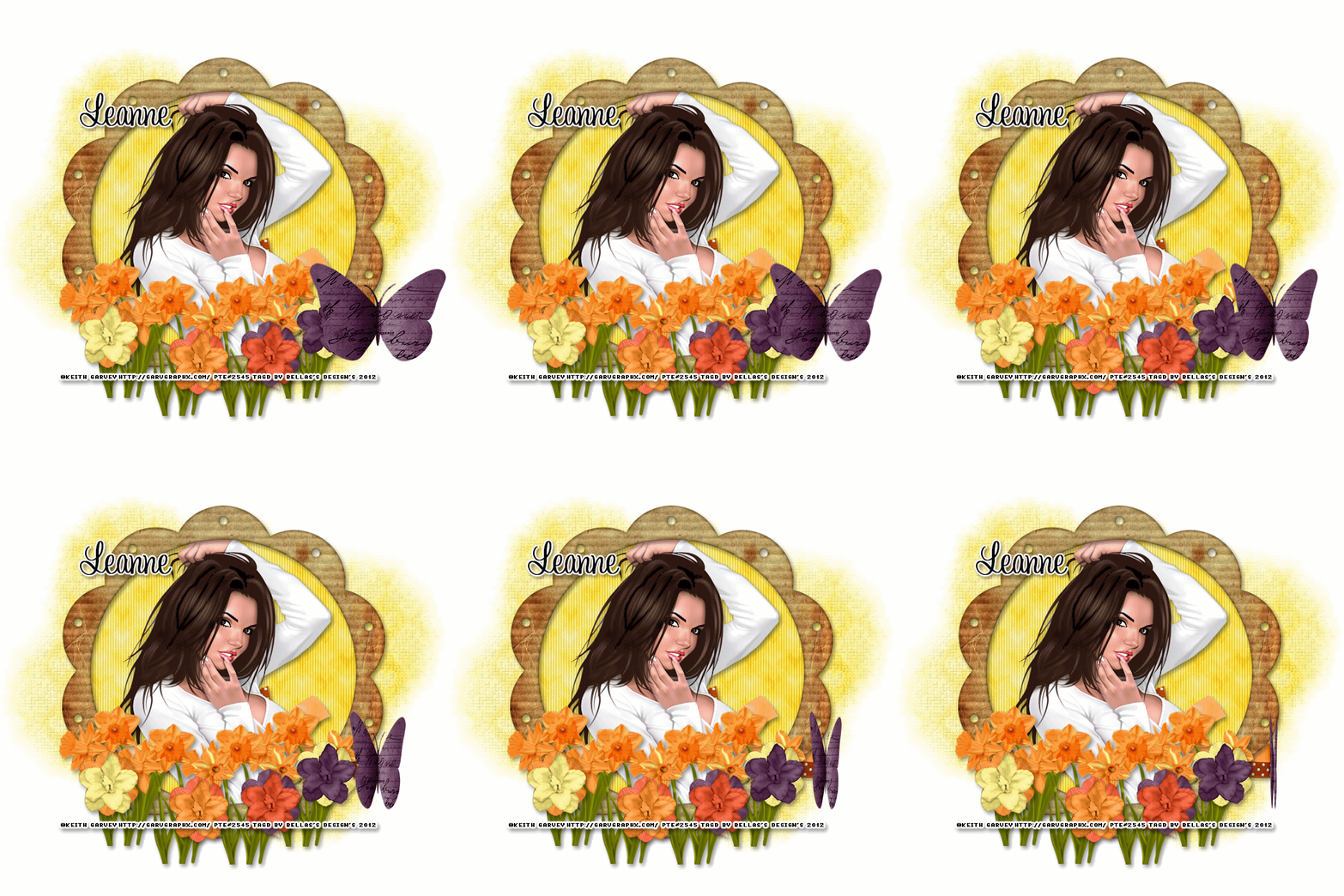
Scrapkit of choice. I used a PTU kit by DesignedByStina Called EveningSunset at purchased here
I used the artwork of Keith Garvey You have to be licensed to use this artwork and it can be purchased here
Plug-ins used:
Lokas Software - 3D Shadow
EyeCandy4000- gradient glow
photoeffex-scanlines
Anmations Shop
Open a new canvas 700x700 Transparent
1.Open up your DBS_Frame10 copy and paste as new layer resize 80%,take your magic wand click inside modify expand by 5 add new layer flood with DBS_Paper08,apply photoeffex-scanlines with these settings, 2,2,20,10,2,2 vertical toggle checked,
Give your frame layer Apply Lokas 3D Shadow with settings at B35, T60, Angles X,Y, and Z at 0, zoom 100, Offset X-Y by 5, Perspective at 35 color black
2.Open up your DBS_Wrap03 copy and paste as new layer resize 60% move down close to your bottom of your frame,Apply Lokas 3D Shadow with settings at B35, T60, Angles X,Y, and Z at 0, zoom 100, Offset X-Y by 5, Perspective at 35 color black
4.Open up your Tube Copy and paste as new layer resize 80% sharpen then duplicate then Gaussian Blur 2 then change blend mode to soft light.merge down, then changle blend mode to normal
5.Open up your DBS_Daffodils02 copy and paste as new layer resize 60% the Duplicates 4 times Merge down,Resize 50%, Duplicates Image Mirror,Apply Lokas 3D Shadow with settings at B35, T60, Angles X,Y, and Z at 0, zoom 100, Offset X-Y by 5, Perspective at 35 color black
6.Open up all your Flowers01,02,03,04 copy and paste as new layer resize 40%x2 Merge down,Apply Lokas 3D Shadow with settings at B35, T60, Angles X,Y, and Z at 0, zoom 100, Offset X-Y by 5, Perspective at 35 color black
7.Add your copyright info and your watermark/logo
8.I hope you enjoyed my tutorial and come visit again real soon!
9.Open Animation Shop Edit Paste As New Animation
10.Edit Duplicate Selected.Repeat Duplicate Selected 4 more times.You should have 17 frames
11.Go Back into PSP.Open DBS_PaperButterfly01.Image Resize.Resize by 60%x2, Smart Size, Resize all layers unchecked.Adjust Sharpness Sharpen.Edit Copy.
12.Back into Animation Shop.Edit Paste As New Animation
13.Effects Insert Image Effect, with these settings Animation Frame checked effects length:4.0secs,Frames per second 4fps Effects Compress
14.Edit > Select All.Edit Copy.On your main canvas Edit Select All.Edit Paste Into Selected Frame.Place the butterfly at the top of your image, or to your liking.
save and we're done

Scrapkit of choice. I used a PTU kit by Butterfly Kisses Scraps Called Shabby chic at purchased here
I used the artwork of Keith Garvey You have to be licensed to use this artwork and it can be purchased here
Template by Becky's Creations. Template 106 can be downloaded here
Plug-ins needed:
Lokas Software - 3D Shadow
EyeCandy4000- gradient glow
Xero - Porcelain
Xero - Fritillary
1.Click on your Frame fill select all float and defloat add new layer flood with #b54a5e apply xero fritillary with these setting 3,30,10,17, then apply it again same setting
2.Keep selection open up your tube copy and paste as new layer selections invert delete on keybroad, Apply Lokas 3D Shadow with settings at B35, T60, Angles X,Y, and Z at 0, zoom 100, Offset X-Y by 5, Perspective at 35 color black.
apply xero porcelain with these setting 50,128,128,0,255,0
3.Click on your Frame select all float and defloat add new layer flood with #a9916f Adjust add/remove noise add noise with these setting Uniform Monochrome checked and Noise 100% Apply Again,Apply Lokas 3D Shadow with settings at B35, T60, Angles X,Y, and Z at 0, zoom 100, Offset X-Y by 5, Perspective at 35 color black.
4.Open up your flower2 copy and paste as new layer resize 20% then apply Mura's Filter Meister Copies with these setting Spiral -Circle Tile(mode) Behind, Resize 60% Duplicates Image Mirror,Apply gradient glow Fat white Line, Apply Lokas 3D Shadow with settings at B35, T60, Angles X,Y, and Z at 0, zoom 100, Offset X-Y by 5, Perspective at 35 color black.
5.Click on your Rectangle1 select all float and defloat add new layer flood with #b54a5e apply xero fritillary with these setting 3,30,10,17, then apply it again same setting
6.Click on your rectangle1 background select all float and defloat add new layer flood with #a9916f Adjust add/remove noise add noise with these setting Uniform Monochrome checked and Noise 100% Apply Again,Apply Lokas 3D Shadow with settings at B35, T60, Angles X,Y, and Z at 0, zoom 100, Offset X-Y by 5, Perspective at 35 color black.
7.Click on your Circle select all float and defloat add new layer flood with #b54a5e apply xero fritillary with these setting 3,30,10,17, then apply it again same setting
8.Click on your circle scallop select all float and defloat add new layer flood with #a9916f Adjust add/remove noise add noise with these setting Uniform Monochrome checked and Noise 100% Apply Again,Apply Lokas 3D Shadow with settings at B35, T60, Angles X,Y, and Z at 0, zoom 100, Offset X-Y by 5, Perspective at 35 color black.
9.Click on your Rectangle1 select all float and defloat add new layer flood with #b54a5e apply xero fritillary with these setting 3,30,10,17, then apply it again same setting
10.Click on your rectangle scallop select all float and defloat add new layer flood with #a9916f Adjust add/remove noise add noise with these setting Uniform Monochrome checked and Noise 100% Apply Again,Apply Lokas 3D Shadow with settings at B35, T60, Angles X,Y, and Z at 0, zoom 100, Offset X-Y by 5, Perspective at 35 color black.
11.Open up your Ribbon Copy and paste as new layer resize 30% Duplicate Image Mirror, Merge Down, Duplicate Image Flip.Apply Lokas 3D Shadow with settings at B35, T60, Angles X,Y, and Z at 0, zoom 100, Offset X-Y by 5, Perspective at 35 color black.
12.Open up your paperbutterfly copy and paste as new layer resize 25% Apply Lokas 3D Shadow with settings at B35, T60, Angles X,Y, and Z at 0, zoom 100, Offset X-Y by 5, Perspective at 35 color black.
13.Take your Text Tool and Written Scabby Chic Beauitful Country Girl, Apply gradient glow Fat White Line ,Apply Lokas 3D Shadow with settings at B35, T60, Angles X,Y, and Z at 0, zoom 100, Offset X-Y by 5, Perspective at 35 color black.
Add your copyright info and your watermark/logo
I hope you enjoyed my tutorial and come visit again real soon!

Scrapkit of choice. I used a PTU kit by DesignedByStina Called IndianSummer at purchased here
I used the artwork of Keith Garvey You have to be licensed to use this artwork and it can be purchased here
Plug-ins used:
Lokas Software - 3D Shadow
EyeCandy4000- gradient glow
Xero - Porcelain And Fritillary
Tramages – Tow the Line
Mura - Meister Copie
Template by Freebie Friends Scraps And More . by Tracy.F Designz -AutumnTemplate4. can be downloaded here
Wordart by Precious Beauties can be downloaded here or here thanks hun
Open up your template in psp.
Duplicates (Shift+D) And Close out the original.
Delete Following credit layer.Ribbon,dotted rectangle,Text
Canvas size 700x700 resize all layers by 120%
1.Click on your Dotted Circle1 Apply gradient glow fat white,
2.Click on your Circle select all float & defloat add new layer flood with #6e1222,Adjust add/remove Noise Add Noise with these settings Gaussian,Monochrome,Noise 20%, apply Xero: Fritillary with these settings: 3,30,10,11
3.Click on your Circle Frame select all float & defloat add new layer flood with #e79d9b,apply Xero: Fritillary with these settings: 3,30,10,11,Apply gradient glow fat white,Apply Lokas 3D Shadow with settings at B35, T60, Angles X,Y, and Z at 0, zoom 100, Offset X-Y by 5, Perspective at 35 color black.
4.Click on your Dotted Circle2 Apply gradient glow fat white,
5.Click on your Strips select all float & defloat add new layer flood with #6e1222,Adjust add/remove Noise Add Noise with these settings Gaussian,Monochrome,Noise 20%, apply Xero: Fritillary with these settings: 3,30,10,11,Keep selections,Modify select selections borders with these settings inside,Anti-alias border width-5, add new layer flood with #e79d9b,
apply Xero: Fritillary with these settings: 3,30,10,11,Apply gradient glow fat white,Apply Lokas 3D Shadow with settings at B35, T60, Angles X,Y, and Z at 0, zoom 100, Offset X-Y by 5, Perspective at 35 color black
6.Open up your DBS_AutumnBranch01 copy and paste as new layer resize 30%x2,Apply Plug-in Mura - Meister Copie with these settings : Encirce Default settings,Apply gradient glow fat white,Apply Lokas 3D Shadow with settings at B35, T60, Angles X,Y, and Z at 0, zoom 100, Offset X-Y by 5, Perspective at 35 color black.Duplicate Sent to bottom, apply Adjust-Blur-Gaussian-15 then apply Tramages- Tow the line with these setting 80,54,48,9
7.Open up your DBS_Bow01 copy and paste as new layer resize 30%x2,Duplicates Image Flip,Apply gradient glow fat white,Apply Lokas 3D Shadow with settings at B35, T60, Angles X,Y, and Z at 0, zoom 100, Offset X-Y by 5, Perspective at 35 color black.
8.Open up your DBS_TulleNet03 copy and paste as new layer resize 30%x2 Duplicates Image Mirror Apply Lokas 3D Shadow with settings at B35, T60, Angles X,Y, and Z at 0, zoom 100, Offset X-Y by 5, Perspective at 35 color black.
9.Open up your DBS_Sunflower03 copy and paste as new layer resize 30%x2,Apply gradient glow fat white,Apply Lokas 3D Shadow with settings at B35, T60, Angles X,Y, and Z at 0, zoom 100, Offset X-Y by 5, Perspective at 35 color black.
10.Open up your Tube copy and paste as new layer resize 80%,Apply Lokas 3D Shadow with settings at B35, T60, Angles X,Y, and Z at 0, zoom 100, Offset X-Y by 5, Perspective at 35 color black.
Merge all your layers and apply Xero Porcelain with settings at 50, 120, 140, 122, 47 and 96
Add your copyright info and your watermark/logo
I hope you enjoyed my tutorial and come visit again real soon!


